
Runing Appvance IQ on Windows as a Service
It is recommended that you start AIQ services automatically rather than manually. The suggested method is to use the Autologon utility to setup Appvance IQ to run as service on Windows.
Autologon is Microsoft utility that enables you to easily configure Windows’ built-in autologon mechanism. Instead of waiting for a user to enter their name and password, Windows uses the credentials you enter with Autologon, which are encrypted in the Registry, to log on the specified user automatically.
Prerequisites:
Appvance IQ is installed on Windows OS
Login to Windows using an account with administrator privileges
Download and Install Autologon
Download Autologon from Microsoft here: Download Autologon
Extract Autologon.zip archive. For example, extract to C:\Autologon.
Setup Autologon Service
Checking for Previous Configurations
Verify that no other entries for Autologon service exist as follows. If there are previous configurations on the server, it may prevent Autologon from working correctly.
For any past users for which an Autologon service was created:
Open Autologon.
Enter the Username, Domain and Password.
Click Disable.
Check the Registry for Autologon entries:
Inthe Registry navigate to HKEY_LOCAL_MACHINE\SOFTWARE\Microsoft\Windows NT\CurrentVersion\Winlogon
Change the value of the AutoAdminLogon key from 1 (true) to 0 (false), to disable the AutoAdminLogon feature.
See Turn on automatic logon in Windows on the Microsoft site for more information.
Active Directory considerations:
When the user used to login is provided by an Active Directory domain and the Active Directory is set to have an interactive login, autologon process will not work. In those cases, try creating a local user in the machine itself, edit its group policy to remove any interactive logon and use this local user to set the autologin process.
Configuring Autologon
Open Autologon.exe (64 bit). The Autologon - Sysinternals window appears.
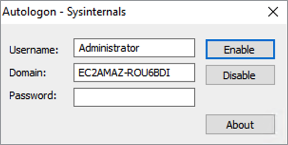
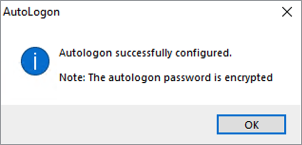
Enter the user’s password and click Enable.
Open Task Scheduler with administrative privileges, click Action and select Create Basic Task. The Create Basic Task Wizard appears.
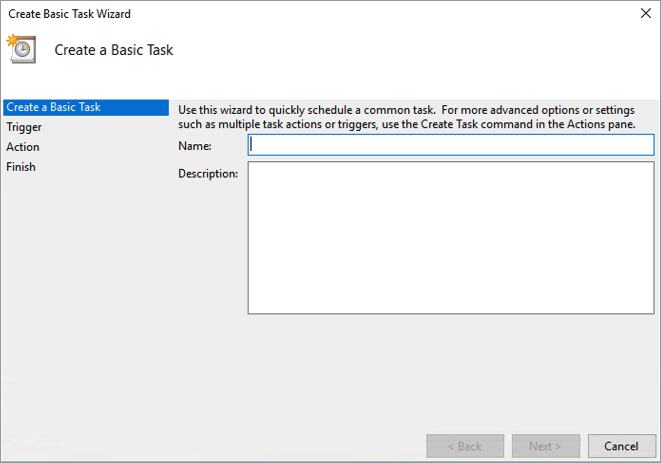
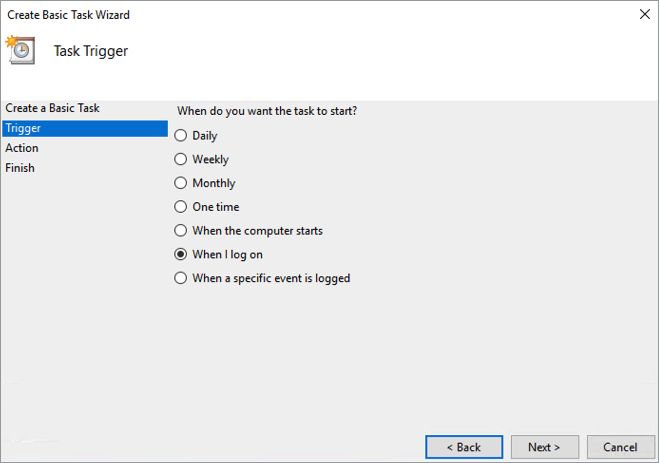
Enter a name in the Name box (such as AIQ or Appvance) and click NextThe Task Trigger list appears
Select When I log on and click Next
The Action list appears.
Select Start a Program and click Next
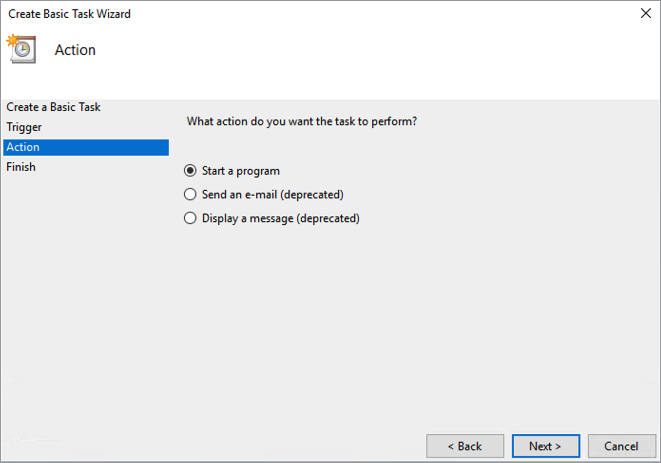
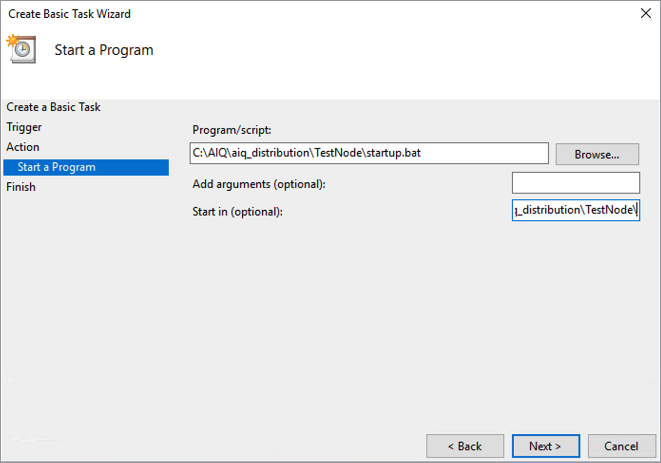
The Start a Program configuration appears.
Click Browse.
Browse to and select <aiq-path>/TestNode/startup.bat and click Open.
IMPORTANT: Also enter the <aiq-path>/TestNode/ path in the Start in box and click Next.
Select Open the Properties dialog for this task when I click Finish.
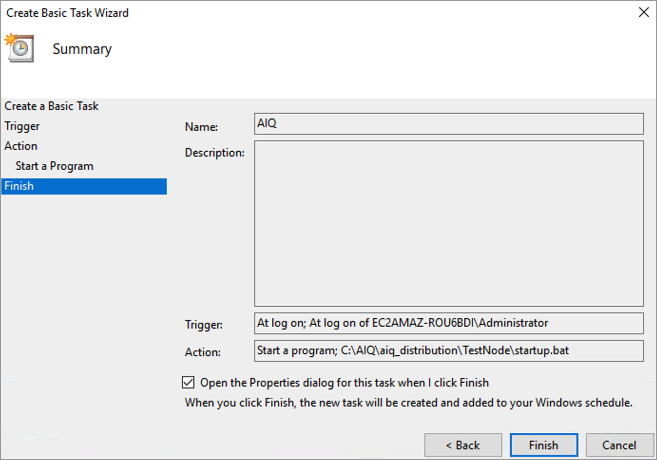
Click FinishThe Properties dialog appears.
Select Run only when user is logged on.
Check Run with highest privileges.
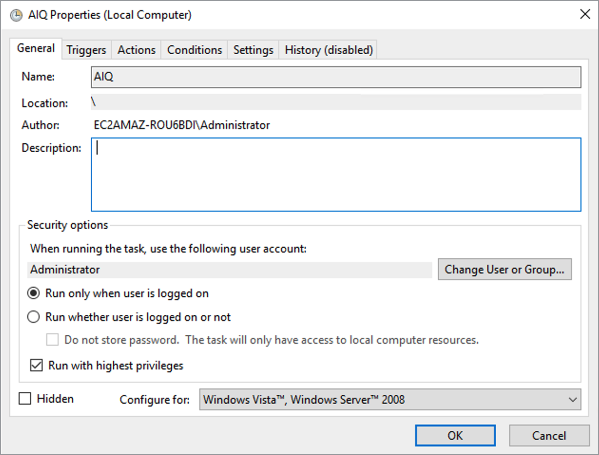
Click Settings.
Uncheck the Stop the task if it runs longer than option.
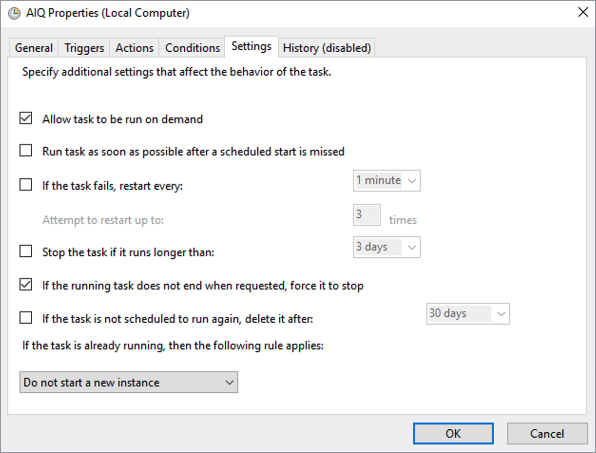
Click OK.
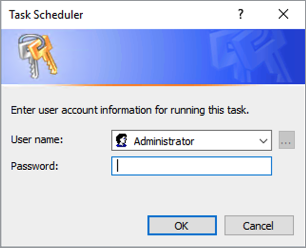
When prompted, enter the service username and password to apply the changes and click OK.
Verifying Autologon Service
You may test the Autologon service by running it manually from the Task Scheduler. However to ensure the settings are working as expected, it is recommended that you restart the server and confirm that Appvance IQ launches properly without a user directly logging into the server.
Last updated: March 26, 2024
If you have any feedback on this topic, please contact us at documentation@appvance.ai