
Use SQL*Plus to Validate RDS Database Connectivity
DownloadLast Toolsreviewed: September 22, 2026
GoUse to:this (winpage x64)when http://www.oracle.com/technetwork/topics/winx64soft-089540.htmlSQL*Plus is needed to validate Oracle-compatible RDS connectivity or run approved diagnostic queries for AIQ-related environments.
Go
Recommended to:guidance
Download
- Confirm the
followingdatabasepackages:engineis
before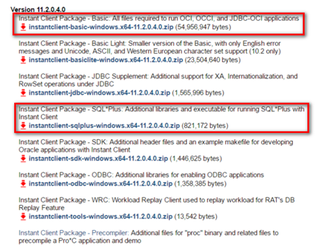
UnzipusingbothSQL*Plus. - Use
packagesapprovedinclientanysoftwarefolderandsayleast-privilegeDocuments.databaseaccounts.
- Never

Copypasswordsallor connection strings with secrets into documentation.
Validation workflow
- Confirm hostname, port, service name/SID, network access, and security group rules.
- Install the
contentsapprovedofOracleSqlplusclientdownloadorintoSQL*Plus package for theinstallclient_11_2adminfolder.workstation or host. - Test connectivity with a least-privilege account.
- Run only approved read-only diagnostic queries unless a change window authorizes updates.
- Record results without including credentials.
Note: 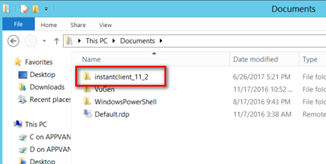
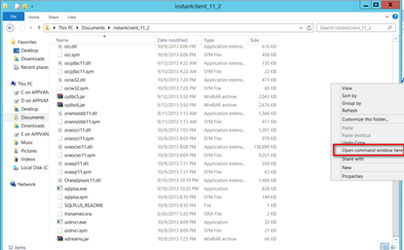
Double click folder, and copy full path from address bar:
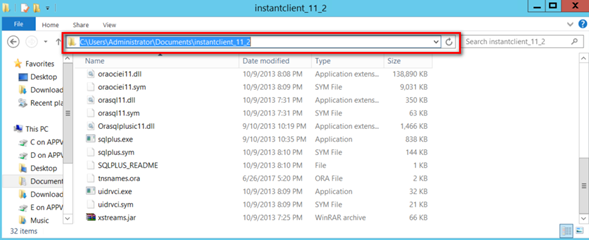
Path sample: “C:\Users\Administrator\Documents\instantclient_11_2”
System Configuration
Open “Control Panel” > “System and Security” > “System”.
Click “Change settings” > “Advanced” > “Environment Variable”.
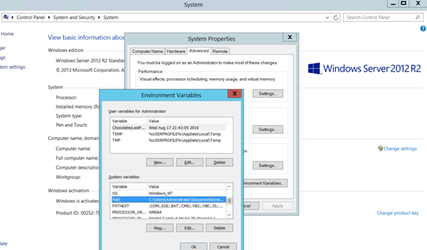
On System variable: ”Click “Path” > “Edit”.
Paste at the beginning of the folder path: “[folderlocation]\instantclient_11_2;” (include the semicolon “;”)
Click OK, and to close all system windows.
Belowarticle is anothernot fileMySQL-specific calleddespite tnsname.ora,its downloadcurrent andbook placelocation; theconsider filemoving inor theconsolidating sameif folderdatabase "installclient_11_2.books are reorganized.
Edit the file in any of your favourite editor:
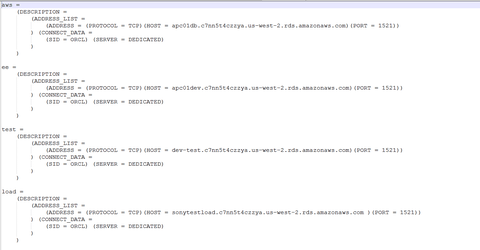
Copy one entry say 'aws' and paste below.
Change the name of aws to a desired name (say qatest) and also change the HOST to the new RDS.
Save the file.
Opening SQL Plus:
Go to folder “[folderlocation]\instantclient_11_2” (where instantclient folder was unzipped)
Shift Right click, and click “Open command window here”
On command line prompt, type:
sqlplus username/password@qatest
where username: is the root username of the RDS instance
password is the root password of the RDS instance
qatest is the alias name that was provided in tnsnames.ora
To verify connection with database, type
Select * from cat;
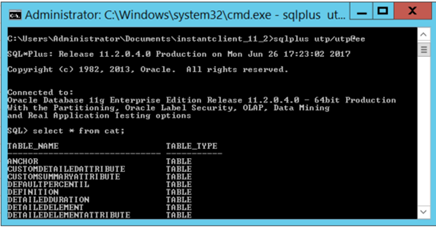
Once connected, run the OracleInitial.sql file by dragging and dropping placing an @symbol in the beginning.
Now connect again using utp/utp@qatest
Run OracleAppvance.sql file by dragging and dropping the file placing an @symbol in the beginning.
Last updated: JulySeptember 03,22, 20232026
If you have any feedback on this topic, please contact us at documentation@appvance.ai.