
Configure Outlook 365 Email Clients with OAuth 2.0
Oauth2Last supportreviewed: hasSeptember been29, added2026
Use this article when AIQ-related email clientstesting suchor asservice flows require OAuth 2.0 access to Outlook that365 have deprecated basic authentication for IMAP email and moved to Oauth.
Support for this was added in the AIQ 4.8.8 and 4.9.0 releases.mailboxes.
SettingWhat up Azure
Go to >Azure (https://portal.azure.com/) and sign in with your credentials.
Expand the left side menu and select Azure Active Directory.
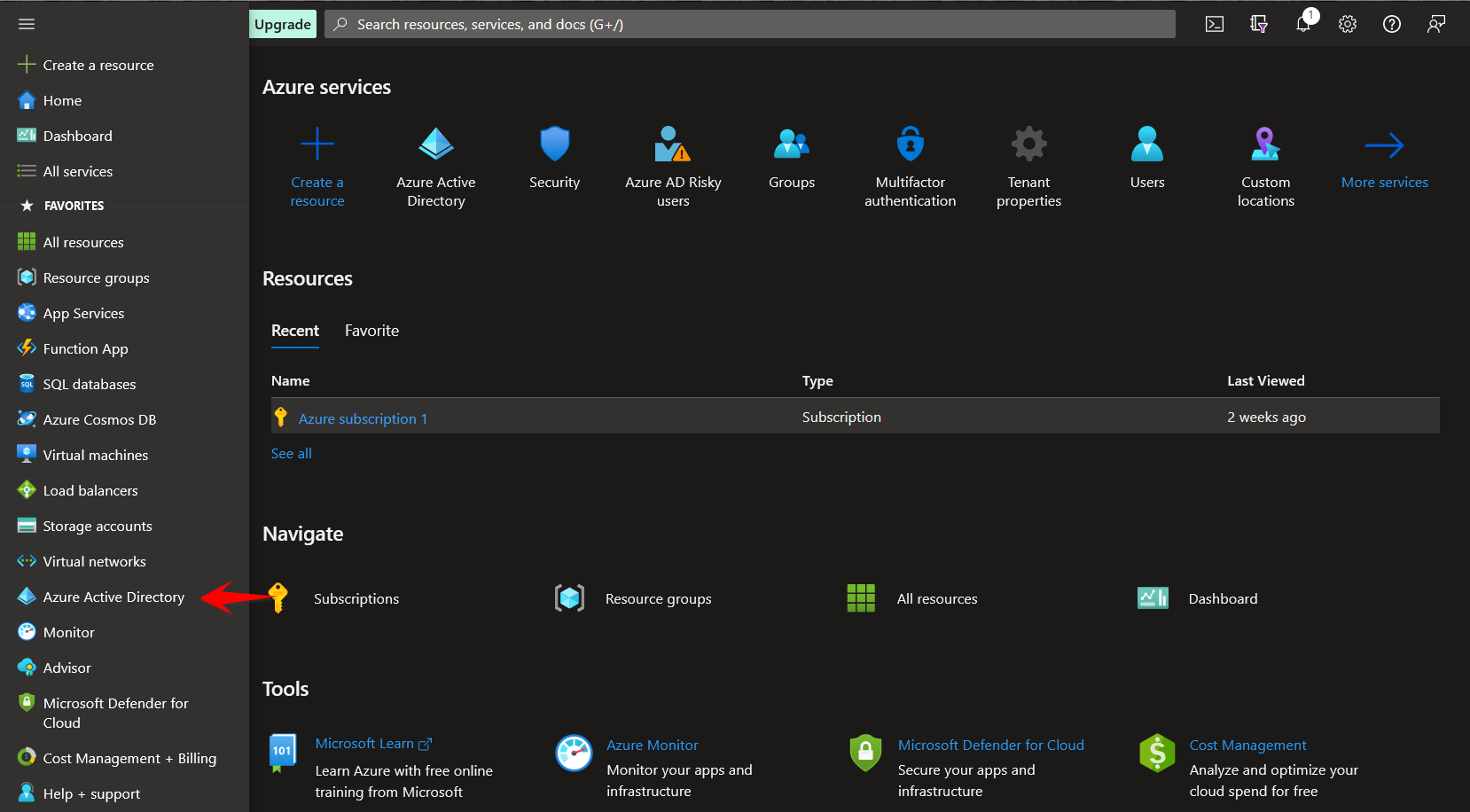
In the left side menu, select App registrations.
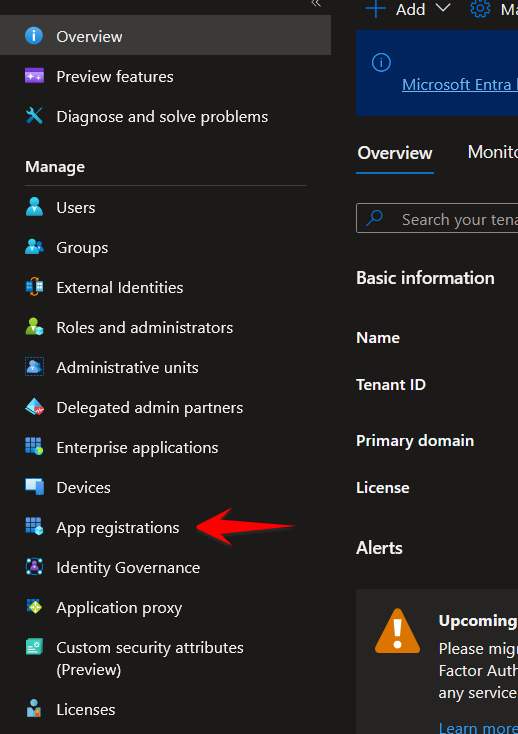
Click New Registration.
Enter a name to identify your application.
In Supported account types, select Accountschanged in this organizationalarticle
directory
- Corrected
onlyOAuth(Single2.0tenant)
and 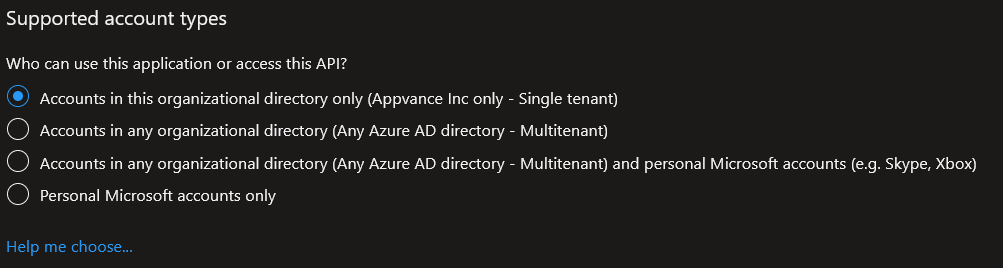
Click Register.
Inclarified the leftarticle sideis menu,about clickOutlook API365 Permissions.
Delete any existing permissions.
Click AddAdded a permission.
Validation workflow
OAuthSelectConfirm theAPIstenantmyallowsorganizationtheusesselectedtab.flow
mailbox access pattern.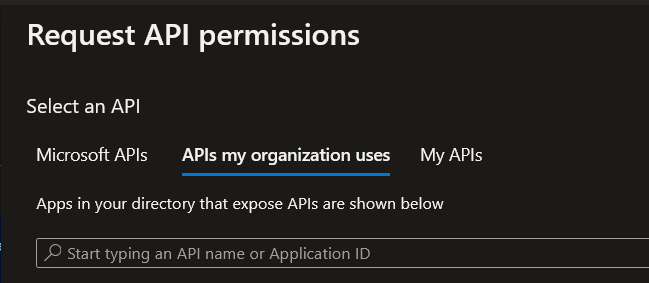
- Validate
- app
Searchregistration,forscopes,“Officeredirect URI, and consent with the Microsoft 365Exchange Online“. In the select permissions search box type “IMAP“ and select the results.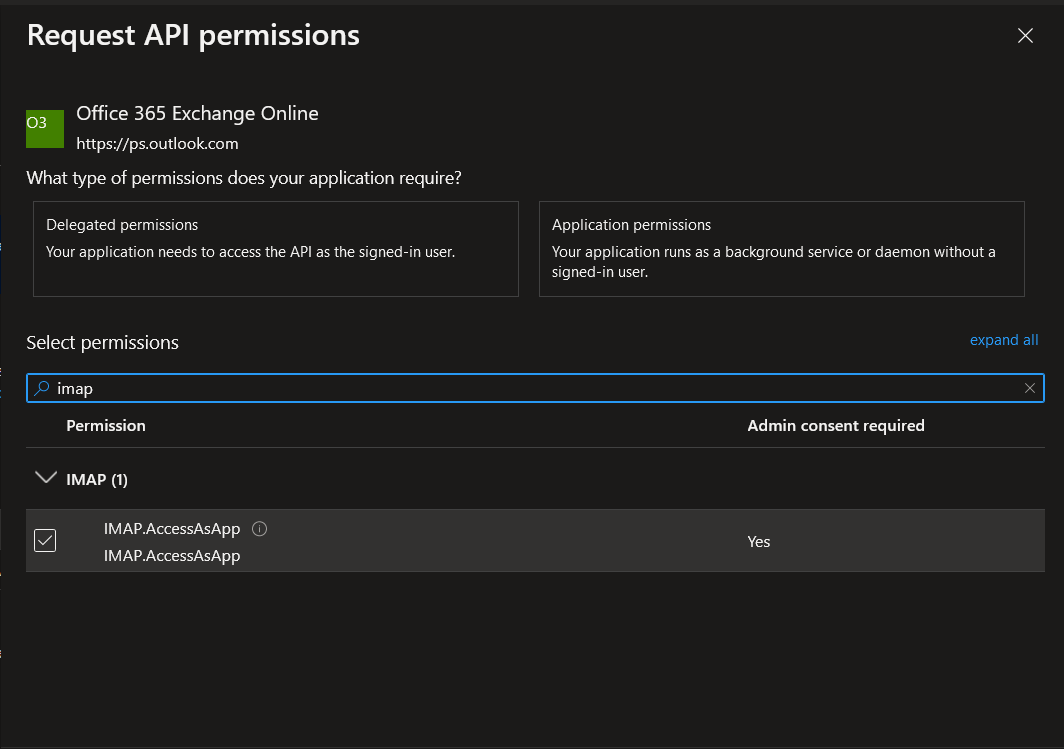
Click Update permissions.
This permission needs to be authorized by an administrator of your organization. If your are the administrator, click Grant admin consent for {Organization}. If you’re not an administrator, please contact an administrator to authorize this permission.

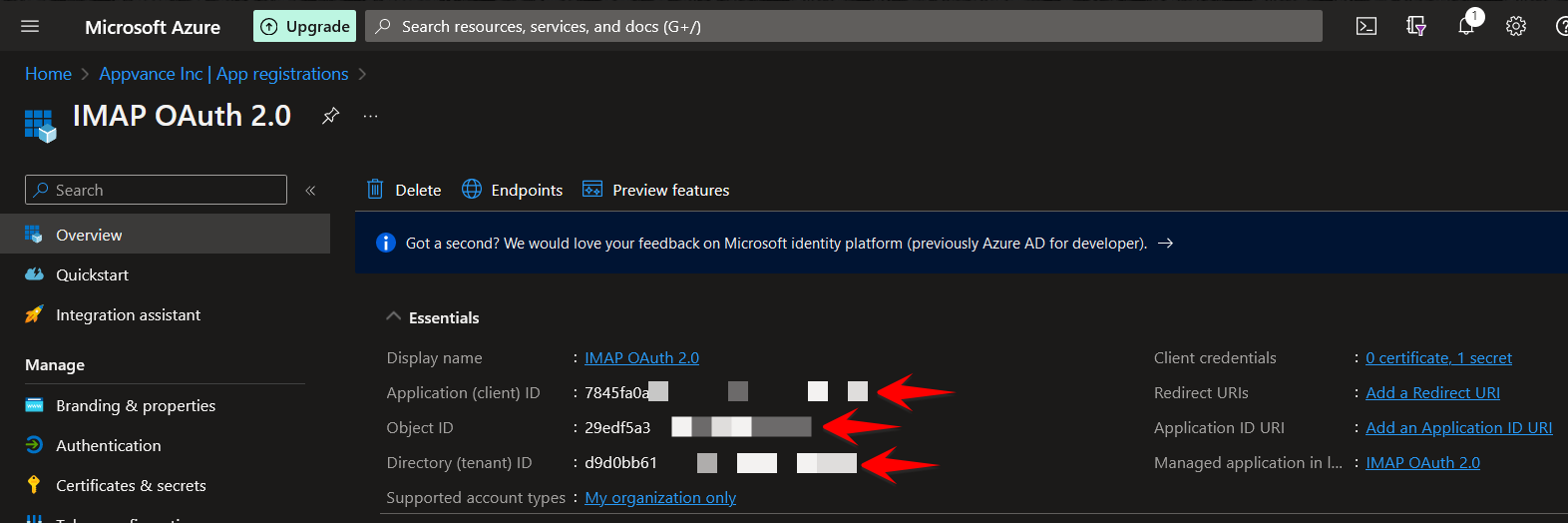
Save the values in the Overview page. You will need them in the command line configuration steps.
Command Line Configurations
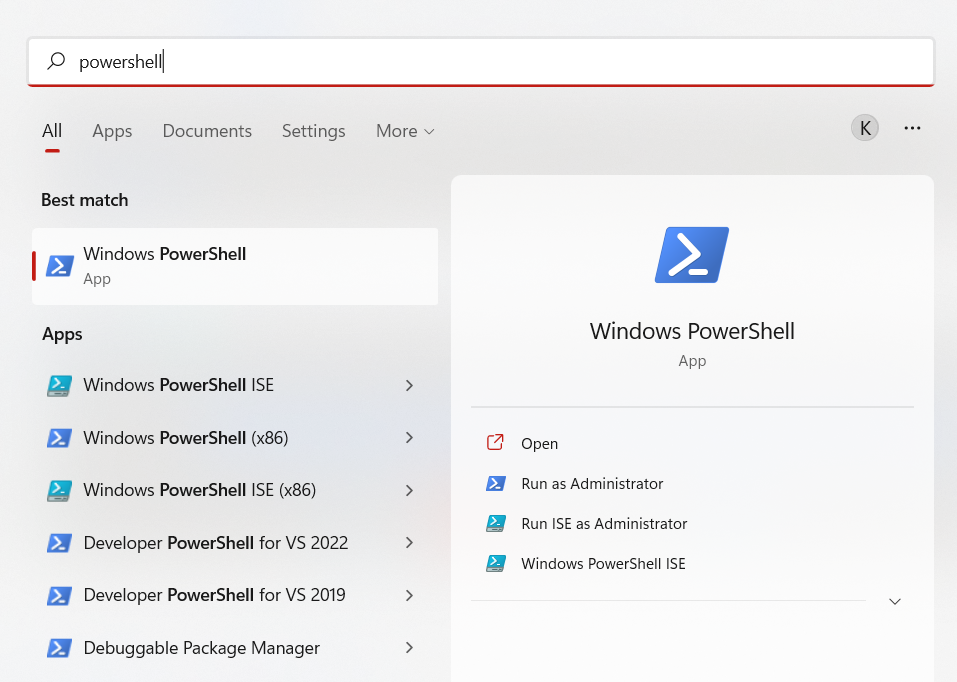
Run Windows PowerShell as an Administrator.
Run the command: Install-Module AzureADIf it requests a confirmation, press Y and then Enter.
Run the command: Install-Module ExchangeOnlineManagementIf it requests a confirmation, press Y and then Enter.
Run the command: set-executionpolicy unrestrictedIf it requests a confirmation, press Y and then Enter.
Run the command: Connect-ExchangeOnline --Credential $CredentialThe output should be something similar to this:

Run the command: $app = Get-AzureADServicePrincipal -SearchString "{Application Name}". Use the application name from Step 15 of the Setting up Azure section.
Run the command: New-ServicePrincipal -AppId $app.AppId -ServiceId $app.ObjectId -DisplayName "{Application Name} Service Principal"
The output should be something similar to this:

Run the command: Add-MailboxPermission -Identity "<USER ID>" -User $app.ObjectId -AccessRights FullAccessThe output should be something similar to this:

Run the command: $startDate = Get-Date
Run the command:$endDate = $startDate.AddYears(99)
Run the command: New-AzureADApplicationPasswordCredential -ObjectId {Object ID of Application} -CustomKeyIdentifier "Application Secret" -StartDate $startDate -EndDate $endDateUse the Object ID from Step 15 of the Setting up Azure section.

Example Test Script
You can use the following example as a test Serviceauthentication Suiteflow script.and Youverify mustmail performaccess without exposing tokens or client secrets in logs.
Review note: Updated the abovepage configurationtoward stepsOAuth first,2.0 sosecurity you can collect the required parameters: secret key, application idrequirements and tenantaway id.from older password-based mail automation.
var mailClient = createOAuthMailClient( "mail@outlook.com", "secretKey", "applicationID", "tenantid");
mailClient.loginOAuth();
var Mails = mailClient.getOAuthEmails();
log(" " + Mails.toString());
mailClient.logoutOAuth();
See List of Services Workbench Calls for more details.
Last updated: AugustSeptember 02,29, 20232026
If you have any feedback on this topic, please contact us at documentation@appvance.ai.