
Chrome Browser Cloud Management Settings - Legacy Flash Reference
Chrome Browser Cloud Management Settings - Legacy Flash Reference
ThereThis arepage someis settingsretained inonly as a legacy reference. Adobe Flash is obsolete and modern Chrome thatversions areno longer support enabling the Flash plugin for normal testing. Do not availableuse asthis command-line options and are difficultarticle to setrecommend Flash-based workflows for TestDesginercurrent orAIQ other engine testing purposes.testing.
A
Current guidance
- Use Chrome Browser Cloud Management
accountonlywillforletsupportedyoubrowserdefinepoliciesallsuchsortsasofdownloads, certificates, pop-ups, extensions, proxy settings, or managed profiles. - Replace Flash-dependent test coverage with supported application behavior whenever possible.
- Document any customer-specific legacy dependency and the approved replacement plan.
- Validate policy changes in a small browser group before applying them broadly.
- Do not weaken browser security
andsettingscontentunlesssettingsthe customer has explicitly approved the test requirement.
Validation workflow
- Confirm the exact Chrome policy that
otherwisethe test requires. - Apply the policy to a controlled test browser group.
- Run a small AIQ smoke test and review browser behavior.
- Record policy owner, scope, and rollback plan.
Obsolete-content note: Flash-specific instructions are impossible to set,obsolete and all enrolled computers to that account will open its chrome instances using those centrally configured policies.To enroll a computer into the account you copy a .reg file that is provided to you as part of the account creation, and then double click that file in the windows machine you want to enroll. This only needs toshould be doneremoved once.or Belowconsolidated isif anno examplelegacy tocustomer enabledependency the Flash plugin in opened browsers (Warning: Chrome has published that support for Flash will be dropped by December 2020)remains.
This procedure was tested with an EC2 instance running Windows Server 2022.
Enabling plugins like Flash as default
Create a Chrome Browser Cloud Management account, following these instructions Set up Chrome Browser Cloud Management from the Google documentation site.
On previous point steps, you downloaded a .reg file with a token. This .reg file must be copied to the windows machine where you want to remove flash restrictions and double-click it to add the token to the windows registry of that machine. With this, the cloud management service will detect that this machine requires chrome policy administration.
On the machine that you want to enable flash, navigate to https://admin.google.com and login with your deviceadmin.goog account (not gmail.com).
Go to Devices > Chrome Management > User & Browser Settings
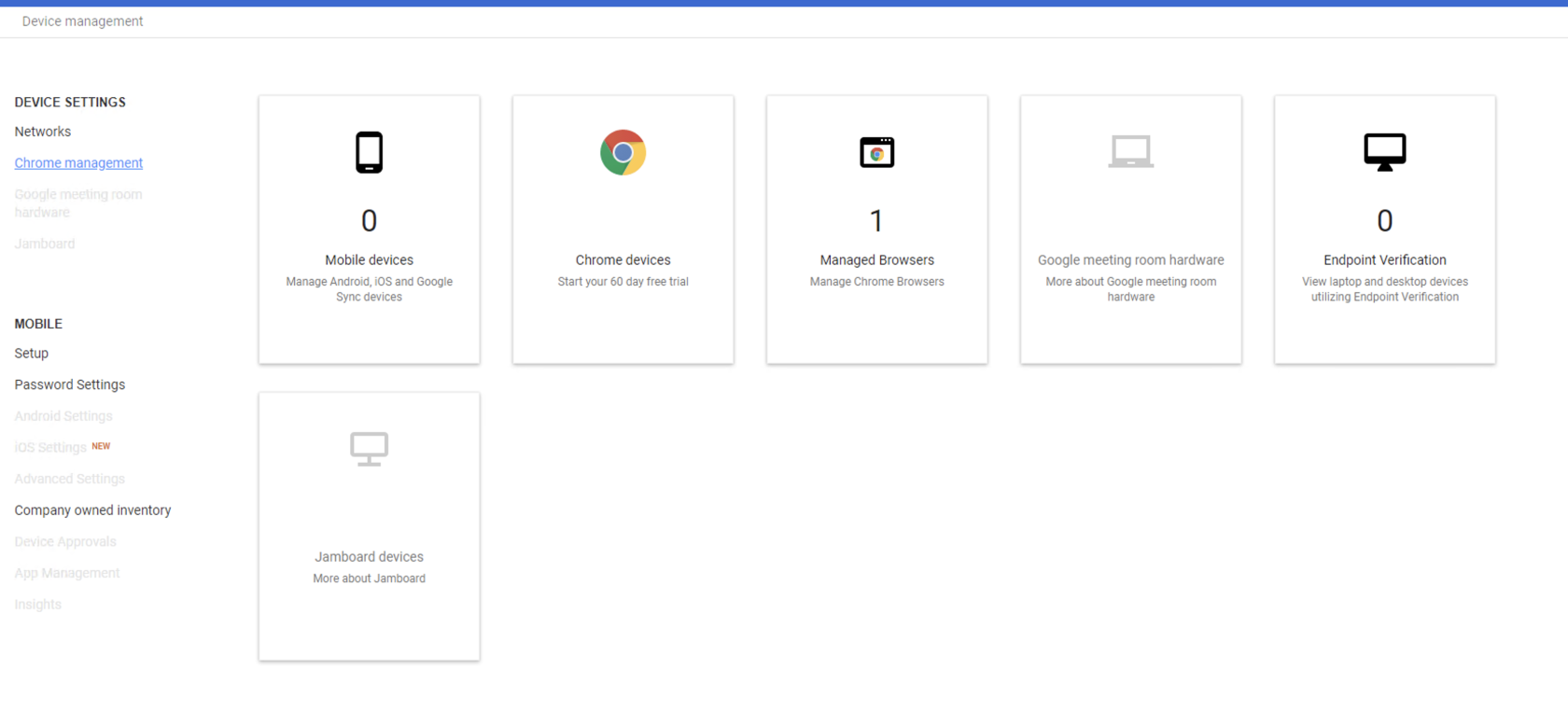
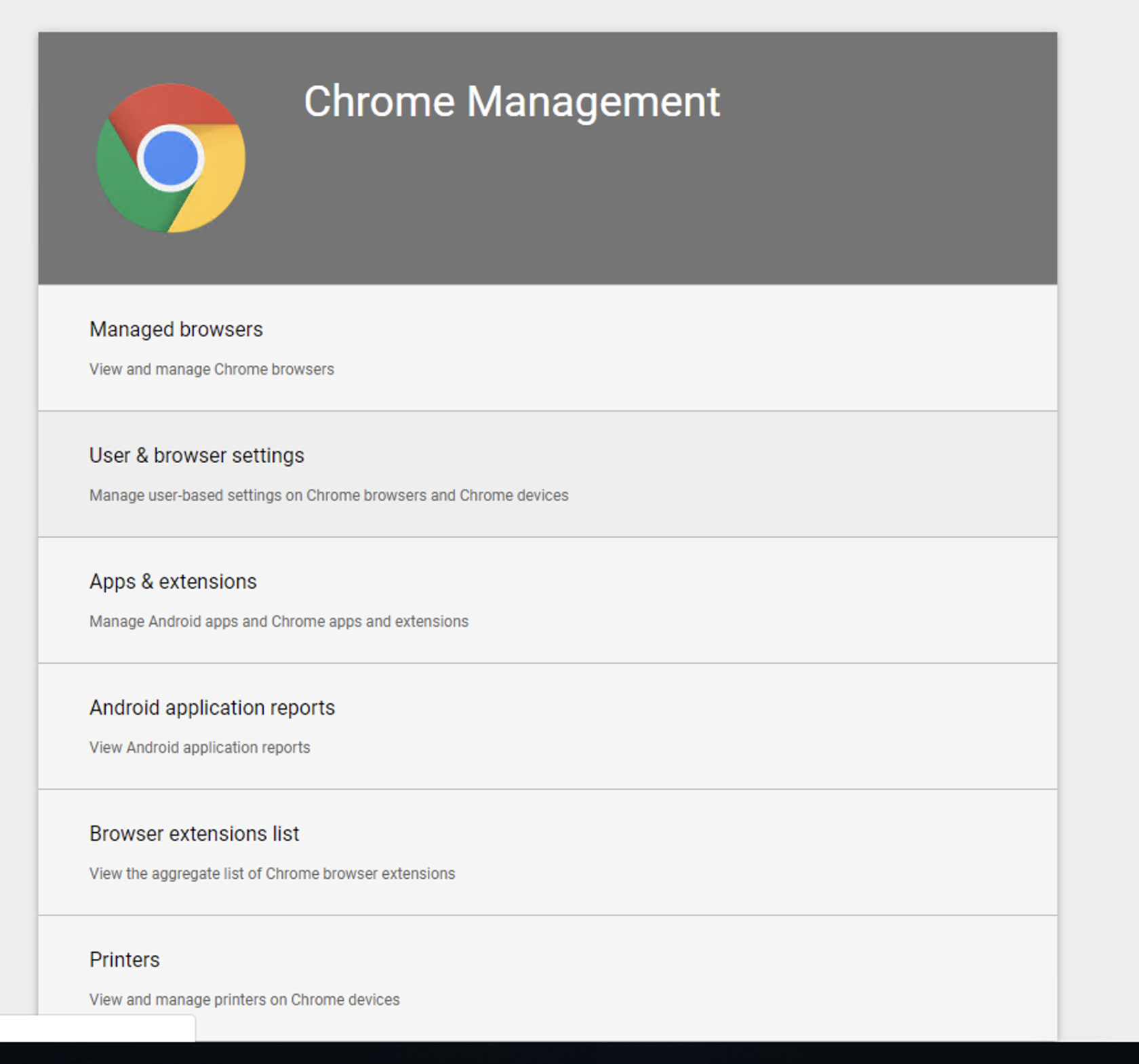
Search (Ctrl-F) for “Plugins” (or scroll down) in the settings list
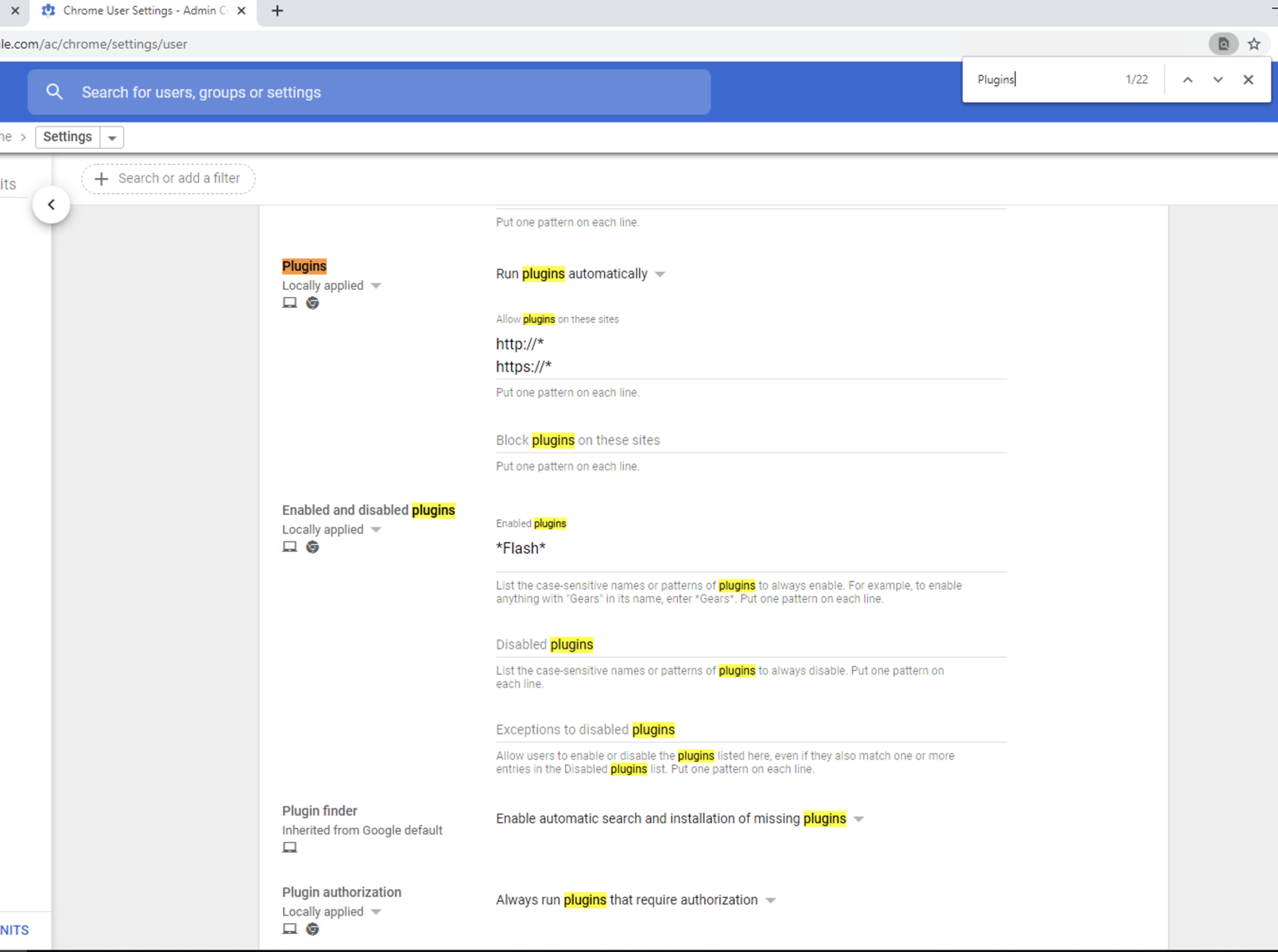
6. On the above window, make the following selections:
a. Run plugins automatically and Allow plugins on these sites: http://* and https://* as seen in the above screenshot.b. Enabled and disabled plugins:
*Flash*
c. Plugin finder: Enable automatic search and installation of missing pluginsd. Plugin authorization: Always run plugins that require authorizatione. Outdated plugins: Allow outdated plugins to be used as normal pluginsf. Popups: Allow all popups
Last updated: MayOctober 14,10, 20252026
If you have any feedback on this topic, please contact us at documentation@appvance.ai