
Legacy Firefox Playback Error Popup Guidance
As
Legacy seenFirefox inPlayback theError screenPopup below, at the end of each playback from designer or scenario builder, it throws up a error pop-up. How to fix this?
Method 1:
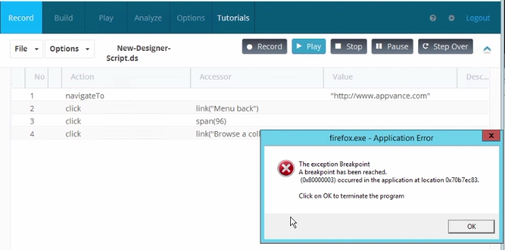
This issuepage is duelegacy toFirefox/Test hardwareDesigner accelerationtroubleshooting feature,content. IfCurrent Scenario Editor tests should use supported browser versions, Test Node logs, and execution output instead.
Recommended guidance
- Do not use this as guidance for new Scenario Editor tests.
- Confirm whether the
hardwareasset(maybestill depends on legacy Firefox or old Designer playback. - Prefer supported browser and driver combinations for current AIQ releases.
- Flag obsolete Firefox-specific workarounds for removal or consolidation.
Validation workflow
- Reproduce the
GPU)issuetriedintoabesupportedcompensatedbrowserbyfirst. - Review
parallelAIQfunctioningoutput,equivalentTesttoNode logs, browser version, and driver version. - Use legacy notes only if maintaining an older asset.
- Document the
CPU, the process maybe quickened. Due to this sometimes the program crashes when this could not be handled.Please disable the following option before starting the playback :Tools > Options > Advanced > General > Browsing: "Use hardware acceleration when available"Also in FirefoxThis can also be done by appending the following text to FF profiles file:user_pref("layers.acceleration.disabled", true)which will be in the path :<firfox installation> Mozilla Firefox\defaults\pref\channel-prefs.jsMethod 2:Please install FF according to machine config(64/32 bit).Researching on this, we got some info that needs to be performed to avoid this FF crash error such as Doing windows updates, graphics card updates, reset FF, checking the plugins of FF for any error, do a clear install of FF and so on, But windows 2008 server support has been withdrawn by Microsoft we might not know what other applications/processes is interfering FF."Turn Off The Error Dialog Through The Group Policy Editor:
recommendation.This method is obviously useful if you have the group policy editor available in your version of Windows because it doesn’t involve any manual registry editing. GPEdit is not available in Homemigration orBasicretirementversions of Windows.
1. Open the Group Policy Editor by typing gpedit.msc into the Start search box or the Run dialog.
prevent error message in gpedit
3. Click the radio button Enabled and then press OK.
prevent critial errors display option
For Windows XP Professional the location in the Group Policy Editor is slightly different. Go to Computer Configuration > Administrative Templates > System > Error Reporting, and enable the option for Display error notification in the right pane.Read More: >https://www.raymond.cc/blog/disable-program-has-stopped-working-error-dialog-in-windows-server-2008/"
Last updated: JuneSeptember 26,20, 20232026
If you have any feedback on this topic, please contact us at documentation@appvance.ai