
Legacy AIQ Upgrade Script Reference
Requirements
Legacy AIQ Upgrade Script Reference
It’llLast bereviewed: necessarySeptember 21, 2026
This page is retained as a legacy reference for older AIQ upgrade processes that used helper scripts. For current upgrades, follow the supported AIQ upgrade guide for your version.
When to haveuse this guidance
- You are reviewing an older environment that references a Python
equalupgrade script. - You need to understand historical upgrade notes before migrating to current guidance.
- You are deciding whether to consolidate or
superiorretiretolegacy upgrade pages.
Recommended approach
- Identify the installed AIQ version
3.8and thefollowingtargetmodulessupportedneedversion. - Use
tothebecurrentinstalledofficial upgrade procedure aswell.the - Back
up configuration, database, DPLs, certificates, and custom integrations before any upgrade.requests - Treat
- legacy
scriptssys
os
sysutil
shutil
time
zipfile
datetime
progress
Installation Procedure
Windows
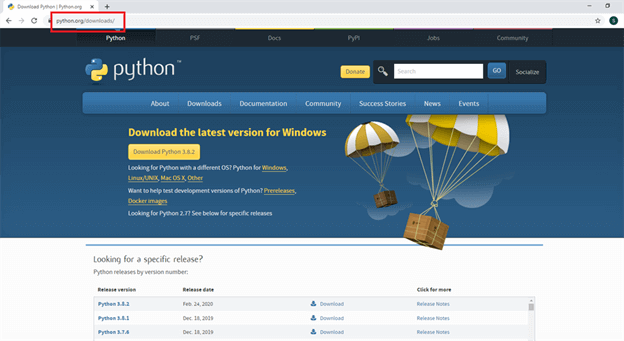
Step 1
Click this link, it will takeinstructs you to theuse Pythonthem.
Websitescenario link.
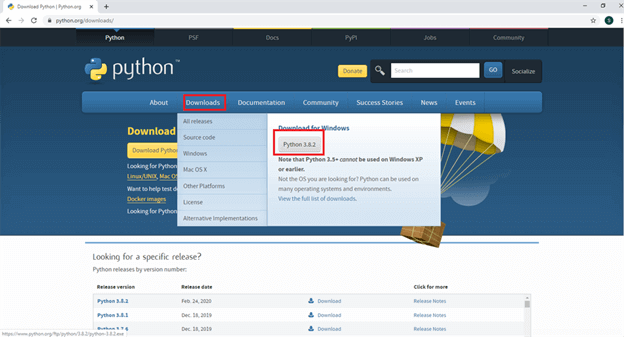
StepNote: 2
Clickupgrade thescripts downloadcan buttonbe andversion-specific. youDo willnot seerun Pythonan 3.8.2.
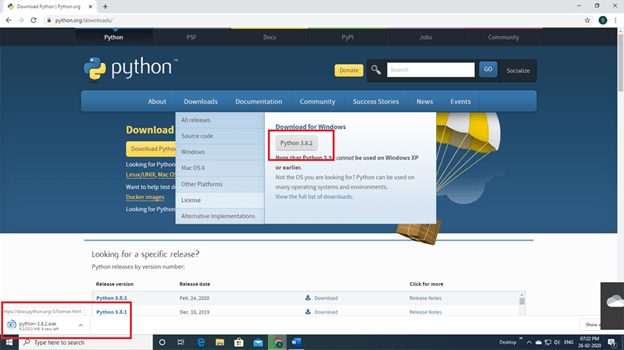
Step 3
Click Python 3.8.2 and Python will start to download.
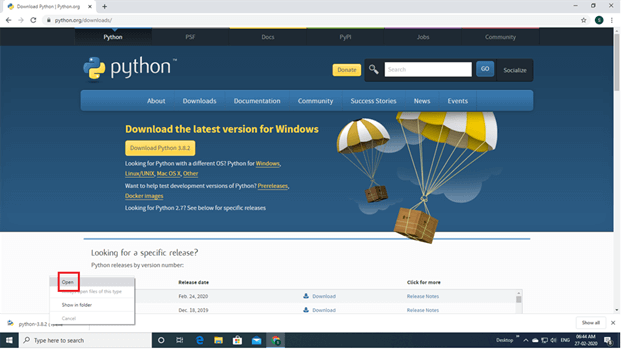
Step 4
Next, right click the mouse button you will see open button click to open.
Step 5
Enable to add Python 3.8 to path and click install now.
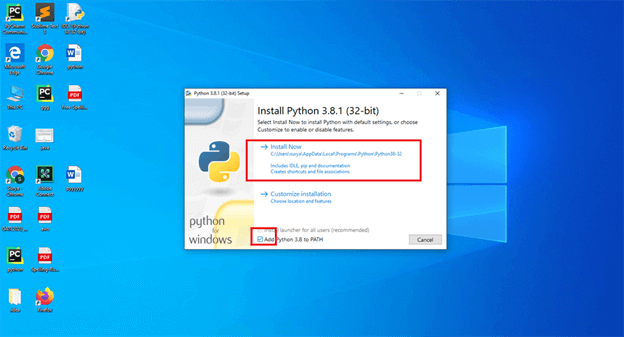
Step 6
Waitagainst a fewcurrent minutesenvironment andwithout displaySupport setup was successful. Next you will click the close button.confirmation.
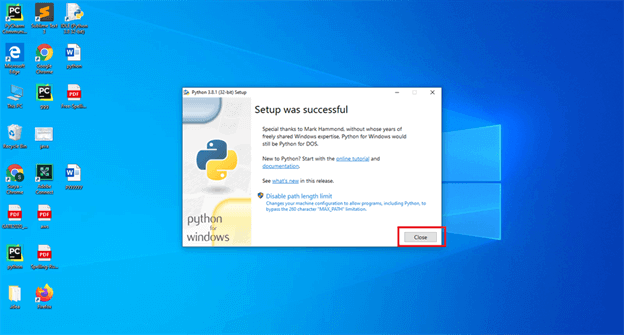
Step 7
Next you will search for IDLE Python, then click enter.
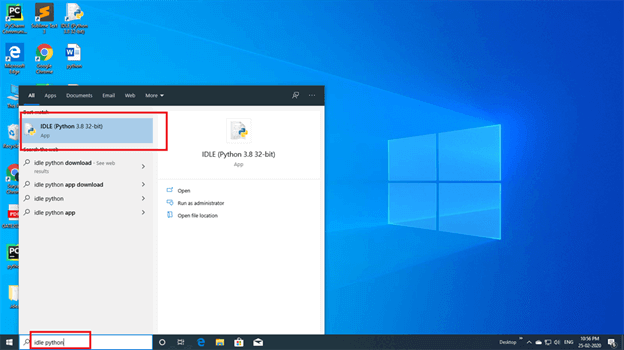
Step 8
Next, click the file button. You will see a new file again. Click the new file button.
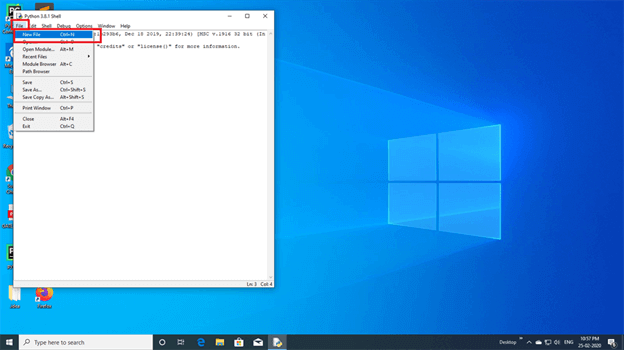
Step 9
To manually install pip, securely download get-pip.py by following this link: get-pip.py. Opening a command prompt window dialog move to the folder where the get-pip.py were downloaded and execute it as below.
py get-pip.py
Mac
I highly suggest following the instructions in the following document.
Linux
installing latest supported version (It’s 3.8.x by now)
sudo apt update -y
sudo apt install python3.8
Defining default version
Ubuntu 20.04 comes with Python 3.8.x version installed but previous Ubuntu versions come with 2.7, It's not recommended to remove 2.7 since there are some basic libraries that are still needed, but makes necessary to choose the default version, below you will find the procedure to achieve this.
sudo update-alternatives --install /usr/bin/python python /usr/bin/python2.7 1
sudo update-alternatives --install /usr/bin/python python /usr/bin/python3.8 2
Make 3.8 version default
sudo update-alternatives --config python
Package importer installation
sudo apt install -y python3-pip
Importing needed modules (all platforms)
Open a command prompt dialog and run the following commands, it’s quite possible that some of then are already installed, anyway, let’s check.
pip install requests
pip install os
pip install sys
pip install sysutil
pip install clint
pip install shutil
pip install zipfile
pip install datetime
pip install progress
AppvanceUpdate.py update procedure
Download the attached python script to a preferred locationAppvanceUpdate.py
The mentioned script has two variables that we need to change according to AIQ and the system environment.
downloadfolder
An existing folder someplace the same machine hosting AIQ
currentfolder
The folder which contains currently active AIQ
Make the changes to those variables and save the file and be sure that the path for the file is correct.
Open a command prompt dialog and navigate to the place where the python script is located.
Run command “python AppvanceUpdate.py <Build URL>“, look at the example below.
python AppvanceUpdate.py https://aiqbuilds.s3-us-west-2.amazonaws.com/4.0.5/master/aiq4.0.5.zip
Start your AIQ services to see the build updated by checking the configuration.
Last updated: JuneSeptember 26,21, 20232026
If you have any feedback on this topic, please contact us at documentation@appvance.ai.