
Working with Appvance IQ on https (https://:8443) in Google chrome and having issues with designer?
If you are working with Appvance IQ on https (https:/<Controller m/c>:8443) in Google Chrome and having issues with designer, this information
Designer launches and downloads “start-proxy” every time when user navigates to designer and gets stuck in between and does not move forward and also does not get proxy started pop-up.
Below are the settings that need to be changed to fix this behavior in Google Chrome browser.
Google Chrome Settings
Make sure the proxy is running. There should be two Java process running.
Step 1:
From Firefox, export the 2 certificates and save it in local machine.
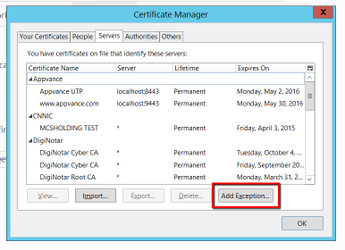
a. Once security exceptions were added successfully to Firefox , Go to options ---> Advanced ---> Certificates ----> View Certificates.
b. Move to Server tab.You can see 2 certificates added under appvance.(Appvance IQ and >www.appvance.com)
c.select the certificates and export it. Save it to your local machine.
Now Go to Google Chrome Browser.
Import and install those 2 saved certificates in chrome. Make sure that 2 certificates (one for APC and another for Appvance Designer) needs to be there in order for APC Desginer to work correctly.
Step 2:
With the below setting change, we are forcing Google chrome to avoid SSL related warnings when navigating to https sites (like: >https://<Controller m/c>:8443/Appvance) by adding "--ignore-certificate-errors" to target field of shortcut tab by right clicking chrome.
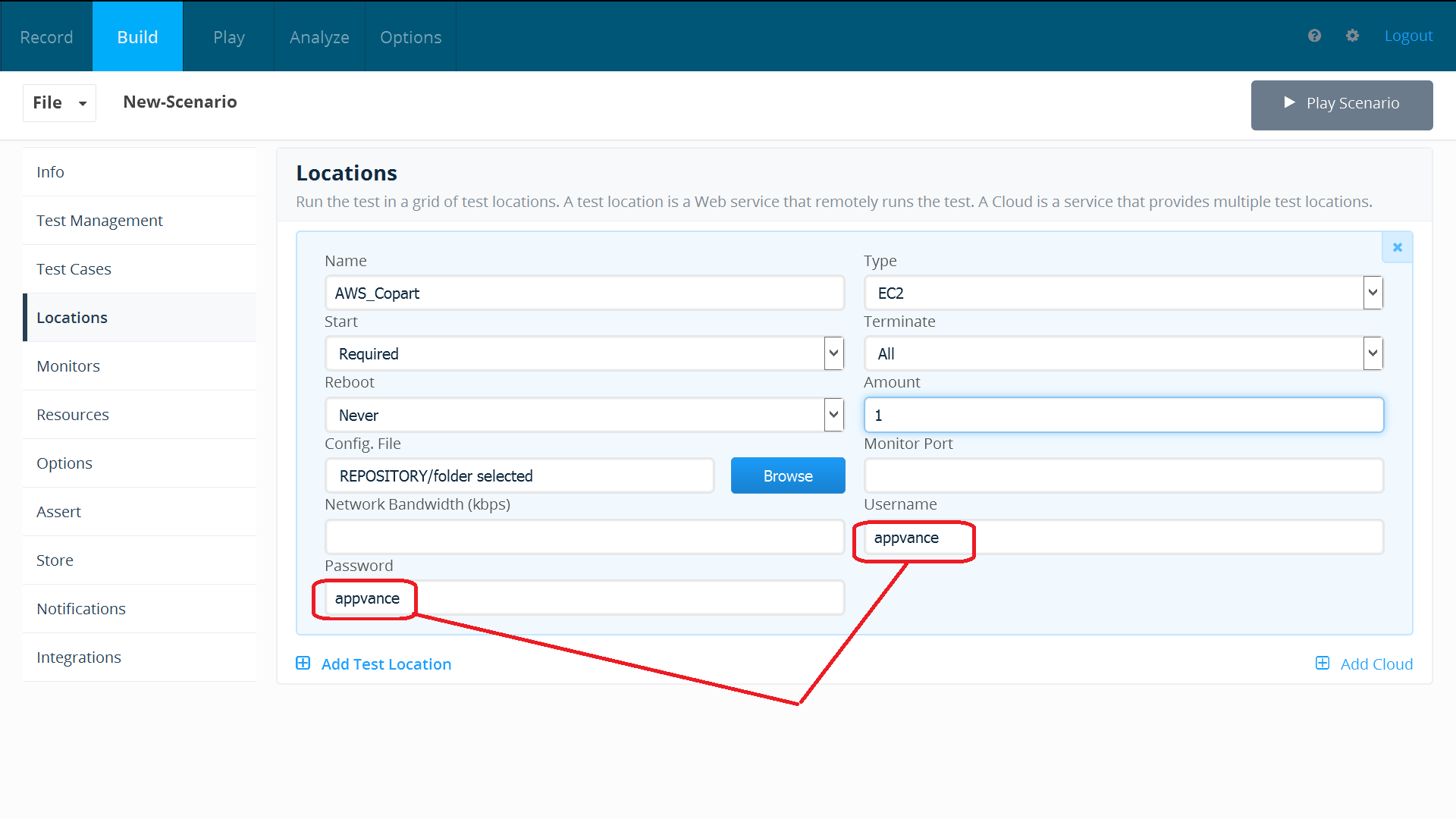
NOTE: This will be a universal fix for all https sites.
After doing above changes,close all chrome browser windows which is open and now launch a new chrome browser window from the place where command line flag was added to target field.
i.e if user makes above changes to a browser shortcut on desktop, then need to launch new browser from the same browser shortcut on desktop.
By doing this change, "proxy is running" message will pop up.
PS:
Above settings is done for chrome shortcut on desktop.
Google Chrome does not remember the "proceed to localhost (unsafe)".When APC navigates to login page(https://<Controller m/c>:8443/Appvance/login.html), it will give unsecure error.Need to click "proceed to localhost (unsafe)" link to proceed further.
If system default browser is chrome, APC opens with default chrome (Path:C:\Program Files (x86)\Google\Chrome\Application\chrome.exe) browser.Follow below steps to work in default chrome browser:
- In a new tab , Enter https://<Controller m/c>:9443
- Click Advanced link
- Click proceed to localhost(unsafe) link
- Now go back to designer page and refresh the page.
- Proxy is retainedrunning pop up should display on Designer page
===============================================
Import settings:
Click the View site information as aseen legacybelow
Click certificate info.
Go to Details tab
Click Copy to File..
Certificate Export wizard will open, click Next
With default values selected, click next.
Specify the path, file name the save Certificate to your local machine.
Once the above certificate is exported successfully, go to Google chrome settings.
Search for olderHTTPS/SSL Chrome
Click HTTPSManage portCertificates.
Go 8443to issuesTrusted Root Certification Authorities
Import the certificate file that was saved in AIQprevious environments.step.
What
Shortenedthelongabovequestion title and removed Designer-centric wording.Marked the localhost/8443 Chrome troubleshooting flow as legacy because current browser and certificate behavior may differ.Added checks for certificate trust, exact URL/port, proxy settings, browser version, and whether the issue reproduces in current supported execution paths.
Validation workflow
Confirm the current supported browser and AIQ URL before following older Chrome troubleshooting steps.Verify certificate trust, proxy settings, port 8443 reachability, and controller service status.If the issue is browser-specific, record the Chrome version and compare with another supported browser path.
Review
note:
This
Last updated: October 2,25, 20262023
If you have any feedback on this topic, please contact us at documentation@appvance.ai.