
Reset an AIQ User Password Securely
Reset an AIQ User Password Securely
Last
reviewed: September 21, 2026
Use
this
Anwhen adminan administrator needs to restore access for an AIQ user canwithout exposing or reusing shared passwords. Prefer the AIQ administration workflow and follow your organization’s credential policy.
When to use UXthis guidance
- A user cannot sign in and requires an administrator reset.
- You need to
resetconfirmothertheusersaccountpasswords back to a default “appvance”exists anduponisnextassignedloginthe correct role. - You need an auditable support workflow for password resets.
Recommended approach
- Confirm the requester is authorized for the target account.
- Open AIQ administration and locate the user
willrecordbeunderprompteduser management. - Use the reset or temporary credential workflow available for your AIQ version; do not publish default passwords in documentation or tickets.
- Require the user to change
histhepassword.passwordJustatgetnexttosign-inGlobalandOptionsverify>thatAdmintheOptionsaccount>works. - Record
Userthemanagementsupport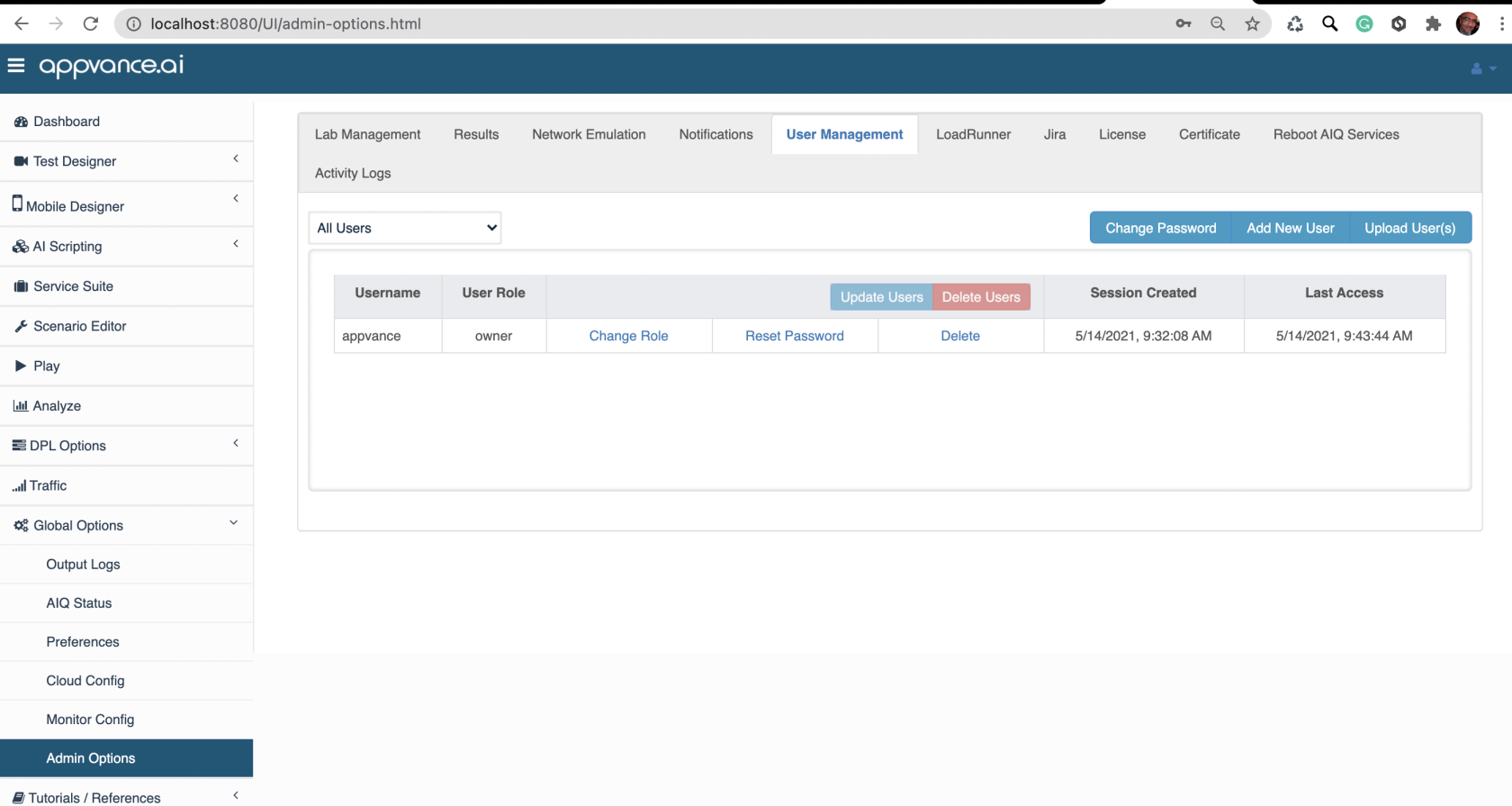
note without including the password value.Using RDPticket orSSHaudit
AlternativelyNote: thereDo not paste passwords into tickets, email, chat, or documentation. If a command-line reset is anotherrequired, commandrun lineit processonly but this needs direct access tofrom the AIQ controller machine.Thewith followingan stepsauthorized assumeadministrator youaccount haveand access tofollow the Appvancecurrent AIQinstallation Controller
runbook.
Windows
Linux or Unix Varieties
Last updated: JuneSeptember 26,21, 20232026
If you have any feedback on this topic, please contact us at documentation@appvance.ai.