
Upgrade the AIQ Controller and Test Nodes
DescribesUse howthis article to useplan Laband Management to upgradevalidate an Appvance IQAIQ Controller and itsTest TestNodes.Node upgrade with backups, compatibility checks, and post-upgrade smoke tests.
If
What upgradingchanged fromin 4.0.xthis to 4.1+, do not use Lab Management as described below. Instead please see Manual Upgrade Steps
Please complete all sections:
Linux Controllersarticle
DO NOT use
- Rewrote the
LabtitleManagementwithupgrade method to upgrade a Linuxcurrent AIQ ControllerwhichandusesTest Node terminology. - Added upgrade planning checks for backup, version compatibility, maintenance window, Test Node sequencing, browser/runtime dependencies, and rollback readiness.
- Added post-upgrade validation for login, node heartbeat, scenario execution, logs, and reports.
Validation workflow
- Back up required configuration and data, confirm target version compatibility, and schedule a maintenance window.
- Upgrade the
/etc/systemd/system service to start AIQ at startup.Lab Management only supports Linux upgrades where the /etc/rc.local startup script is used.
releaseThe following steps assume you have your upgraded Appvance IQ zip URLcontroller andallTestmachinesNodesto upgrade have http accessaccording to thelink.approvedCreate a Grid Configuration FileFirst time using Lab Management? Follow these steps to create a Grid Config file for your Controller,procedure andaverifyseparateservicesGridstartConfigcleanly. - Run
filesmokewithtestsacoveringlistlogin, node heartbeat, one small execution, report access, and integration checks.
Review note: This page now emphasizes controlled upgrade validation instead of TestNodesonly
A configuration file for your AIQ Controller, as well as a separate configuration file for your list of TestNodes is required
Browse to Appvance IQ and login using an admin-level account
Click Global Options and select Cloud Config
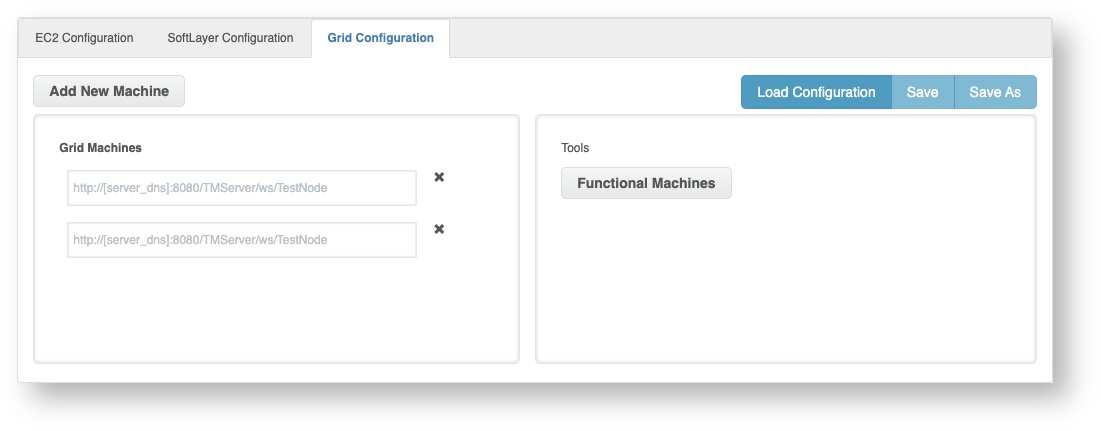
Select the Grid Configuration tab
Controller
Enter http://localhost:8080/TMServer/ws/Testnode in the Grid Machines box and press Enter
Click Save, and save the Controller Grid Configuration file
TestNode
Assuming you just created the Controller configuration file, click the Refresh button on your browser to clear the form, and select Grid Configuration again
Enter a new or existing TestNode machine URL in the Grid Machines box using the following format
http://< test-node-dns>:8080/TMServer/ws/Testnode
Press Enter
To add additional machines, click Add Machine and enter subsequent TestNodes in the Grid Machines list using the format described above
Click Save, and save the TestNode Grid Configuration file
Configure Lab Management
Use the Grid Configuration files (created above toprocedural upgrade a Controller or a list of TestNodes
steps.
Click Global Options, Admin OptionsThe Lab Management tab appears
Click Add Cloud
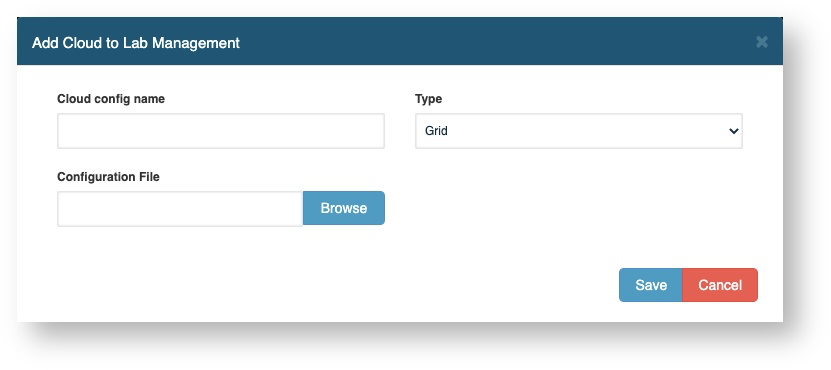
Enter a name in the Cloud config name box
Select Grid in the Type box
For each configuration file created (above):
Click Browse, select the previously created grid configuration file
Click Save. The entry appears in the Clouds list
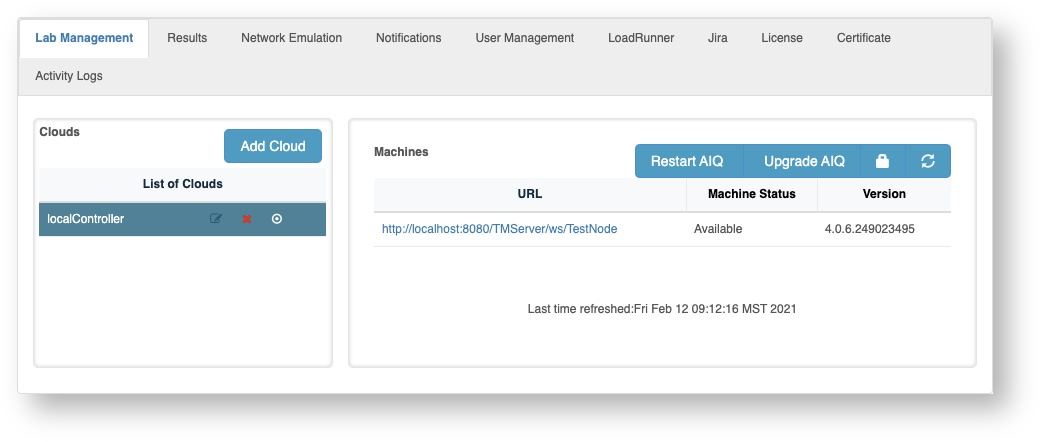
When you select a Cloud (left), all systems in the cloud file and their availability appear in the Machines list (right)
Upgrade using Lab Management
Use a Grid Configuration file to upgrade a Controller list of TestNodes
Click Global Options, Admin OptionsThe Lab Management tab appears
Select a cloud location to upgrade in List of Clouds
Tip It's often recommended to upgrade your Controller before upgrading TestNodes
Confirm Machine Status displays Available and a valid Version displays for each listed URL
If your Machine Status displays Invalid Login, click the lock icon and enter your Appvance credentials when prompted.
If your Machine Status displays Unreachable, confirm Appvance is running on the designation system and that the destination system is reachable from the Appvance controller you are currently using to perform the update.
If your Machine Status displays Available, however the version is Unreachable or Unknown, please contact >support@appvance.ai
Click Upgrade AIQ
Click Browse and enter in the new Appvance IQ build zip file URL
Note Each of the above machines must have access to the internet to download the distribution zip file
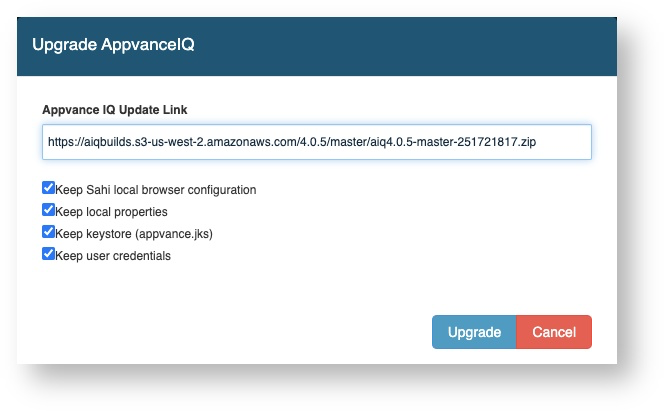
Click Upgrade, and when the confirmation window appears, click OK
Controller Upgrade
If upgrading your Controller, you will lose connectivity as the Appvance IQ upgrade completes. Try refreshing your browser after 3 - 5 minutes, and repeat until Appvance IQ once again becomes available.
About Upgrade
The upgrade lasts several minutes and varies based on how long each TestNode requires to download and unzip the Appvance .zip file (~2.8GB), as well as a few additional minutes for the actual installation.
Click the refresh button occasionally and watch for the updated version number. During the installation process, the Appvance IQ services on each machine become unavailable, as the services are down when applying the upgrade.
IMPORTANT: Mac OS X Servers
Mac OSX Servers
After completing an upgrade where a Controller or a TestNode uses Mac OS X, folder permission updates are required, as well as restarting Appvance IQ
The following code block assumes Appvance IQ (AIQ) is installed in $HOME/AIQ/aiq_distribution
Update AIQ Permission Post Lab Management Upgrade
cd $HOME/AIQ/
killall java
chmod -R 777 aiq_distribution
cd aiq_distribution/
./Appvance.sh
Last updated: October 25,2, 20232026
If you have any feedback on this topic, please contact us at documentation@appvance.ai.