Creating a Desktop Test
Here are the basic steps for creating a new desktop test file in the Desktop Designer.
Prerequisite: A desktop configuration file must be created before you create the test file. See Desktop Designer Configuration for more information.
-
In AIQ navigate to Desktop Testing > Desktop Designer.
-
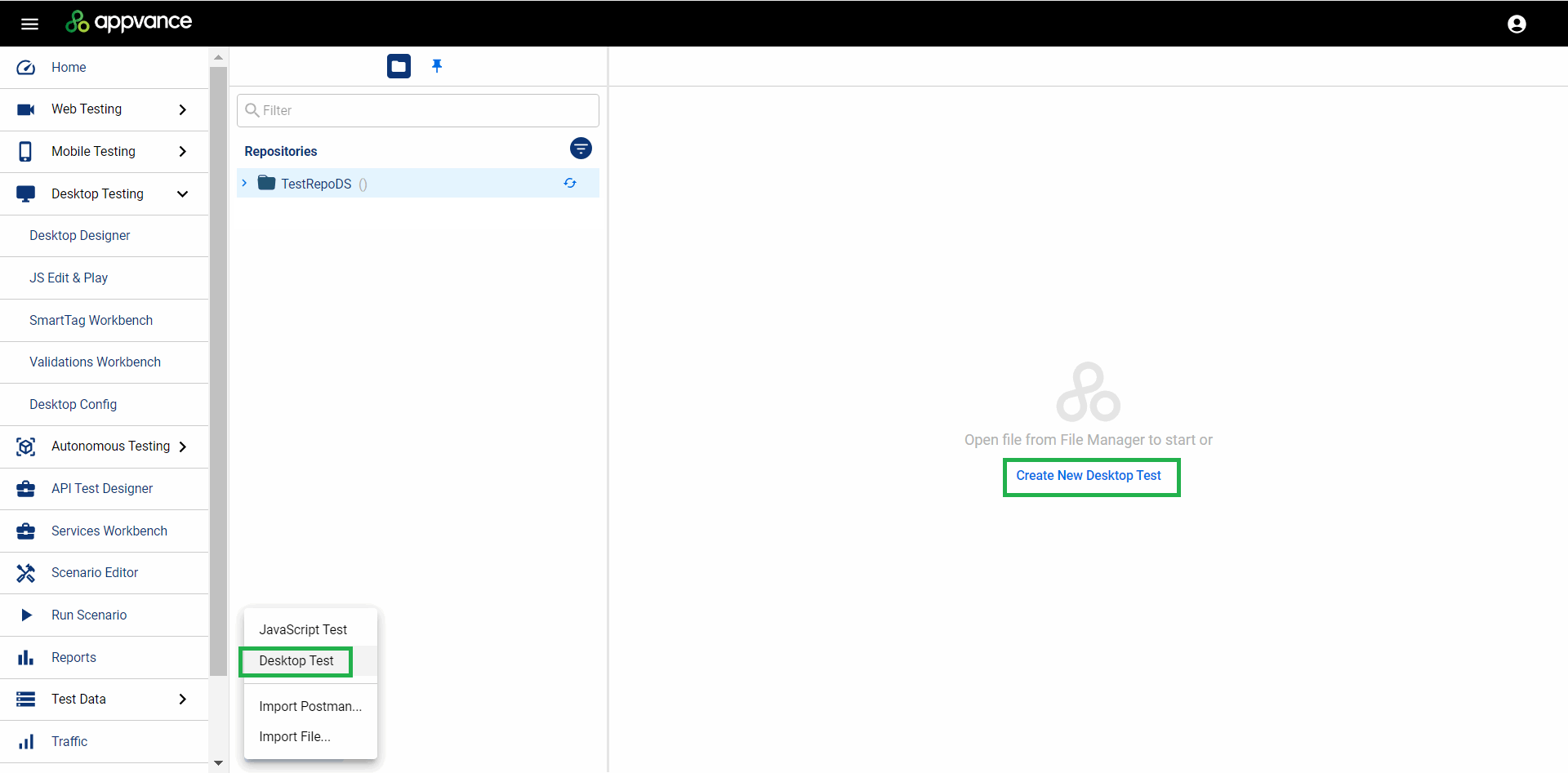
Click Create New in the and select Desktop Test. You can also click Create New Desktop Test in the main portion of the screen.
-
Name the test file.
-
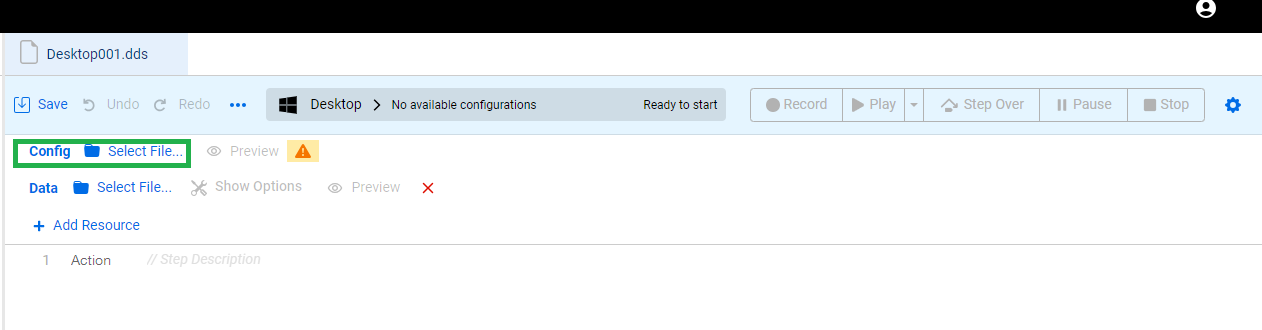
On the Config line, click Select File to add a desktop testing configuration to your test. This needs to be a preexisting file. See Desktop Designer Configuration for more information.
-
Browse to the location of your configuration file in your repository and click Open. Configuration files are
.jsonfiles.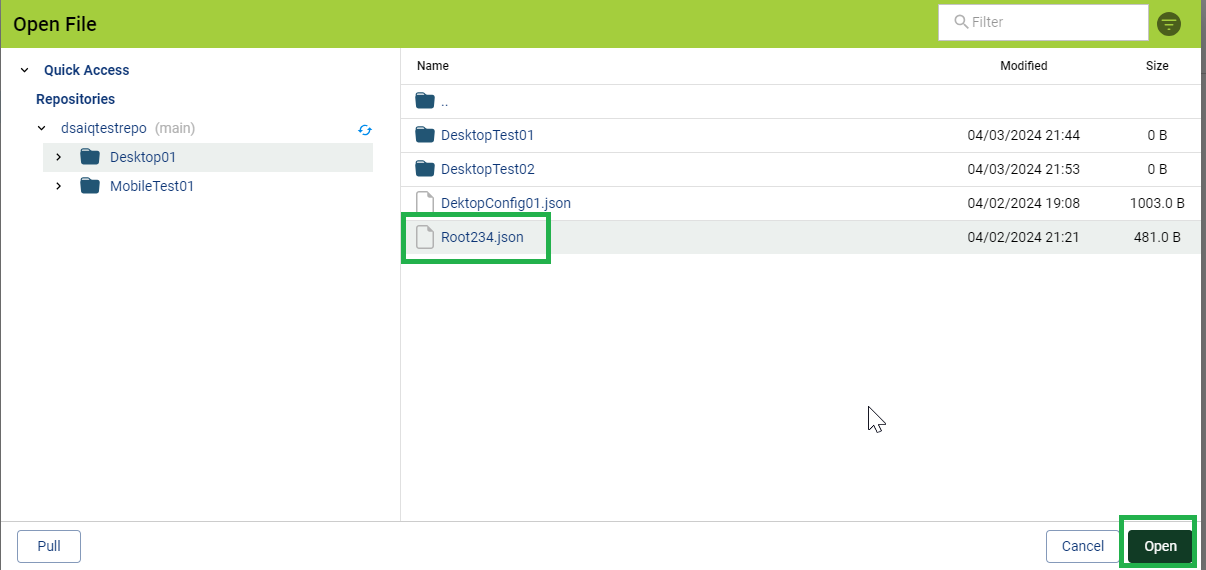
-
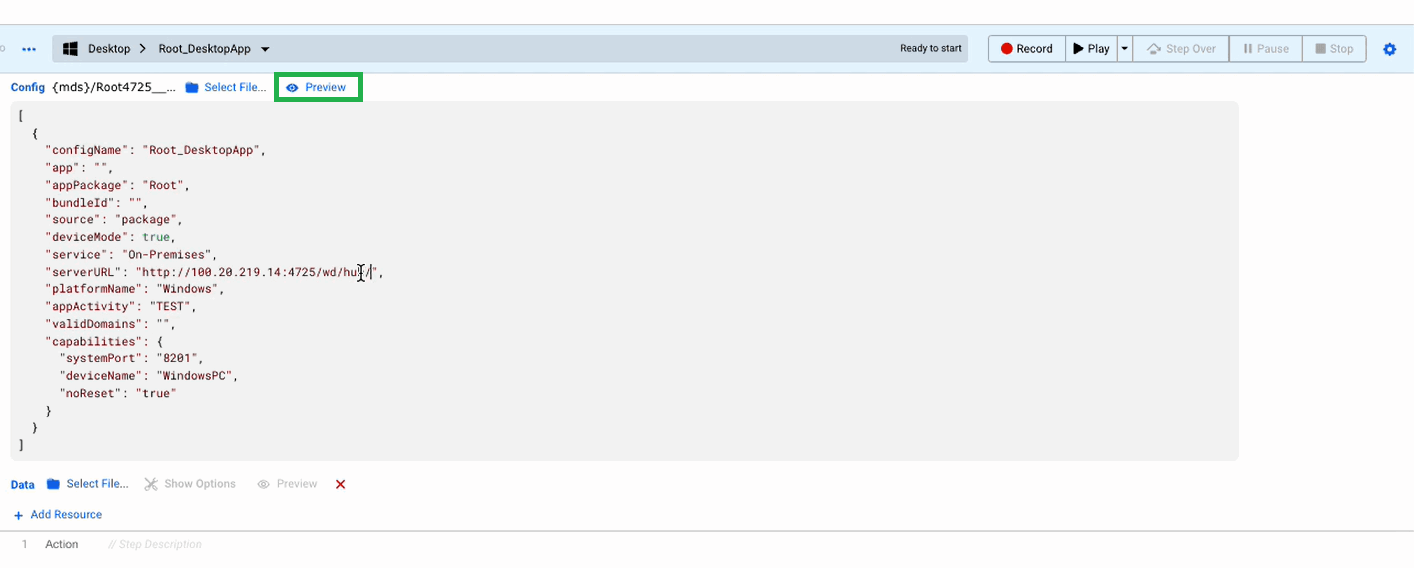
You can click Preview to verify the details of the configuration file.
-
You can now begin recording your test. Click Record to begin.
See Desktop Designer Example - Kindle Desktop App for an example desktop test.