Desktop Designer User Interface Overview
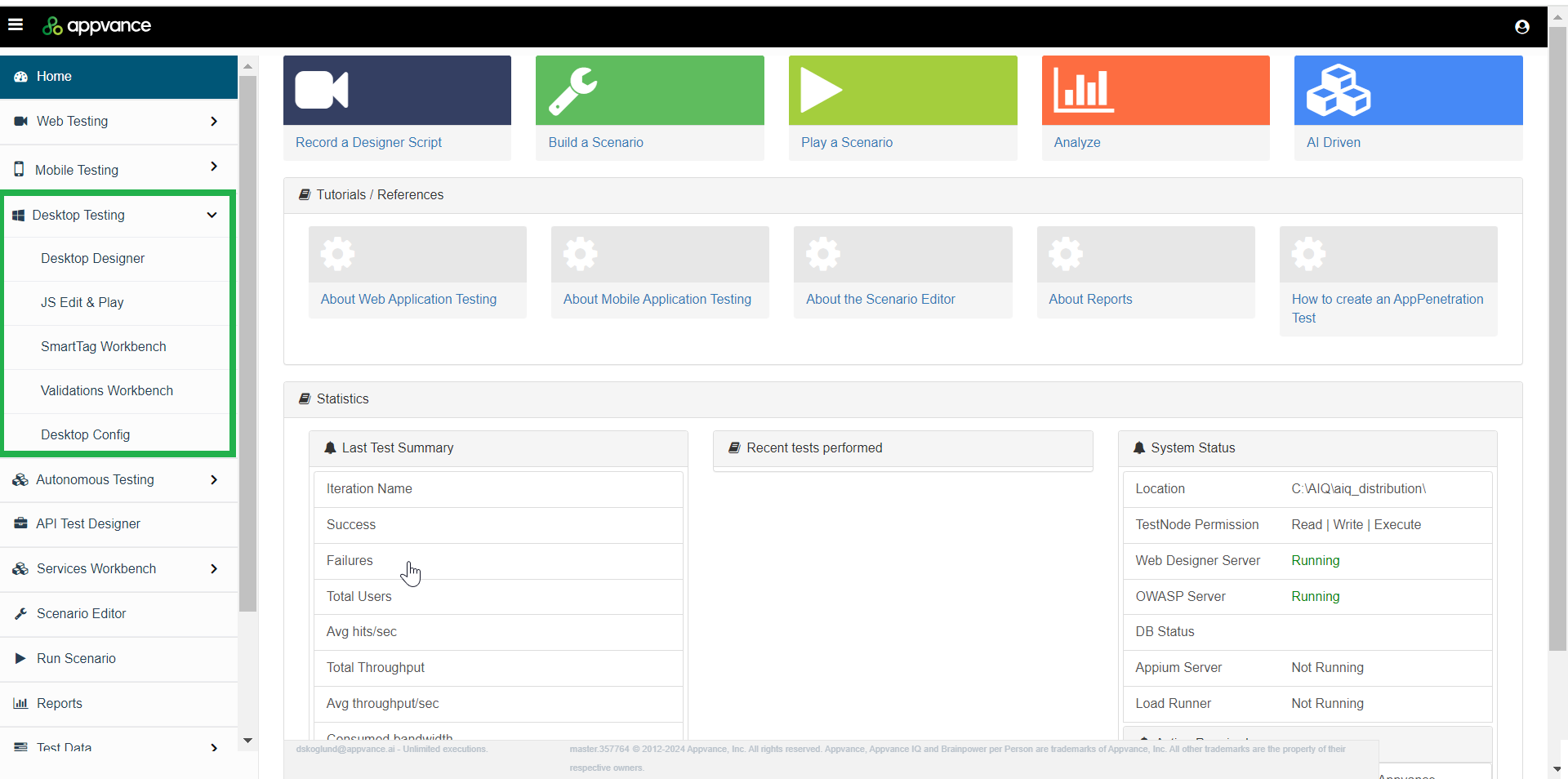
To access the new Desktop Designer, from AIQ navigate to Home > Desktop Testing > Desktop Designer.
This is an example of the new Desktop Designer interface.
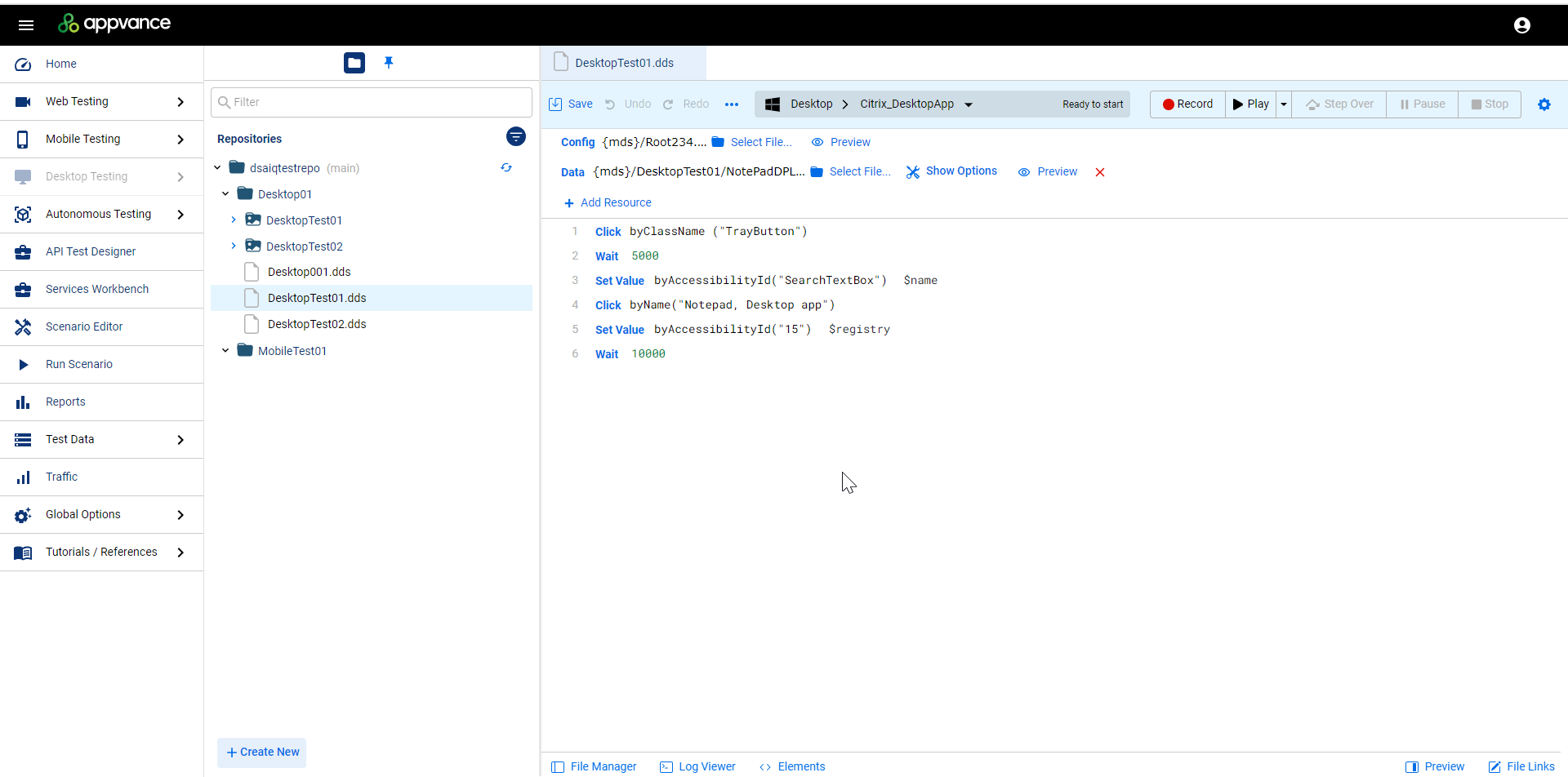
Overview of Desktop Designer Controls and Icons
The following table provides an introduction of the various controls and icons in the new Desktop Designer interface. The various elements are controls are detailed in the following pages of this document.
| Icon / Control | Function |
|---|---|
|
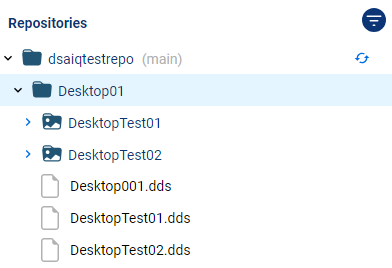
Repository pane. Displays the contents of your repository. You can sort and filter using various controls. |

|
Repository / Quick Access toggle. Switches the File Manager pane between the repository and quick access views. |

|
Filter. Allows you to filter the items displayed in the File Manager. |

|
Sort by Name / Sort by Type. Sorts the contents of the File Manager pane by name or by type. |

|
Refresh Repository. Refreshes the display of the File Manager pane. |

|
Editing controls menu.
|

|
Additional save and export options menu.
|

|
File Manager toggle. Shows/hides the File Manager pane. |

|
Log Viewer toggle. Shows/hides the logs. |

|
Browser selection control. See Selecting the Browser for more information. |

|
Test controls:
|

|
Opens the Test Options menu. See Desktop Designer Test Optionsfor more information. |

|
Select Configuration controls. You must have a valid desktop configuration file selected before you can begin a desktop test. See Desktop Designer Configuration for more information. |

|
Select data controls. You can attach test data to your desktop test. |