
Install and Configure GraalVM 11 for AIQ
Recommended guidance
Appvance requiresInstall GraalVM 11 toonly be installed onwhen the controllerAIQ machineversion or legacy deployment requires it. For current environments, verify the supported runtime in order to run Appvance IQ. GraalVM is a JDK (Java Development Kit) that is designed to accelerate the execution of applications written in Java and other JVM languages.
For instructions on installing GraakVM on Appvance Test Nodes, see Appvance IQ Manual Test Designer Install (GraalVM 11 Based).
TheAIQ release notes foror system requirements before installing or changing Java runtimes.
Before installation
- Confirm AIQ version, operating system, CPU architecture, and supported GraalVM
can be found on theGraalVM site.Download and Install GraalVM Version 11GraalVM 11 can be downloaded fromhttps://github.com/graalvm/graalvm-ce-builds/releases/tag/vm-21.3.0.build.- Download
thefromJavaan11approvedbasedsourceWindowsandinstaller.
Whenverify thedownloadarchiveiswhencomplete,possible.- Plan
extractenvironment variables, service account access, and installation path. - Back up existing runtime configuration before replacement.
Validation workflow
- Confirm the
zipGraalVMfile toC:\Program Files.
Configure Environment Variables
Locate the folder where graalvm 11 is copied over (in the C:/Program Filesversion from thestepaccountabove)that starts AIQ.ForRestartexampleAIQC:\ProgramservicesFiles\graalvm-ce-java11-windows-amd64-21.3.0\graalvm-ce-java11-21.3.0after configuration changes.OpenReview logs for runtime, path, or permission errors.- Run representative smoke tests before returning the
System Propertiesdialog, select theAdvancedtab and clickEnvironment Variables.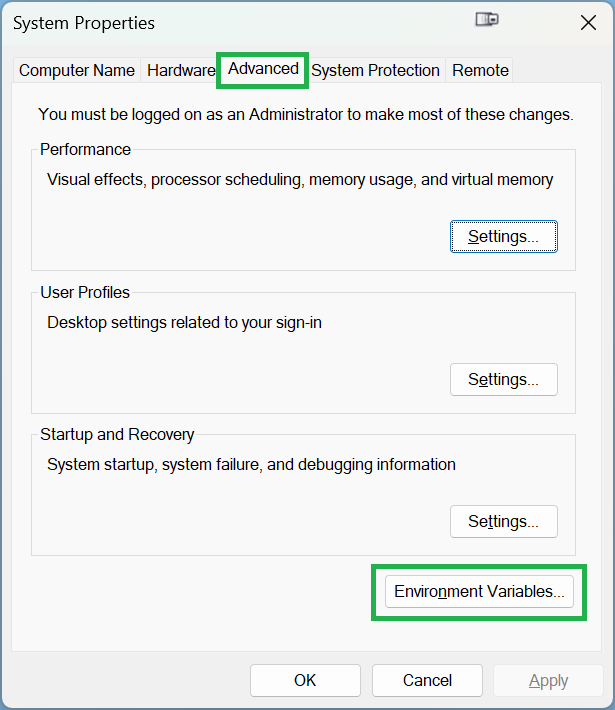
In theSystem Variablessection, clickNew.EnterJAVA_HOMEas the variable name.For the variable value enter the pathenvironment tothe GraalVM that you downloaded and extracted. For exampleC:\Program Files\graalvm-ce-java11-21.3.0.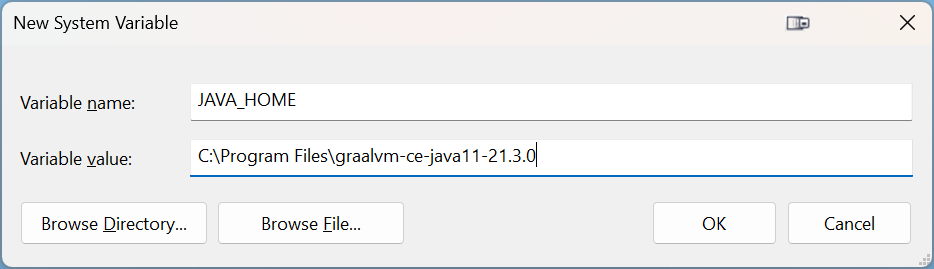
ClickOk.In the System Variables list, select thePathvariable and clickEdit.Enter your Java path, appended by\bin;at the beginning of the Variable value box. For example:C:\Program Files\graalvm-ce-java11-21.3.0\bin;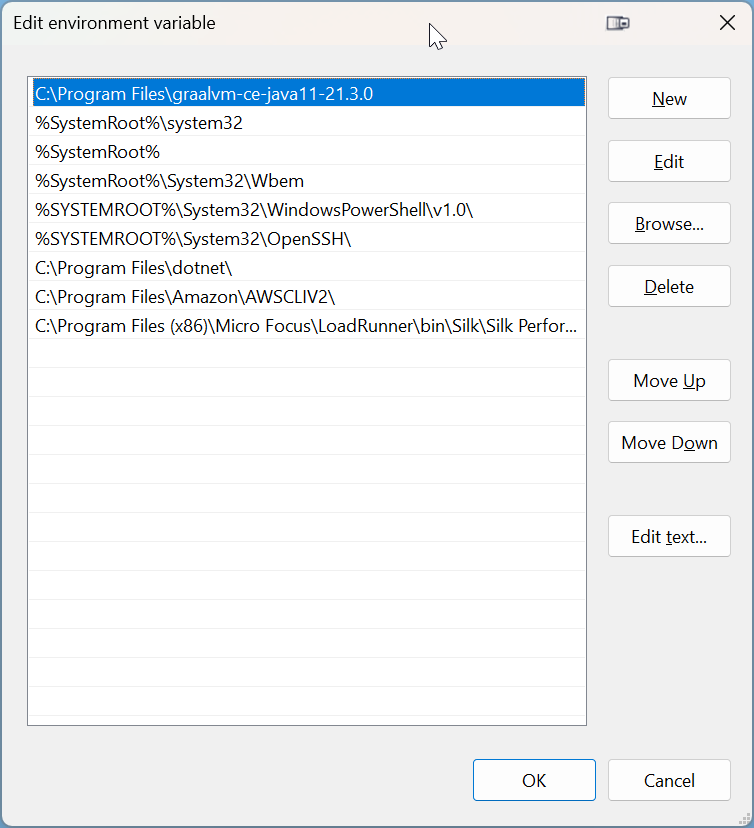
Confirm Java Installation
Open a Command Prompt.Typejava -versionConfirm that the correct version of Java has been installed.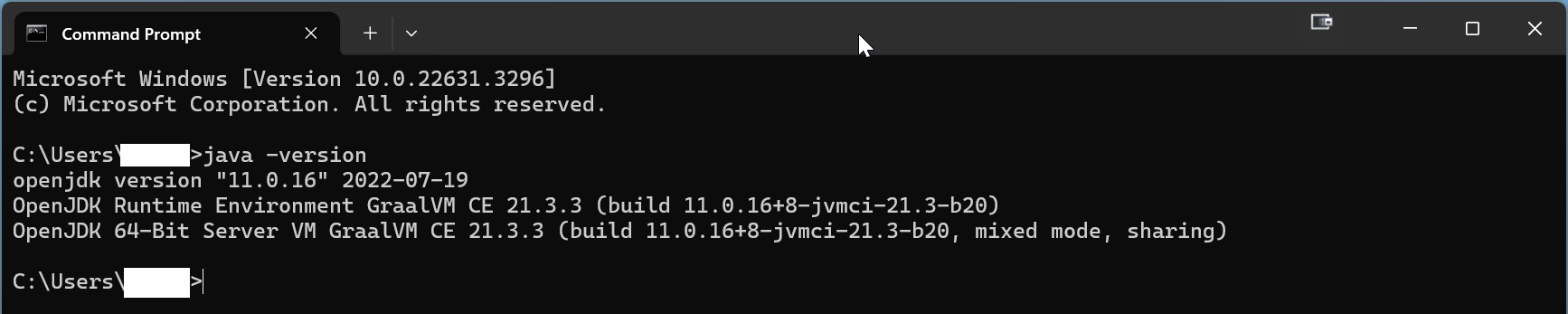
After the Java installation has been completed, proceed to the next step: Download Appvance AIQ
Last updated: JulyOctober 31,7, 20242026
If you have any feedback on this topic, please contact us at documentation@appvance.ai