
Install and Configure GraalVM 11
Recommended
Appvance guidance
Installrequires GraalVM 11 onlyto whenbe installed on the AIQcontroller versionmachine orin legacyorder deploymentto requiresrun it.Appvance ForIQ. currentGraalVM environments,is verifya JDK (Java Development Kit) that is designed to accelerate the supportedexecution runtimeof applications written in theJava AIQand other JVM languages.
For instructions on installing GraakVM on Appvance Test Nodes, see Appvance IQ Manual Test Designer Install (GraalVM 11 Based).
The release notes orfor systemGraalVM requirementscan beforebe installingfound oron changingthe JavaGraalVM runtimes.site.
Before installation
Confirm AIQ version, operating system, CPU architecture,Download and
supportedInstall GraalVMbuild.Version 11- GraalVM 11 can be downloaded from https://github.com/graalvm/graalvm-ce-builds/releases/tag/vm-21.3.0.
- Download the Java 11 based Windows installer.

- When the download is complete, extract the zip file to
C:\Program Files.
Configure Environment Variables
- Locate the folder where graalvm 11 is copied over (in the C:/Program Files from
antheapprovedstepsourceabove) - For example C:\Program Files\graalvm-ce-java11-windows-amd64-21.3.0\graalvm-ce-java11-21.3.0
- Open the System Properties dialog, select the Advanced tab and
verifyclick Environment Variables.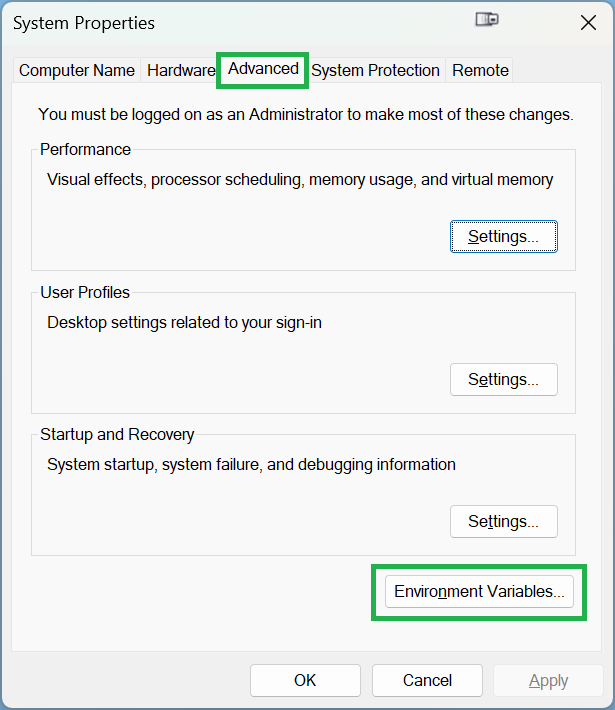
- In the
archiveSystemwhenVariablespossible.section, click New. PlanEnterenvironmentJAVA_HOMEvariables,asservicetheaccountvariableaccess,name.
Forandtheinstallationvariablepath.Backvalueupenterexistingtheruntimepathconfiguration before replacement.
Validation workflow
Confirmto the GraalVMversionthatfromyou downloaded and extracted. For exampleC:\Program Files\graalvm-ce-java11-21.3.0.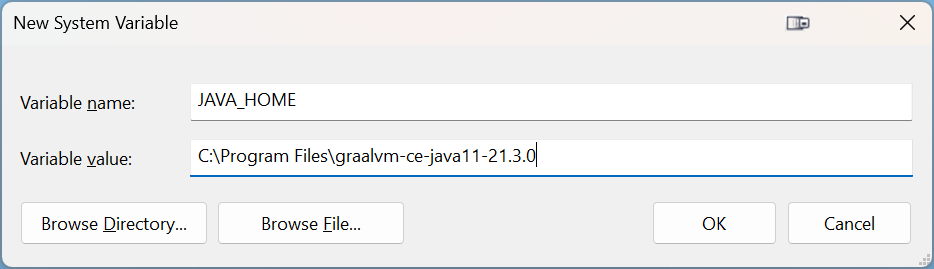
- Click Ok.
- In the
accountSystem Variables list, select the Path variable and click Edit. - Enter your Java path, appended by
\bin;at the beginning of the Variable value box. For example:C:\Program Files\graalvm-ce-java11-21.3.0\bin;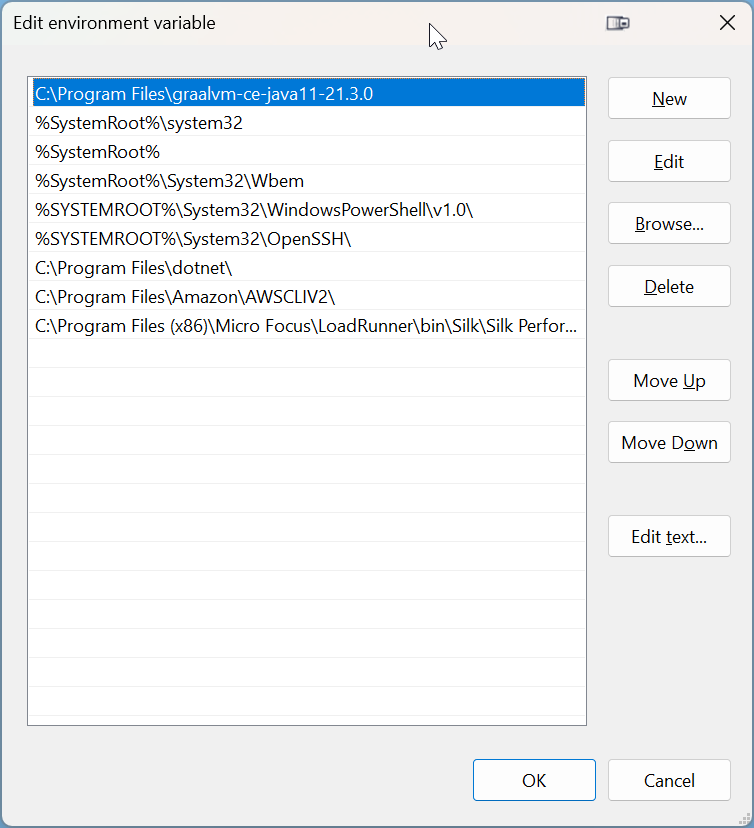
Confirm Java Installation
- Open a Command Prompt.
- Type
java -version - Confirm that
starts AIQ. Restart AIQ services after configuration changes.Review logs for runtime, path, or permission errors.Run representative smoke tests before returningtheenvironmentcorrecttoversionusers.of Java has been installed.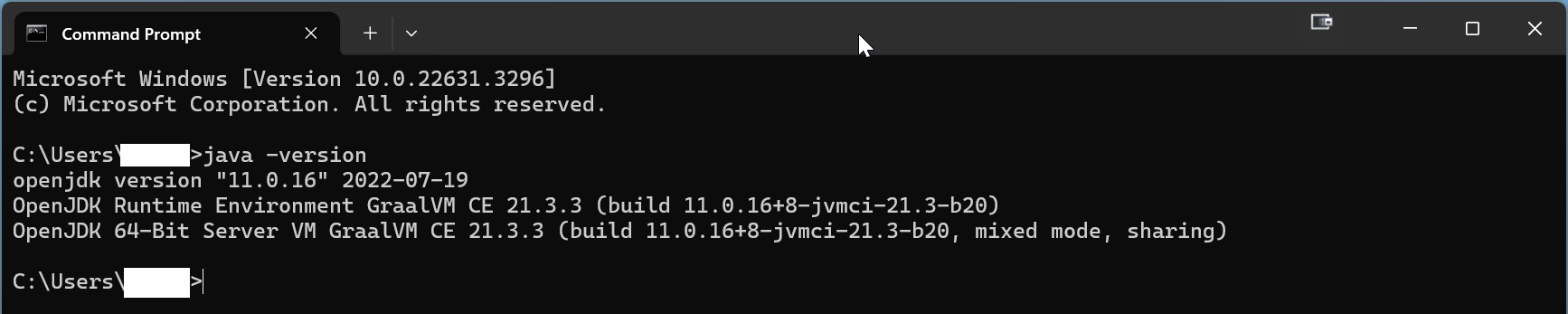
After the Java installation has been completed, proceed to the next step: Download Appvance AIQ
Last updated: OctoberJuly 7,31, 20262024
If you have any feedback on this topic, please contact us at documentation@appvance.ai