
Run AIQ on Windows as a Service
Run AIQ on Windows as a Service
ItUse isthis recommendedguide thatwhen youAIQ must start AIQ services automatically ratheron thana manually.Windows Thehost suggestedand methodrun isunder toa usemanaged service account. Corrected the Autologonolder utilitytitle towording setupand replaced “Appvance IQIQ” phrasing with current AIQ terminology.
Preparation checklist
- Confirm the Windows version, AIQ version, Java/runtime dependencies, ports, and required file-system paths.
- Create or select a dedicated service account with the minimum permissions required to run
asAIQ. - Verify
servicedatabaseonconnectivity,Windows.browser/driverAutologon is Microsoft utility that enables you to easily configure Windows’ built-in autologon mechanism. Instead of waiting for a user to enter their namepaths, andpassword,environmentWindowsvariablesusesbefore installing thecredentials you enter with Autologon, which are encrypted in the Registry, toservice. - Document log
onlocations,thestartupspecifieddependencies,userandautomatically.restartIt is recommended to start Appvance services automatically, but they can be started manually if needed. SeeStarting AIQ Services Manuallyfor more information.Prerequisites:Appvance IQ is installed on Windows OSLogin to Windows using an account with administrator privilegespolicy.
DownloadValidationand Install AutologonworkflowDownloadStartAutologonAIQfrommanuallyMicrosoftoncehere:andDownloadconfirmAutologonlogin and a small smoke execution work.ExtractInstallAutologon.ziparchive.configureFortheexample, extract toC:\Autologon.
Setup Autologon ServiceChecking for Previous ConfigurationsVerify that no other entries for AutologonWindows serviceexist as follows. If there are previous configurations onusing theserver,approvedit may prevent Autologon from working correctly.For any past users for which an Autologon service was created:Open Autologon.procedure.EnterStart,the Username, Domainstop, andPassword.ClickDisable.
Check the Registry for Autologon entries:Active Directory considerations:When the user used to login is provided by an Active Directory domain and the Active Directory is set to have an interactive login, the Autologon process will not work. In those cases, try creating a local user in the machine itself, edit its group policy to remove any interactive logon and use this local user to set the autologin process.
Configuring AutologonOpen Autologon.exe (64 bit). TheAutologon - Sysinternalswindow appears.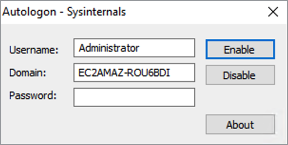
Enter the user’s password and clickEnable.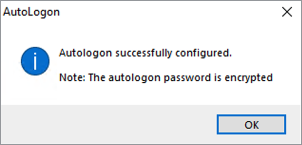
OpenTask Schedulerwith administrative privileges, clickActionand selectCreate Basic Task. The Create Basic Task Wizard appears.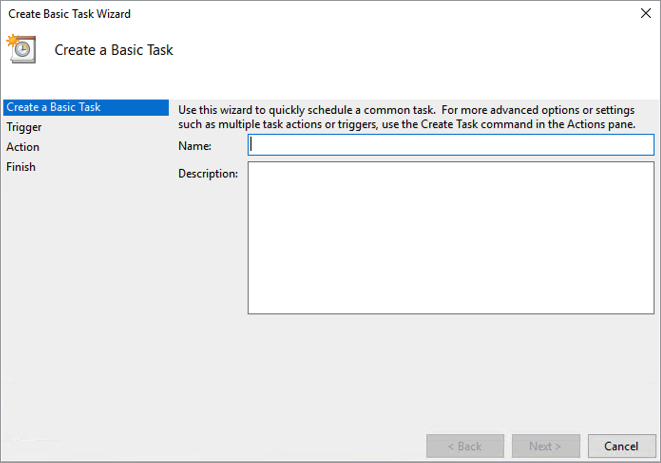
Enter a name in theNamebox (such as AIQ or Appvance) and clickNextThe Task Trigger list appearsSelectWhen I log onand clickNext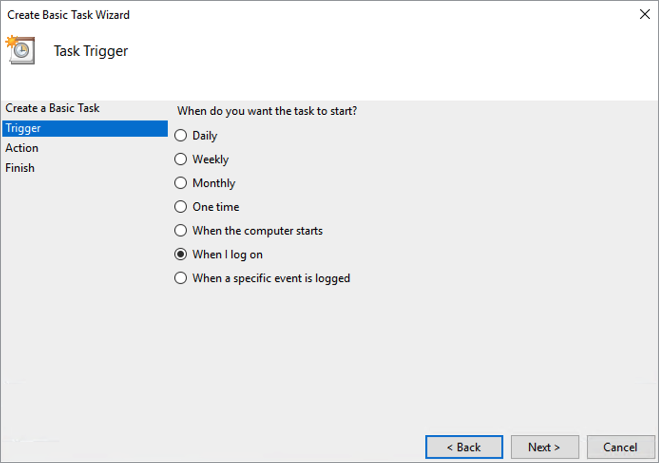
The Action list appears.SelectStart a Programand clickNext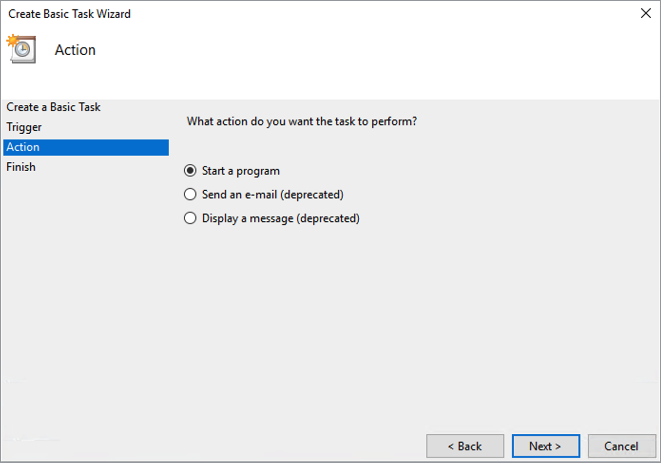
The Start a Program configuration appears.ClickBrowse.Browse to and select<aiq-path>/TestNode/startup.batand clickOpen.IMPORTANT: Also enter the<aiq-path>/TestNode/path in theStart inbox and clickNext.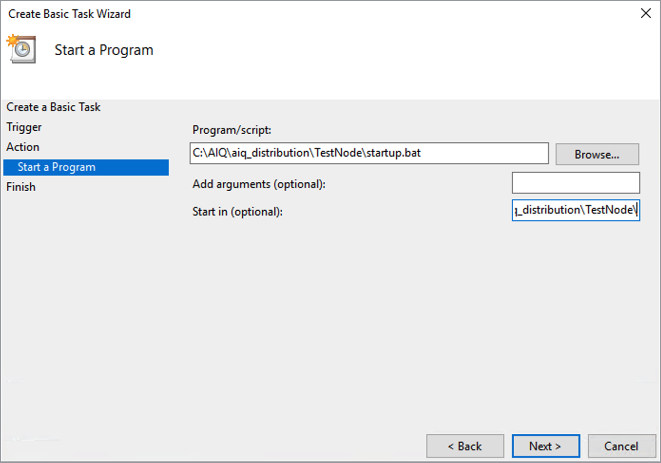
SelectOpen the Properties dialog for this task when I click Finish.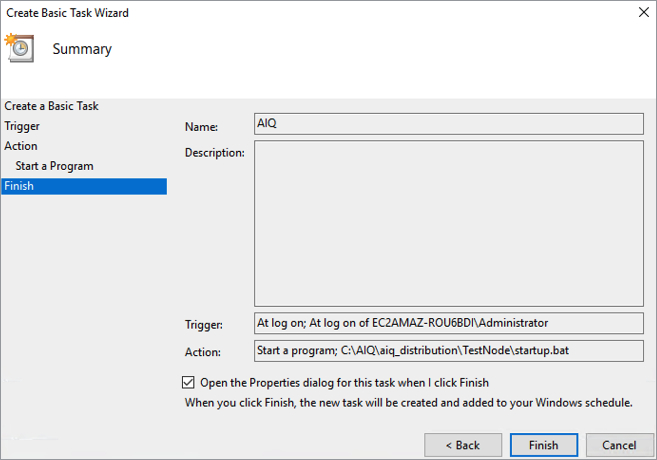
ClickFinishThe Properties dialog appears.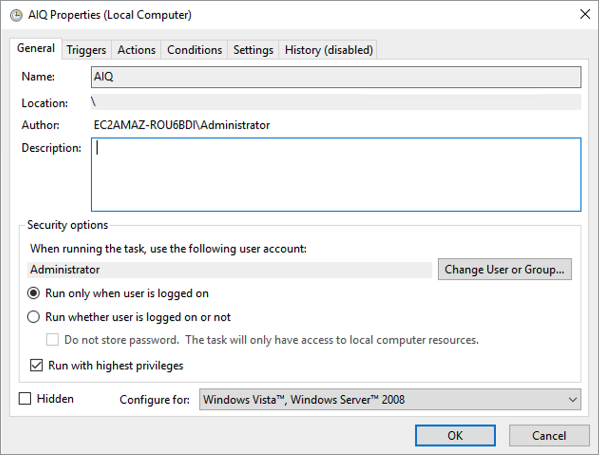
Select whether it runs when a user is logged into that test node of not. This choice will be important in situations where the system reboots when no one is logged into that test node.Run only when user is logged onRun whether the user is logged on or not
CheckRun with highest privileges.Click theSettingstab.Uncheck theStop the task if it runs longer thanoption.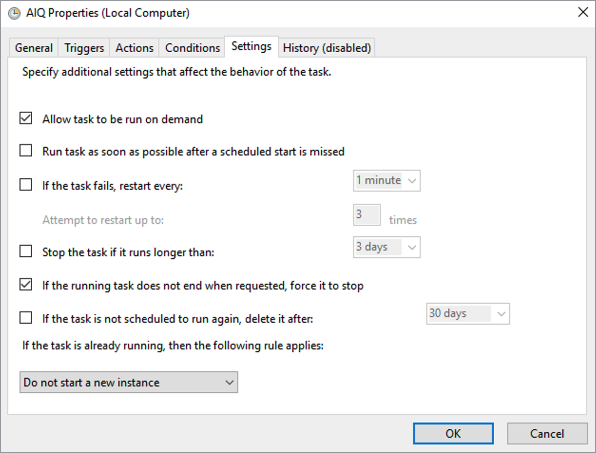
ClickOK.When prompted, enterrestart the serviceusernamefromandWindowspasswordServicesto applyor thechangesserviceand clickOK.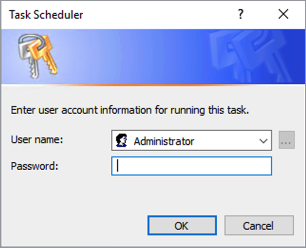
Verifying Autologon ServiceYou may test - Reboot the
Autologonhostserviceifby running it manually from the Task Scheduler. However to ensure the settings are working as expected, it is recommended that you restart the serverallowed and confirmthatAIQAppvancestartsIQautomatically. - Review
launcheslogsproperlyforwithoutpermission,apath,userport,directlyorloggingdependencyinto the server.errors.
After you have configured AIQ to run as a service, proceed to the next step: Installing License and Certificate
Last updated: JanuaryOctober 22,9, 20252026
If you have any feedback on this topic, please contact us at documentation@appvance.ai