
Comparing PDF Files
LastThere reviewed:are Octoberactions 2,in 2026
UseTest thisDesigner articlethat whenallows a web test needsyou to compare generated or downloadedtwo PDF outputfiles. againstThe anreport expectedwill PDFdetail orall expectedthe text content.
What changed in this article
Reframed PDF comparison around validation intent instead of generic file comparison.Added guidance for choosing text extraction, metadata checks, page count checks, or binary comparisonchanges, based onexpectedthevariability.rules that you specify, on a page by page basis between the two files.For example, you can validate that all the elements on every page from the template PDF file appear on the same page in the dynamic PDF file with the same formatting.
These two PDF files in the comparison are:
-
Template PDF file that contains the baseline information and formatting
Dynamic PDF file that has been downloaded as part of a Test Designer script
You can compare certain elements in the two PDF files based on rules that you create. See Rules Based Comparison for more information.
You can compare the complete contents of the two PDF files to each other. See Comparing PDFs for more information.
This feature requires to open the port 9013 in the controller to be accessed from test nodes and end-user computers. See AIQ Required Ports for information on required ports.
Rules Based Comparison
You can create the rules by which the PDFs will be compared. Since you specify the rules during the comparison, you can create custom rules that can be used in very specific situations or rules that will be used for all of your comparisons.
Prerequisite: You must be familiar with writing regular expressions (regex) in order to author custom rules.
Considerations:
Rules can be applied by page basis or globally for all pages.
You can check for the umber of pages which means that you can verify that both PDF files contain same number of pages.
You can choose whether or not to ignore blank pages,
You can choose to report on blank pages. For example, if a blank page is found in a PDF file you can log a warning which will be highlighted in the report.
You can verify the position of certain elements to see if they have the same XY coordinates in each document.
You can verify font and font size of elements.
Sample rules.txt File
This is an example of a rules file used for comparing two PDF files. This comparison checks for dynamicthe timestamps,existence generatedof IDs,specified renderingcontent differences,as downloadwell location,as how it is formatted (font / bold / size).
{
    "rules": {
        "policy": {
            "format": "^([A-Z]{2}[0-9]{8})",
            "fontFamily": "Arial",
            "Bold": "no",
            "Size": 12
        },"number": {
            "format": "^([0-9]{4}[A-Z]{3})$",
            "fontFamily": "Arial",
            "Bold": "no",
            "Size": 12
        },
        "plate": {
            "format": "(\\s[0-9]{7})",
            "fontFamily": "Tahoma",
            "Bold": "yes",
            "Size": 12
        },
        "created": {
            "format": "^([0-9]{2}\\s(de)\\s[a-zA-Z]{3,15}\\s(de)\\s[0-9]{4})",
            "fontFamily": "Helvetica",
            "Bold": "no",
            "Size": 11
        },
        "name": {
            "format": "^([a-zA-Z]{3,5}\\s[a-zA-Z]{3,5})$",
            "fontFamily": "Tahoma",
            "Bold": "no",
            "Size": 10
        }
    }
}
Syntax of the Rules
Rules are created using regular expressions (regex). For example, the format attribute in the policy section of above sample code, checks for a policy number within the PDF with the following parameters:
^ indicates that policy element should begin with what follows
[A-Z]{2} indicates two uppercase characters
[0-9]{8} indicates eight numerical characters
The fontFamily, bold, and evidencesize attributes specify how the policy number is expected to appear in results.
ValidationPDF workflow
file. DecidewhetherIf the
testcomparisonshouldidentifiesvalidateaexactstring that matches the format but does not match these expected display attributes that difference will be noted in the report.Checking the Rules
You can compare the two PDF files just on the basis of the rules that you have created. Here is a sample of a script for that function.
Sample checkRules.js File
var $basefilename = "{mds}/OriginalFile.pdf";
var $comparisonfilename = "{mds}/NewFile.pdf";
var $rulesfilename = "{mds}/rules.txt";


var response = assertPDFRules($basefilename,$comparisonfilename,$rulesfilename);
var responseObj = JSON.parse(response);
var summaryRuleDiffs = responseObj.content.summaryRuleDiffs;
for(var idx = 0; idx < summaryRuleDiffs.length; idx++) {
    var matches = summaryRuleDiffs[idx].matches;
  log("-------------------------------------------------------------------------------------------------------");
  log("Page: " + summaryRuleDiffs[idx].pageId);
  for(var matchId = 0; matchId < matches.length; matchId++) {
      log("     Rule Name: " + matches[matchId].name);
    var rules = matches[matchId].rules;
    for(var ruleId = 0; ruleId < rules.length; ruleId++) {
      log("          Found: " + rules[ruleId].found);
      log("          Match: " +  rules[ruleId].match);
      log("          Font Expected: " + rules[ruleId].fontExpected);
      log("          Font Found: " +  rules[ruleId].foundFont);
      log("\r\n");
    }

  }
}-
$basefilenameis the name and location of the base PDF filematch,forextractedthetext,comparison.metadata,In the sample code this file isOriginalFile.pdf.
$comparisonfilename is the name and location of the comparison PDF file. In the sample code this file is NewFile.pdf.
$rulesfilename is the name and location of the rules file. In the sample code, this file is rules.txt.
assertPDFRules is the action that invokes the comparison function
Performing the Rules Check
From Services Workbench, load the checkRules.js file, and click Play Script. After the script has been run, the response tab is populated with the details of what rules were chcked and what was found, with any differences noted.
Sample Output on the Response Tab
Rule Name: policy
Found: AB12345678
Match: AB12345678
Font Expected: Arial
Font Found: Helvetica
This is just the output for the policy element of the rules file.
Comparing PDFs
You can also compare the complete content of two PDF files. Here is a sample of a script for that function.
Sample compareJson.js File
var $basefilename = "{mds}/OriginalFile.pdf";
var $comparisonfilename = "{mds}/NewFile.pdf";

var response = comparePDF($basefilename,$comparisonfilename);

var objResponse = JSON.parse(response);

var response = objResponse.content;
log("-------------------------------------------------------------------------------------------------------");
log("Base Pdf: " + response.template + "                    Pages Count: " + response.templatePageCount);
log("Comparison Pdf: " + response.pdf + "                Pages Count: " + response.pageCount);
log("-------------------------------------------------------------------------------------------------------");
log("Differences per page:");
var pages = response.pages;
for(var idx = 0; idx < pages.length; idx++) {
      log("        Page: " +  pages[idx].pageId + ": " + pages[idx].differences + " differences.");
}
log("-------------------------------------------------------------------------------------------------------");
var differences = response.dynamicPdf;
 log("PDF: " + response.pdf +  "\r\n " );
for(var idx = 0; idx < differences.length; idx++) {
    log("        PageId: " + differences[idx].pageId  + ", Font: " + differences[idx].details.font );
    log("                Found: " + differences[idx].details.pdf + "\r\n");
    log("-------------------------------------------------------------------------------------------------------");
}
$basefilename is the name and location of the base PDF file for the comparison. In the sample code this file is OriginalFile.pdf.
$comparisonfilename is the name and location of the comparison PDF file. In the sample code this file is NewFile.pdf.
$rulesfilename is the name and location of the rules file. In the sample code, this file is rules.txt.
comparePDF is the action that invokes the comparison function
Performing the Comparison
From Services Workbench, load the compareJason.js file, click Play Script. After the script has been run, the response tab is populated with the details of what rules were chcked and what was found, with any differences noted.
Sample Output on the Response Tab
----------------------------------------------------
Base PDF: OriginalFile.pdf Page Count: 3
Comparison PDF: NewFile.PDF Page Count: 3
----------------------------------------------------
Differences per page:
Page: 3: 1 differences
----------------------------------------------------
PDF: NewFile.PDF
PageId: 3, Font: Helvetica
Found: $99.99
Explanation:
Header contains a summary of the comparison, which includes the file names and the number of pages.
Differences per page count,are ornoted. selectedIn fields.this case only one difference was found and it was found on page 3.
Report excludeshows dynamicthe contentchange suchin as dates, IDs, user names, or environment-specific paths.
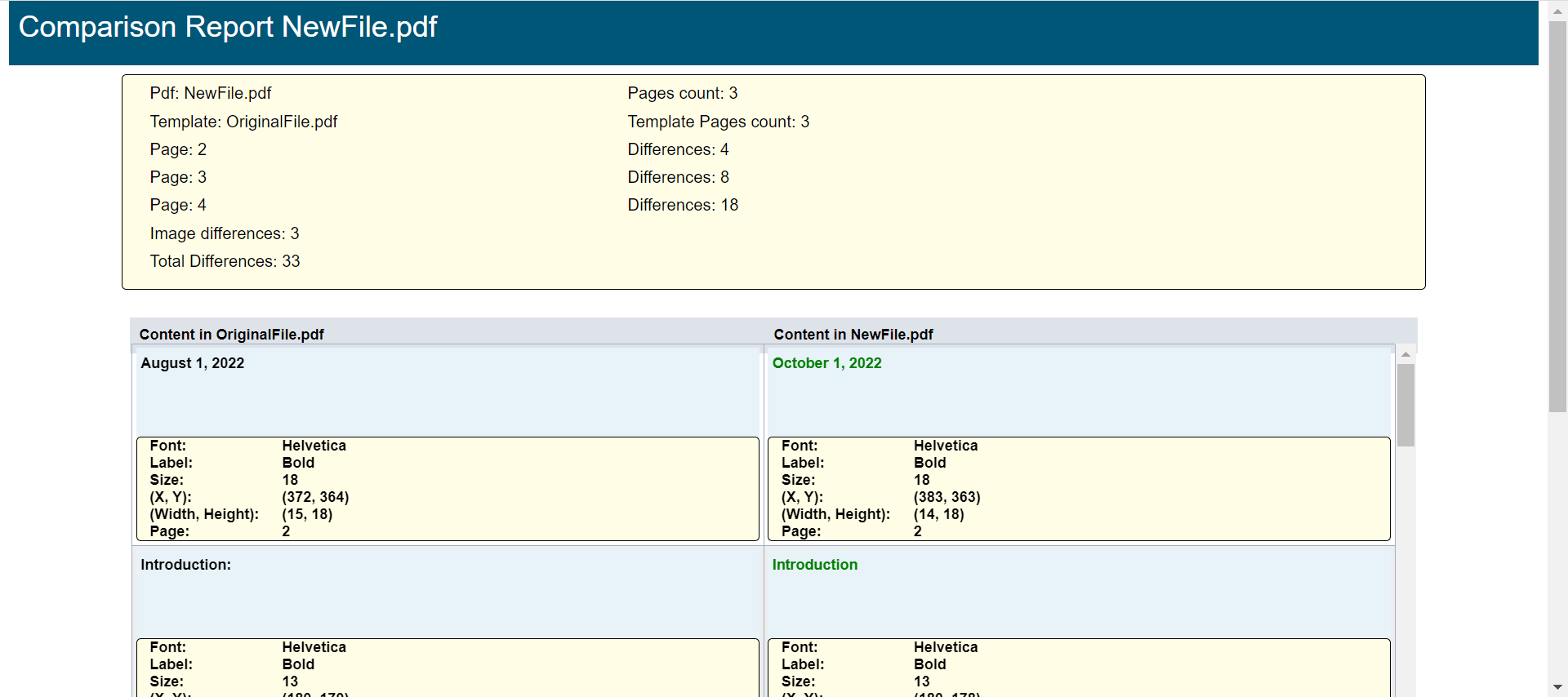
HTML Comparison Report
The comparison report lists the details of all differences to both text within the two PDF section failed.
ReviewDetails note:include:
Text attributes: Font size, formatting
Location information: X/Y coordinates, height/width, page nownumber
Image validationinformation: fromReport brittlewill byte-for-byteshow comparisons.both images
Last updated: October 2,14, 20262023
If you have any feedback on this topic, please contact us at documentation@appvance.ai.