
Edit and Play JavaScript Steps for Web Testing
JSLast reviewed: September 24, 2026
Use Edit &and Play iswhen a toolweb withintesting Teststep Designerneeds thattargeted isJavaScript completelyadjustment JavaScript.and Usingimmediate playback validation.
What changed in this toolarticle
- Use
cansmall,writereviewable JavaScript changes rather than replacing large scenario sections with customcode, add conditional statements, add loops, and create any complex scripts using JS Edit & Play like you would using IDEs such as Netbeans or Eclipse.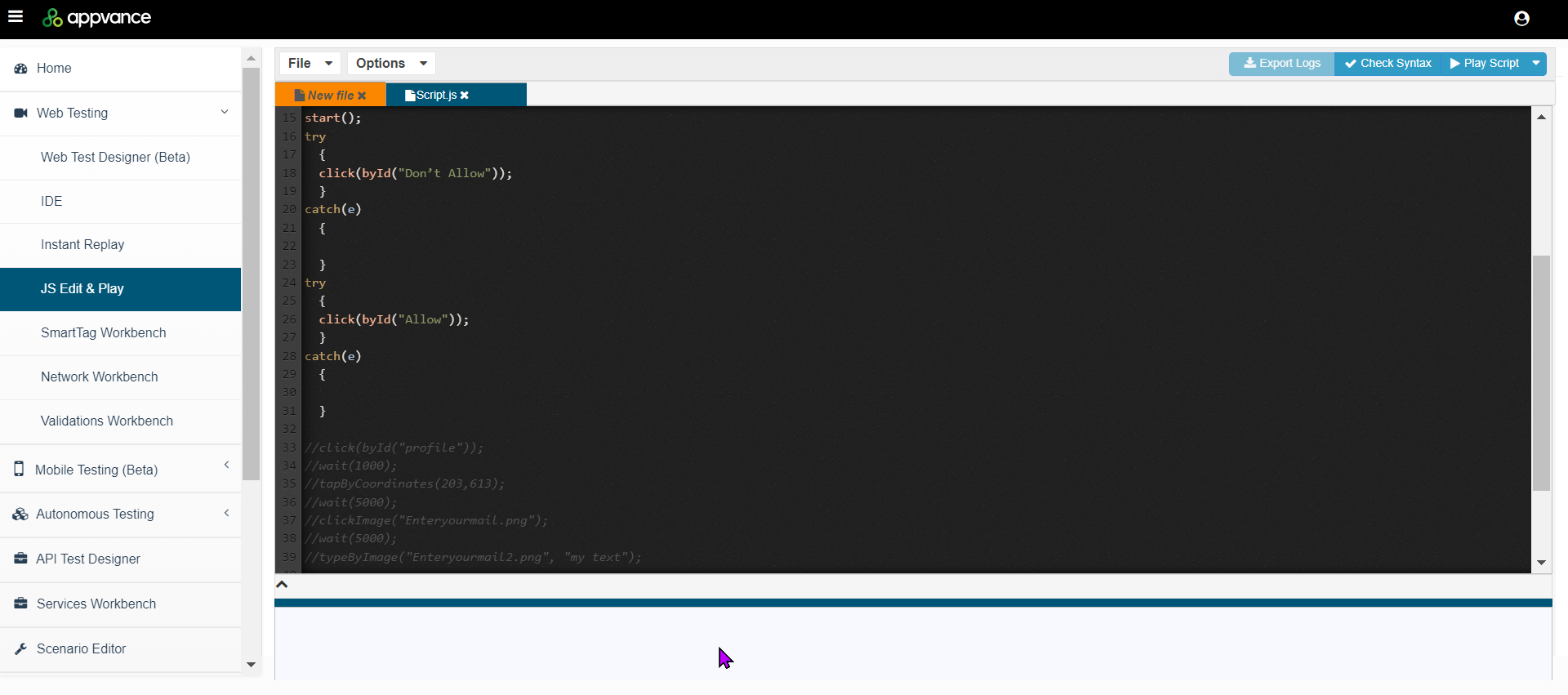
In JS Edit & Play, you can have can open multiple files which open in different tabs which makes it easy forcode. - Replay the
usereditedto copy contents between different scripts.JS Edit & Play also has IntelliSense, which is a code-completion aid. That means as you type, the default methods and functions along custom-defined variables and functions are available to select from the drop-down.Note: Test Sesigner services must be running to work with JS Edit & Play.Accessing JS Edit & PlayThere are multiple ways to access JS Edit & Play.Option 1 Open the Test Designer IDE
Open any existing Test Designer script or record a new script
Click File > Export > JavaScript.
Click Save to save the script. The script will have a .js extension.
Click Play.
The Test Designer JS Edit & Play window will open with the script opened. From here you can edit the script, add more JS steps, and perform other actions.
Option 2
From AIQ navigate to Test Designer > JS Edit & Play.
From here you can create a new script or open an existing script.
Related Topics
The following topics provide more information on the JS Edit & Play user interface and details and examples of working with scriptsstep in the tool.
File menu
Options menu
Export logs option
Check Syntax option
Play Script option
Debuggingterminology in the Console
Validation workflow
- Open
CustomtheFunctionsaffected web test step and make the smallest JavaScript change needed. - Use Play to validate the step immediately against the application state.
- Save the scenario and run a short playback to confirm the edited step works in
JS
ScriptReview Examples
Exportingtitle, DSchanged Script with Descriptionswording to JSScenario Editor/Web Testing, and emphasized step-level validation after JavaScript edits.
<![CDATA[ ]]>
Last updated: JulySeptember 25,24, 20232026
If you have any feedback on this topic, please contact us at documentation@appvance.ai.