
JS Edit & Play for Web Testing
UseJS Edit and& Play whenis a webtool testingwithin stepTest needsDesigner targetedthat JavaScriptis adjustmentcompletely JavaScript. Using this tool you can write custom code, add conditional statements, add loops, and immediatecreate playbackany validation.complex scripts using JS Edit & Play like you would using IDEs such as Netbeans or Eclipse.
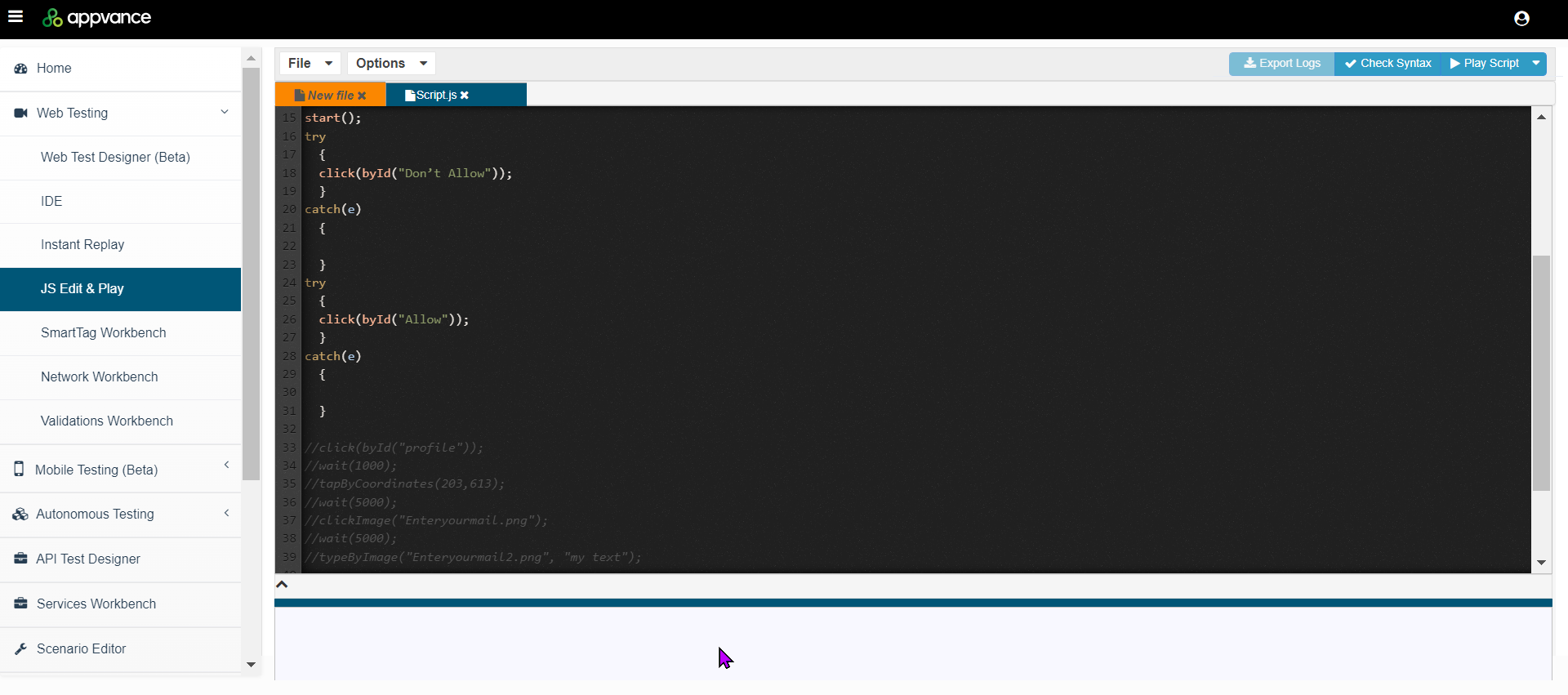
In JS Edit & Play, you can have can open multiple files which open in different tabs which makes it easy for the user to copy contents between different scripts.
JS Edit & Play also has IntelliSense, which is a code-completion aid. That means as you type, the default methods and functions along custom-defined variables and functions are available to select from the drop-down.
Note: Test Sesigner services must be running to work with JS Edit & Play.
ValidationAccessing workflowJS Edit & Play
There are multiple ways to access JS Edit & Play.
Option 1
Open the affectedTest webDesigner testIDE
Open any existing Test Designer script or record a new script
Click File > Export > JavaScript.
Click Save to save the script. The script will have a .js extension.
Click Play.
The Test Designer JS Edit & Play window will open with the script opened. From here you can edit the script, add more JS steps, and makeperform other actions.
Option 2
From AIQ navigate to Test Designer > JS Edit & Play.
From here you can create a new script or open an existing script.
Related Topics
The following topics provide more information on the smallestJS JavaScriptEdit change needed.
File menu
Options menu
Export logs option
Check Syntax option
Play Script option
Debugging in the scenarioConsole
Custom shortFunctions playbackin JS
Script Examples
Exporting DS Script with Descriptions to confirmJS
<![CDATA[ works]]>
Last updated: SeptemberJuly 24,25, 20262023
If you have any feedback on this topic, please contact us at documentation@appvance.ai