
Test Mobile Responsiveness in a Browser
Appvance IQ supports the use of a
Test Mobile Toggle device which is a feature of the Google Chrome browser launched from Google Developer tools.
The updated Device Mode that will be available from Chrome 49 or later is an integral part of the now-mobile-first Dev Tools and extends the main Dev Tools bar.
Right-click from your Chrome browser and select Inspect and toggle the Device mode button to turn Device mode on or off.
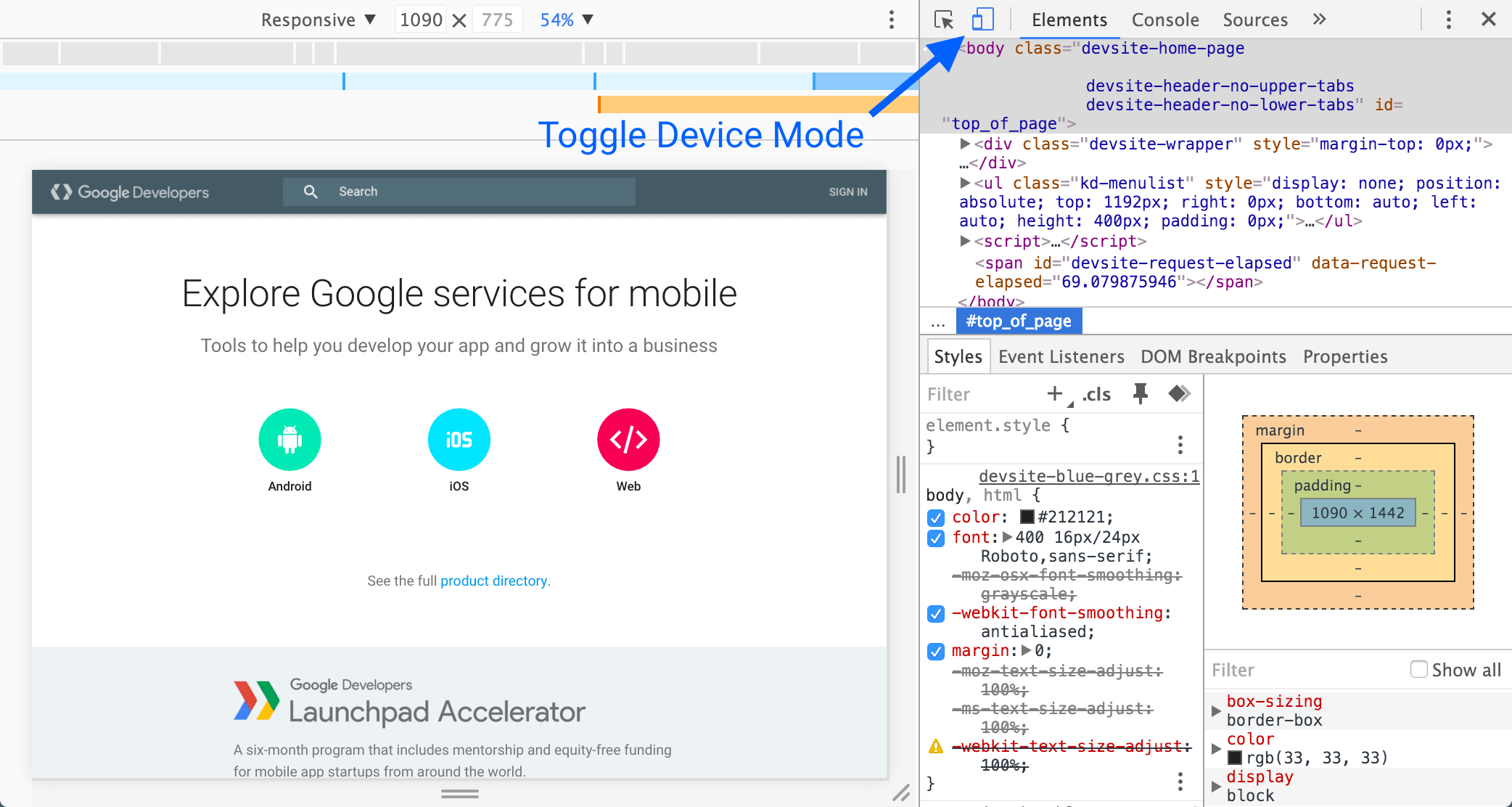
When Device Mode is on, the icon is blue, When it's off, the icon is grey.
Responsive mode
Appvance IQ uses Device mode on using the Responsive Mode as your default work mode. It is used during the active development of your site and app and resizes the view-port often to create a freely responsive design that adapts to even unknown and future device types.
Appvance IQ test designer supports a wide range of chrome responsive modes.
How to use in Appvance IQ
Once logged in go to Test Designer IDE under Record
Click File > New
Under Record drop-down, you should notice Responsive > with the list of devices to choose from
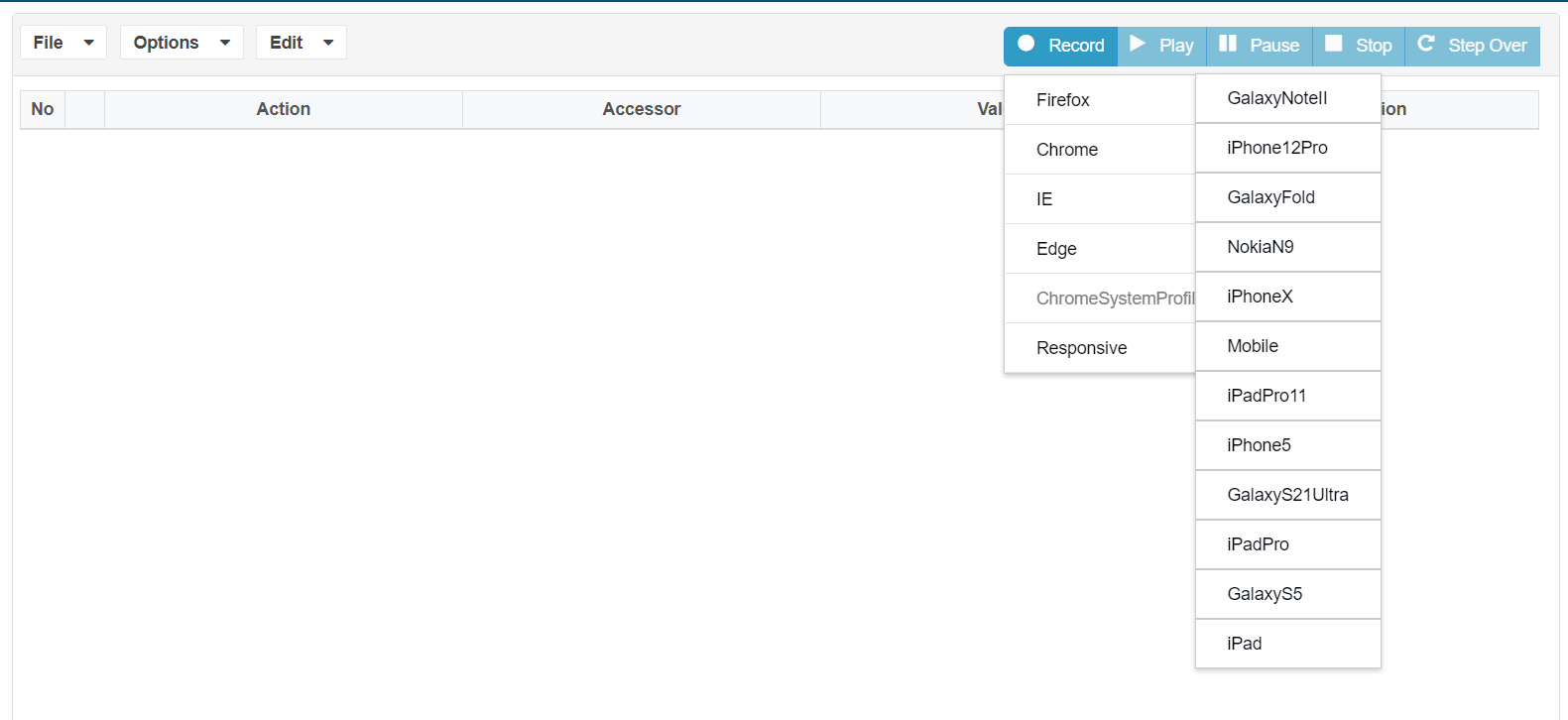
Select Responsive > preferred device from the list, Google Chrome should open in mobile responsive mode for recording based on the device chosen
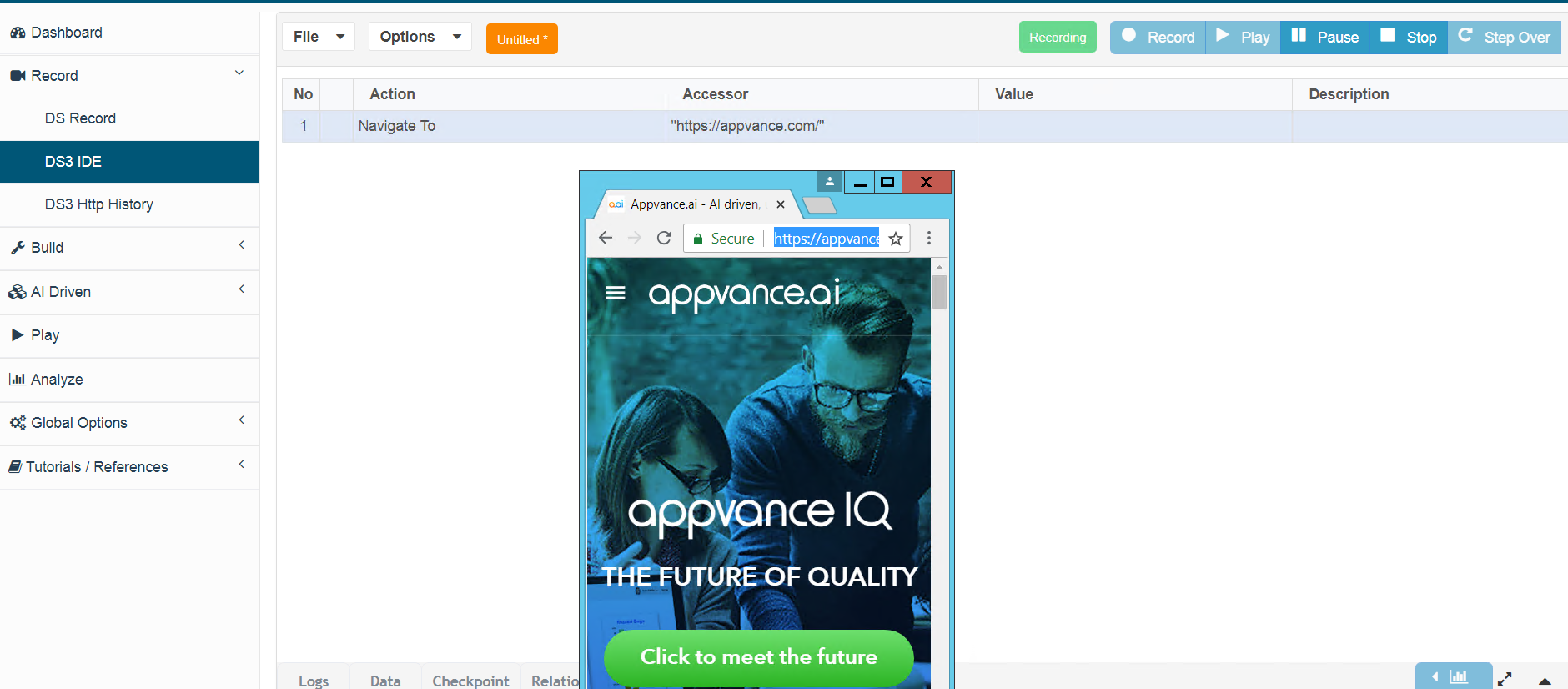
You will notice that the browser would be renderedResponsiveness in a Browser
Use browser-based mobile moderesponsiveness basedtesting to validate layout behavior at common mobile viewport sizes. This is useful for responsive web applications, but it does not replace testing on thereal chosenmobile devicedevices justwhen likedevice-specific howbehavior matters.
What to validate
Good practices
- Test the smallest supported viewport first.
- Validate at least one common phone and one tablet breakpoint when applicable.
- Confirm critical flows on a
scriptrealin Test Designer
If there are any complex steps that require some scripting, you could make use of Test Designer JS Edit & Play under Build to create JS and playback in Record mode
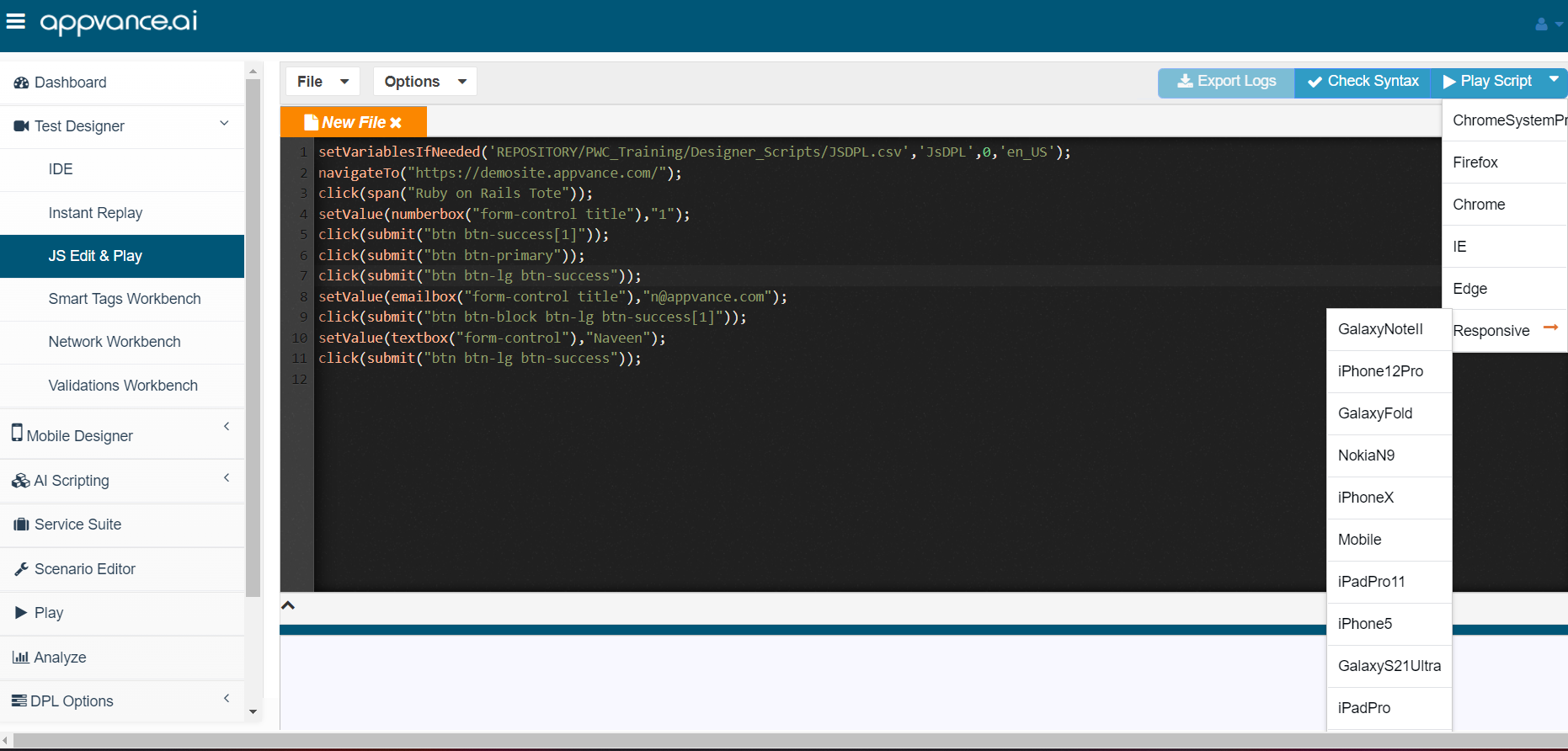
These scripts can be re-purposed as Functionaldevice or Performanceemulator testsbefore fromrelease Scenario Editor. The below example shows how to create a performance test using a Mobile browser
Creating your first mobile Performance Scenario
Open a browser, navigate to your Appvance IQ URL, and log in using your credentials
Select the Build option
Scenario Editor appears
Select File > New
From the Info tab, click Please select a Test Type box and select Performance Test
From the Test Management tab, select one of the Options from Completion Type for example Total Duration, Provide the Total Duration in Minutes
From the Test Cases tab, click Add a Test Case Execution
Enter a name for the test case in the Test Case Name box
Enter a name for the script in the Script Name box
Click the Script Type box and select Appvance Designer Script 3.0
Click Browse (to the right of the Resource box)
The Open window appears
Select the Appvance Designer Script 3.0 (file extension .ds) created in the prior Getting Started Guide, and click Open
The selected file appears in the Resource box
Click the Browser box and select the browser as MOBILE to use for playback
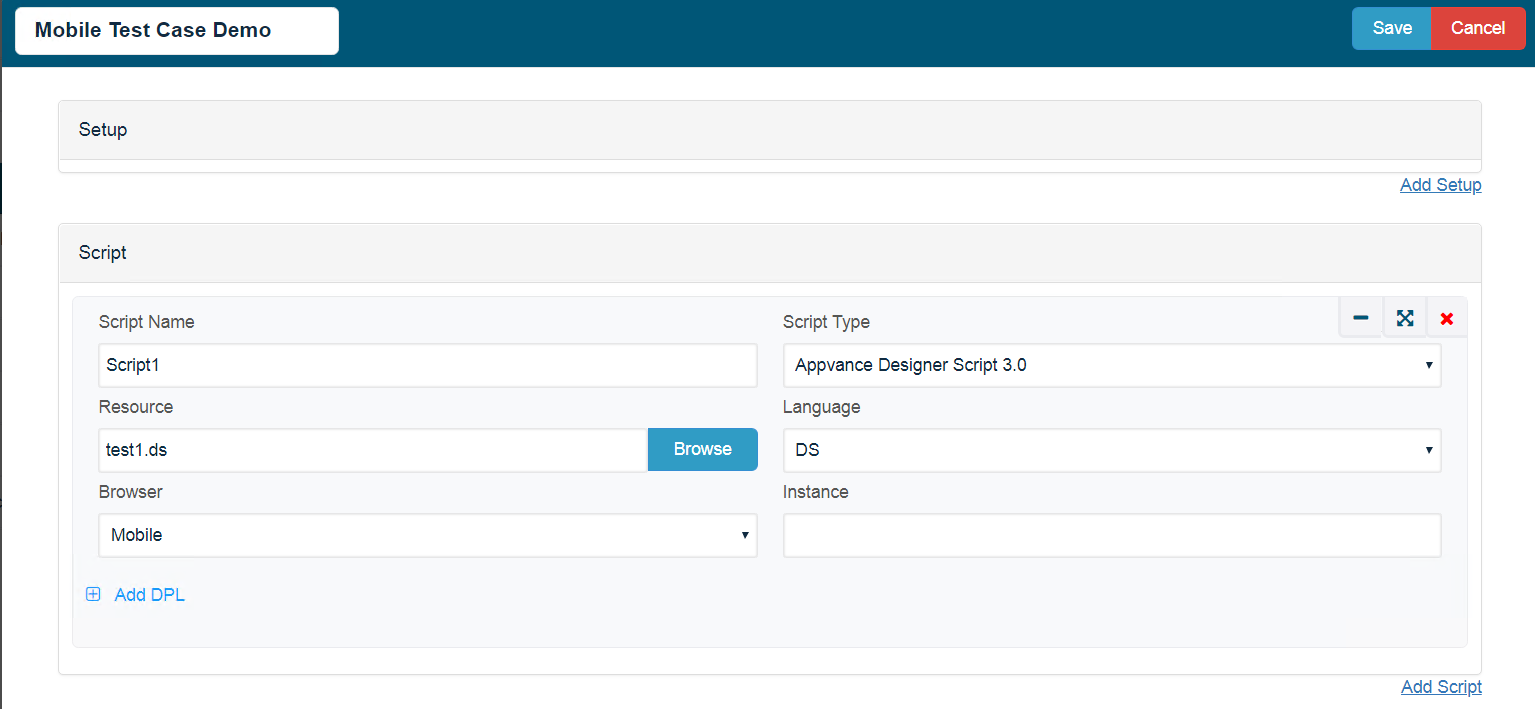
Click Save
The test case appears in the Iteration 1 list.
If necessary provide the Number of Users, you want to run the performance test in that duration.
Select File > Save
The Save window appears, displaying the Appvance Designer controller file system; not the local machine
Browse to the desired directory, enter a name for the scenario in the File-Name box, and click Save
To playback, click Play Scenario
The scenario execution status launches in a new tab, and a new browser window opens, using the browser indicated in the scenario configuration, which executes the specified Appvance Designer script.
When the Status displays Execution is done, click Test case(s) Executions
Select the first result in the Test case(s) Executions list
The output details, errors, requests & responses display on the corresponding tabs
Click the Output tab (left set of tabs, below Live Reports) to view additional reports pertaining to this scenario execution
Last updated: JuneSeptember 26,18, 20232026
If you have any feedback on this topic, please contact us at documentation@appvance.ai