
Create a Desktop Test in AIQ - Legacy Desktop Designer Flow
Create a Desktop Test in AIQ - Legacy Desktop Designer Flow
HereUse arethis page only when maintaining a desktop automation flow that still depends on Desktop Designer. For new test authoring, prefer the basiccurrent stepsAIQ forworkflow and Scenario Editor where the test can be supported without legacy Desktop Designer assumptions.
Before creating or updating the test
- Confirm the Windows application, browser, driver, and operating system versions used by the test environment.
- Run the desktop application with a
newdedicated test account and non-production data. - Document the startup state, window title, and any required permissions before recording or editing steps.
- Use explicit waits and stable selectors instead of relying only on screen timing.
Recommended workflow
- Prepare the desktop environment and open the application in the expected starting state.
- Create or update the desktop test
filesteps in theDesktoplegacyDesigner.flow. - Add
Prerequisite:validationAafterdesktopmajorconfigurationactionsfilesomustfailuresbearecreatedvisible in output logs. - Run a short smoke test before
you createadding the testfile. SeeDesktop Designer Configuration for more information. In AIQ navigatetoDesktopaTestinglarger>suite.- Record
DesktopmigrationDesigner.notes
Click Create New in the and select Desktop Test. You can also click Create New Desktop Test in the main portion of the screen.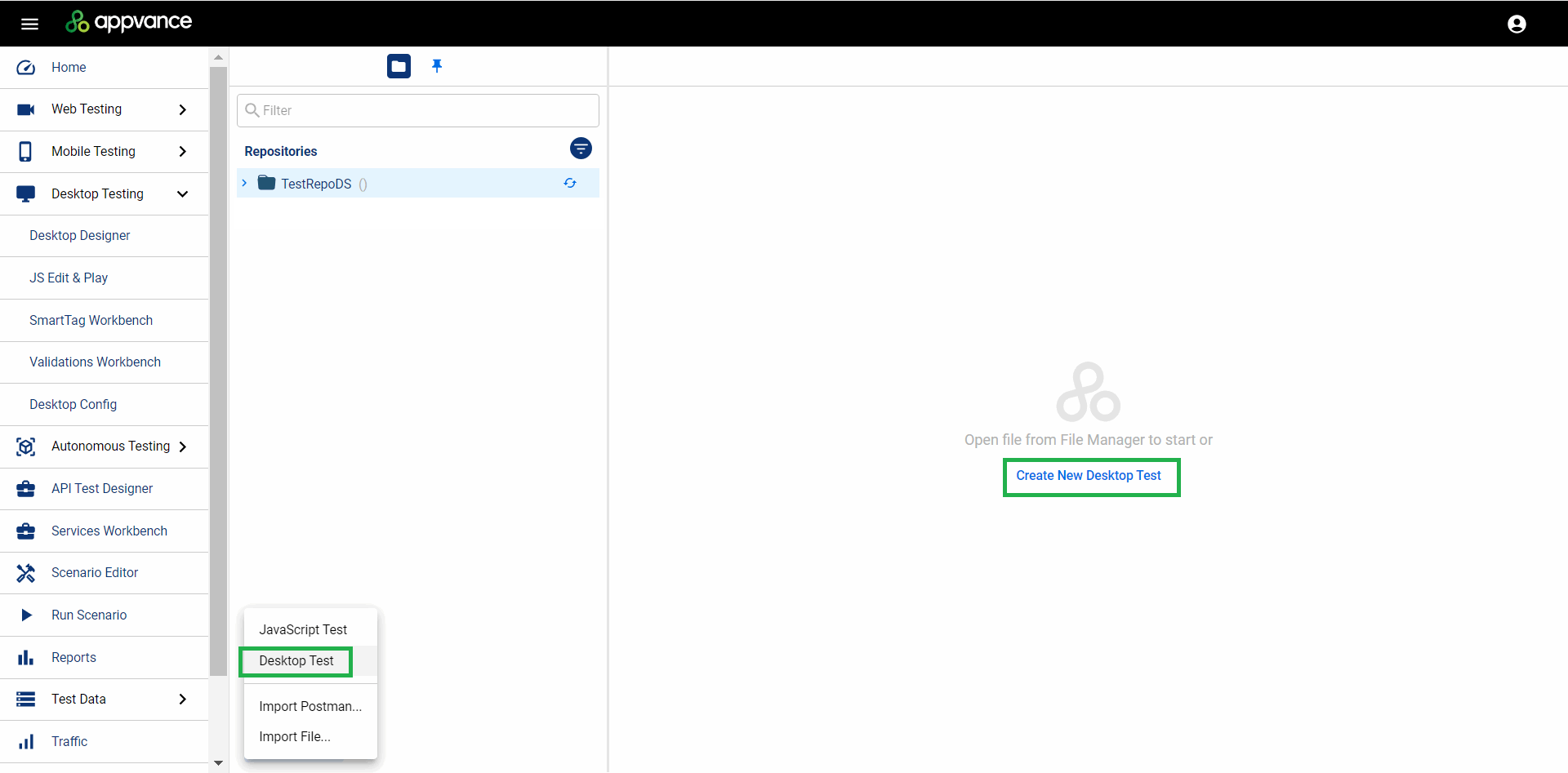
Nameif the test file.should
On the Config line, click Select Filemove to add a desktopcurrent testingAIQ configurationworkflow tolater.
Legacy test.note: This needs to be a preexisting file. See Desktop Designer Configurationreferences are kept for moreexisting information.assets only and should not be used to start new documentation patterns.
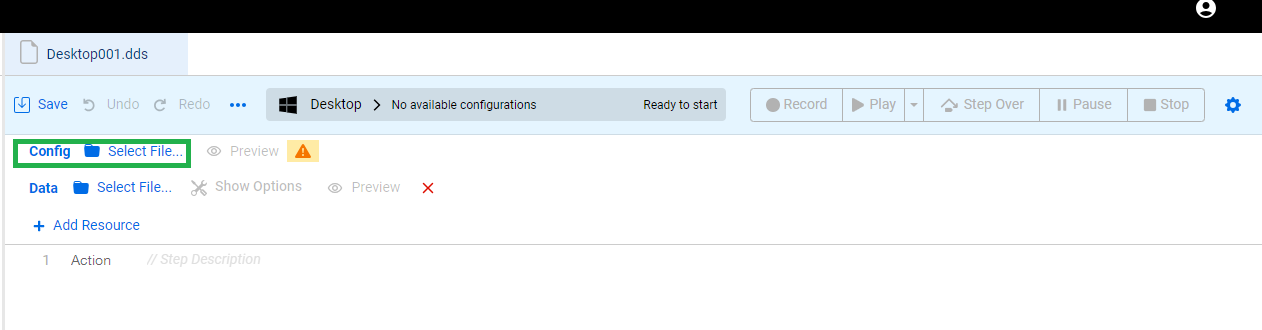
Browse to the location of your configuration file in your repository and click Open. Configuration files are .json files.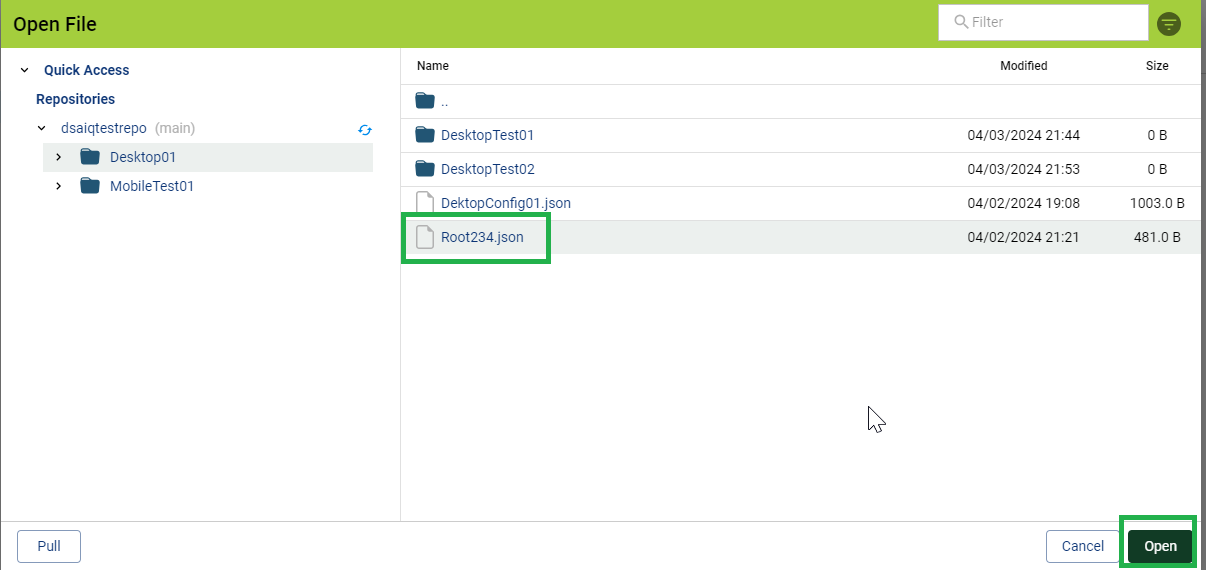
You can click Preview to verify the details of the configuration file.
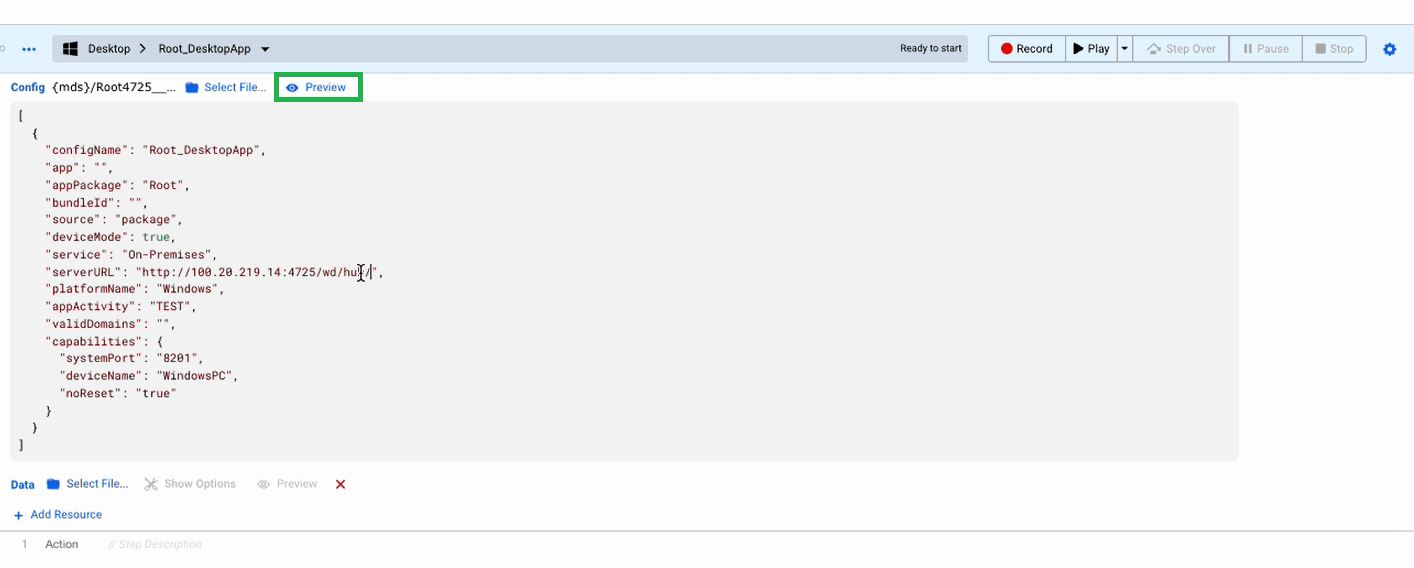
You can now begin recording your test. Click Record to begin.
See Desktop Designer Example - Kindle Desktop App for an example desktop test.
Last updated: SeptemberOctober 25,8, 20242026
If you have any feedback on this topic, please contact us at documentation@appvance.ai