
Live Results While a Test Runs
Unified Test Platform stores the results of every test, every step, and every failure to a Results Repository (normally MySQL or Oracle RDBMS) as it operates the test. Unified Test Platform displays the results in the Controller window and also through from Analyze button from the Start Screen. Results Analysis Reports display the results in a browser-based Web page by making live requests to the Results Repository. Use the browser's reload/refresh command to update the results as the test operates.
Controller windows communicate with the Test Nodes, Results Repository, and AIQ Monitors while operating a test to give a live view of the results.
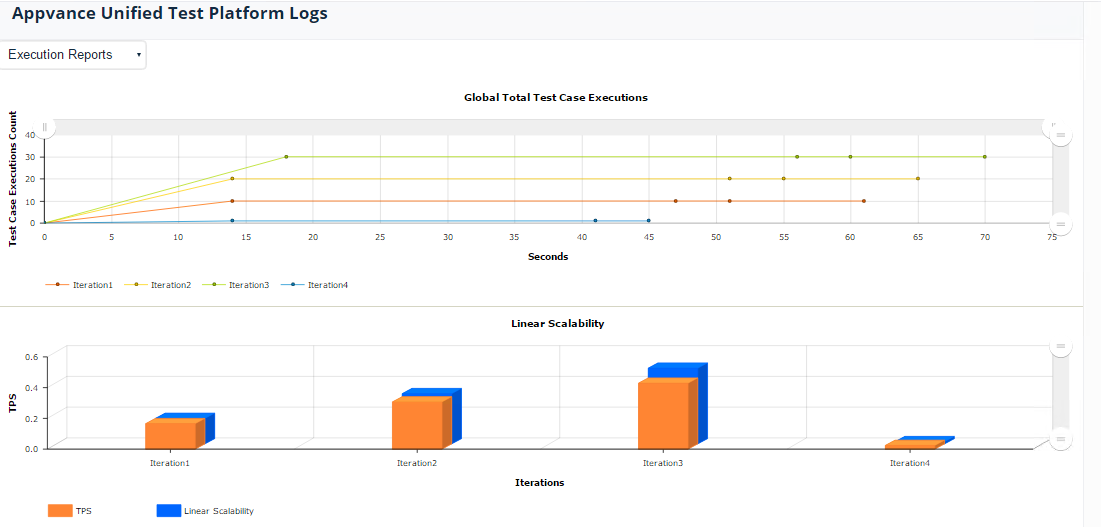
Controller windows provide several ways to understand app performance while a test is running:
-
Performance tests show a Scalability Index chart and Total Transactions chart
-
The upper right panel shows the logged conversation between the Controller, Test Nodes, and AIQ Monitors
-
The middle right panel shows a list of Test Nodes operating the test and a summary of the pass/fail statistics for each Test Node
-
The middle right panel has a Transactions tab to show the most recently completed transactions on all the Test Nodes running this test. A pop-up menu lets you select how recently to show the results: Most recent 10 transactions, most recent 50, and all transactions.
-
To view the standard and error output of a specific Test Node, click the Test Nodes tab in the middle right panel. Then clicke of the Test Node rows. The standard and error output appears in tabs in the lower right panel
-
To view the request, response, and error messages from transactions, click the Transactions tab in the middle right panel. Then clicke of the Transactions rows. The details of the chosen Transaction appear in tabs in the lower right panel
Last updated: June 26, 2023
If you have any feedback on this topic, please contact us at documentation@appvance.ai