
How to Setup a Repository Connection in AIQ
Recommended
Did guidanceyou know AIQ seamlessly works with change management repositories?
SetIf upyou see the message "No Repositories" (highlighted below) in the File Manager pane it means that you do not have a valid repository connectionsconfigured. inYou must have a repository configured to store your files. Storing files locally is not supported.
Assets created by you and your team are automatically shared, versioned and available directly from AIQ when tests,you services, data files, or reusable assets need to come from controlled source control. The connection should be tied tosetup a clear project, branch strategy, and access model.
Before setup
Confirm repository URL, provider, branch, folder path, and target AIQ project.Validate network, proxy, firewall, DNS, and certificate access from the AIQ host.Use approved Git credentials, tokens, or SSH keys with the minimum required access.Confirm whether AIQ should read only or also write backconnection to therepository.
Validation workflow
Creategit orupdatesvn repository of your choice.Prerequisites: What you’ll need before you begin
-
Your AIQ URL and credentials
The URL and credentials for your preferred git or svn repository
Create a Repository Connection
Expand Global Options (bottom of the left Navigation bar) and click Preferences
Using either a provided GIT repository URL and your gitlab credentials, or a URL to your own repository, follow the steps in the image below to setup the repository connection
What's connectivityNext?
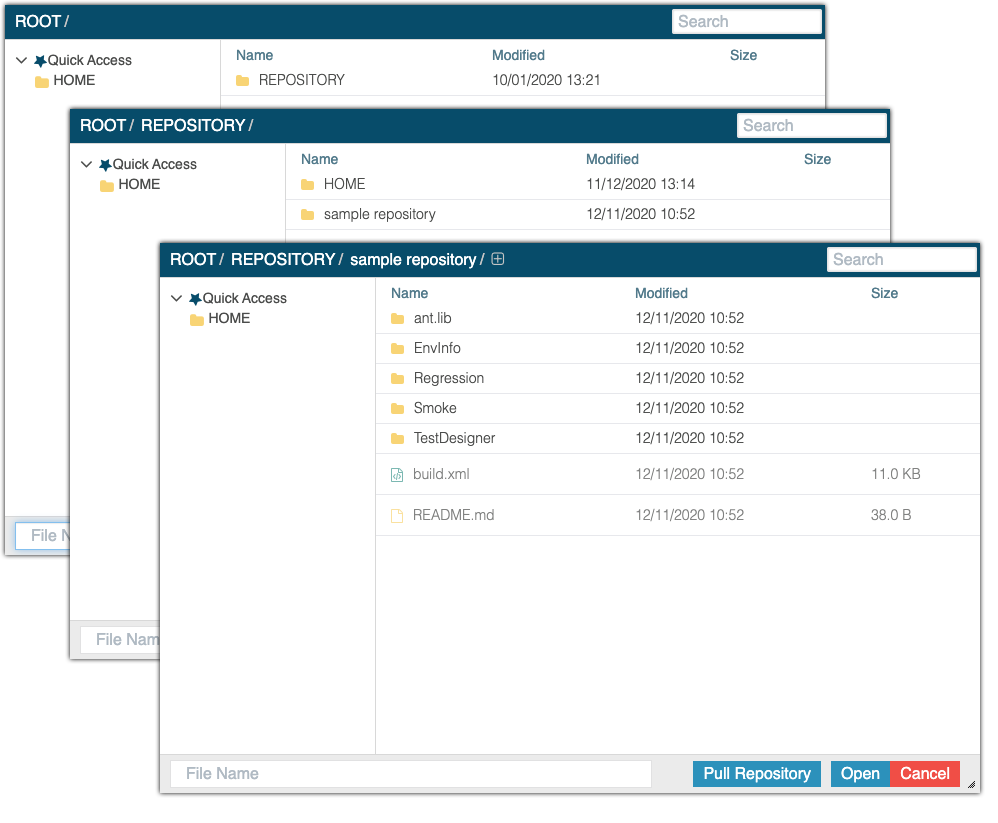
When you use the AIQ File Browser, you'll now see your HOME directory as well as the connected repository, it's directories, and confirm the expectedany files appear.
Last updated: OctoberMarch 6,21, 20262024
If you have any feedback on this topic, please contact us at documentation@appvance.ai