
How to Setup a Repository Connection in AIQ
Did you know AIQ seamlessly works with change management repositories?
If you see the message "No Repositories" (highlighted below) in the File Manager pane it means that you do not have a valid repository configured. You must have a repository configured to store your files. Storing files locally is not supported.
Assets created by you and your team are automatically shared, versioned and available directly from AIQ when you setup a connection to the git or svn repository of your choice.
Prerequisites: What you’ll need before you begin
-
Your AIQ URL and credentials
-
The URL and credentials for your preferred git or svn repository
Create a Repository Connection
-
Expand Global Options (bottom of the left Navigation bar) and click Preferences
-
Using either a provided GIT repository URL and your gitlab credentials, or a URL to your own repository, follow the steps in the image below to setup the repository connection
What's Next?
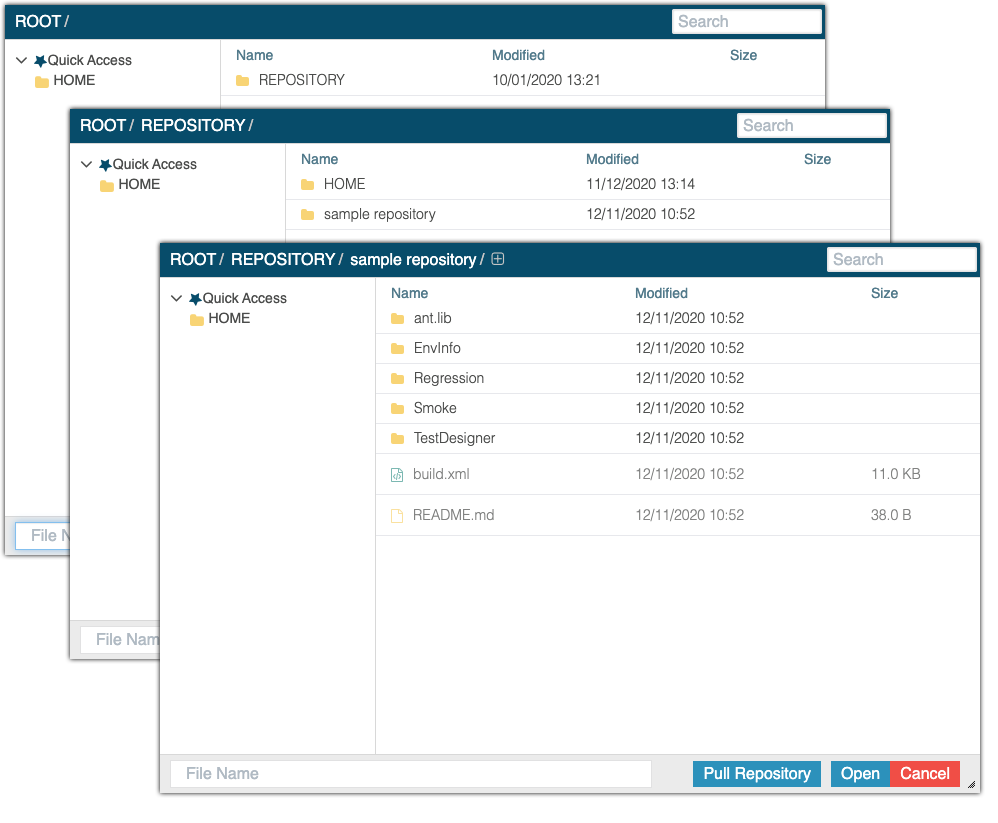
When you use the AIQ File Browser, you'll now see your HOME directory as well as the connected repository, it's directories, and any files therein.
Last updated: March 21, 2024
If you have any feedback on this topic, please contact us at documentation@appvance.ai