
Jenkins Email Notification
Login to Jenkins.
Navigate to Manage Jenkins.
Navigate to “Go to plugin manager”
Search for “Email Extension” under filter section in plugin manager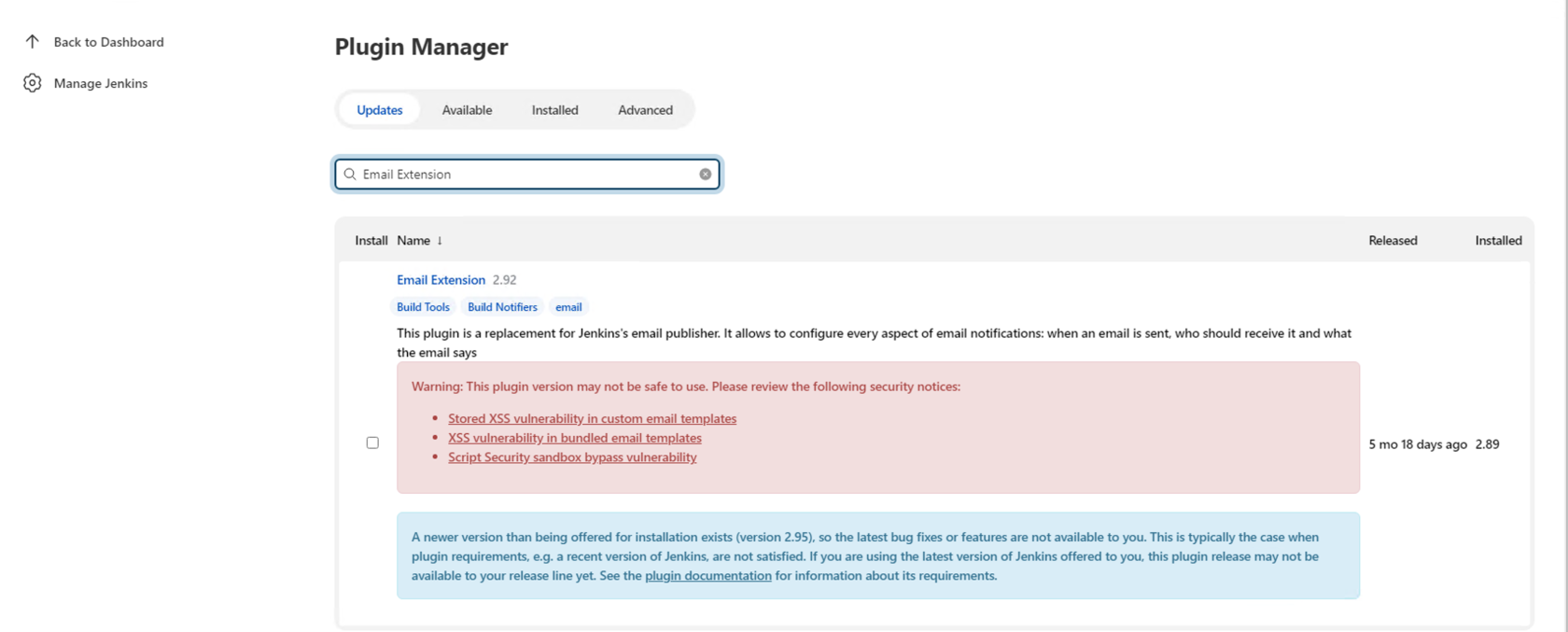
Download and Install the Email Extension
Create APP Password for GMAIL account - Follow below steps to create App Password
If you configure Jenkins e-mail please you should follow the below steps:
first enable two step verification for reference click here
generate an app password
add the app password instead of your password
After successfully creation of APP Password for GMAIL
Go to Configure System in Manage Jenkins.
Under Configure system go to “Extended Email Notification and add
SMTP Server field - smtp.gmail.com
SMTP Port - 465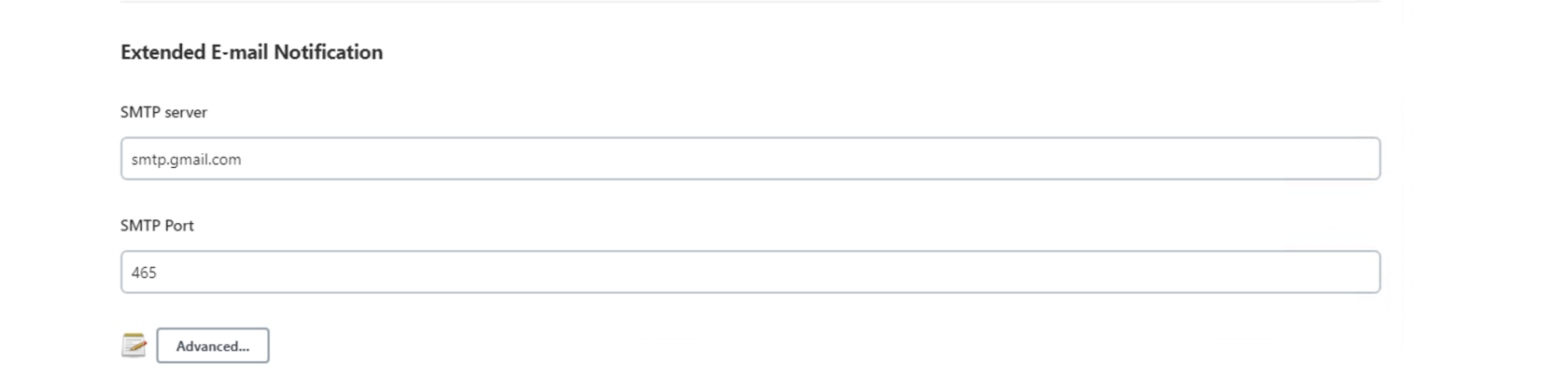
Click Advanced button below SMTP Port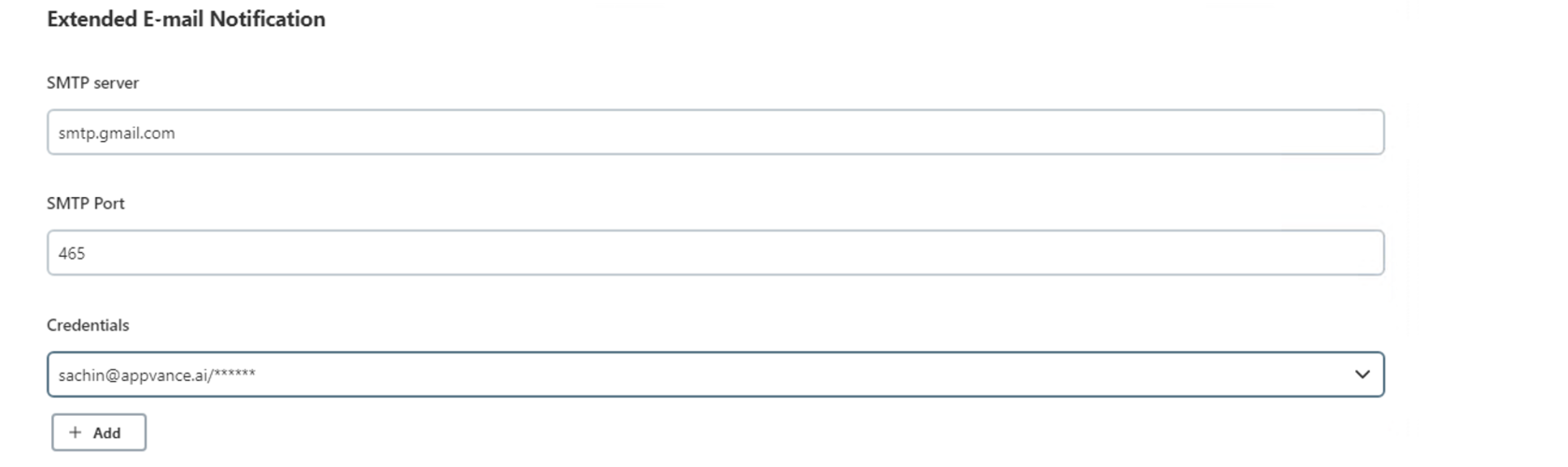
Click Add button
Go to Jenkins credentials provider and add the Username and APP Password ( Which was created on Step 6) and click Add button.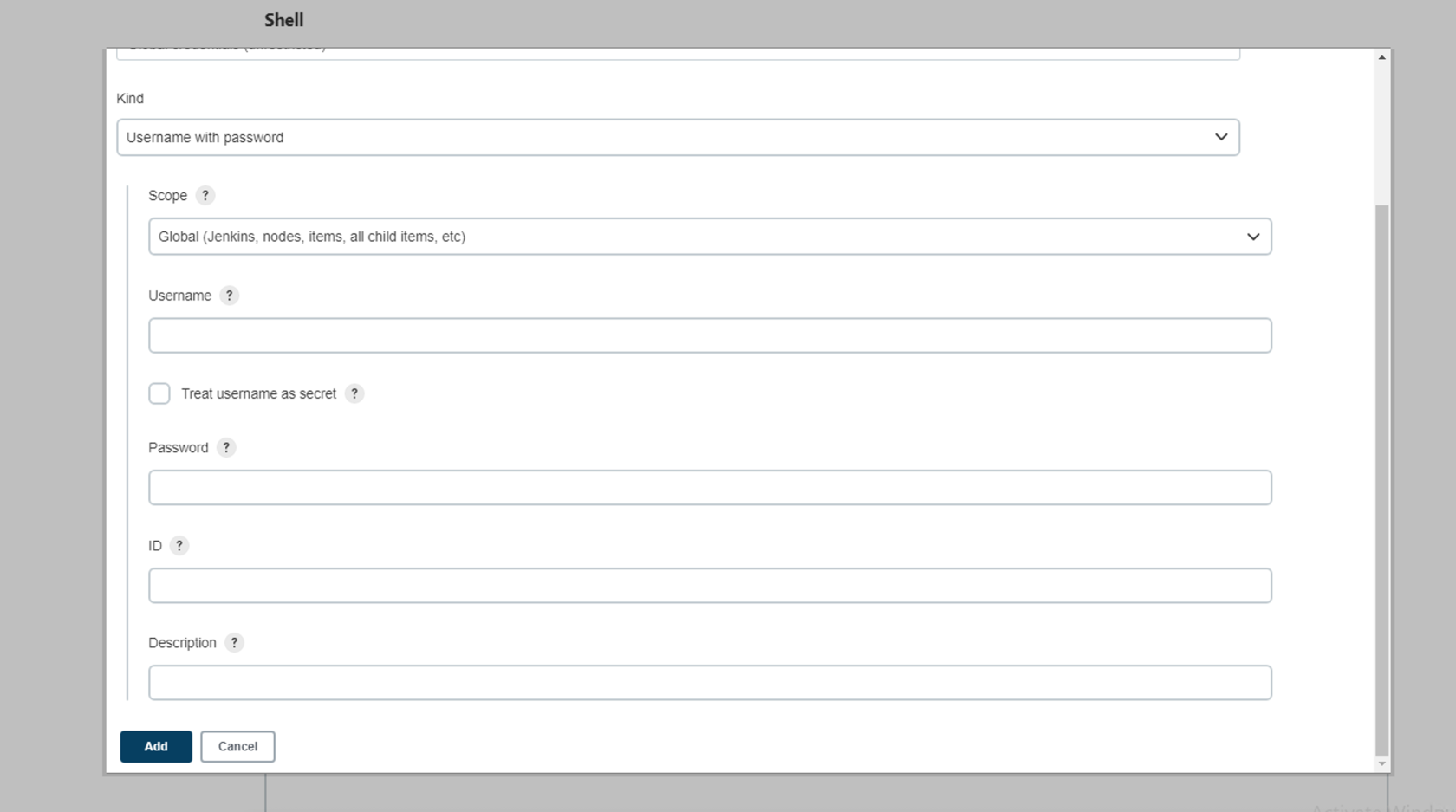
Click save button in Configure system
Go to the project and click configure
Under post-build Actions Choose Editable Email notification under Build
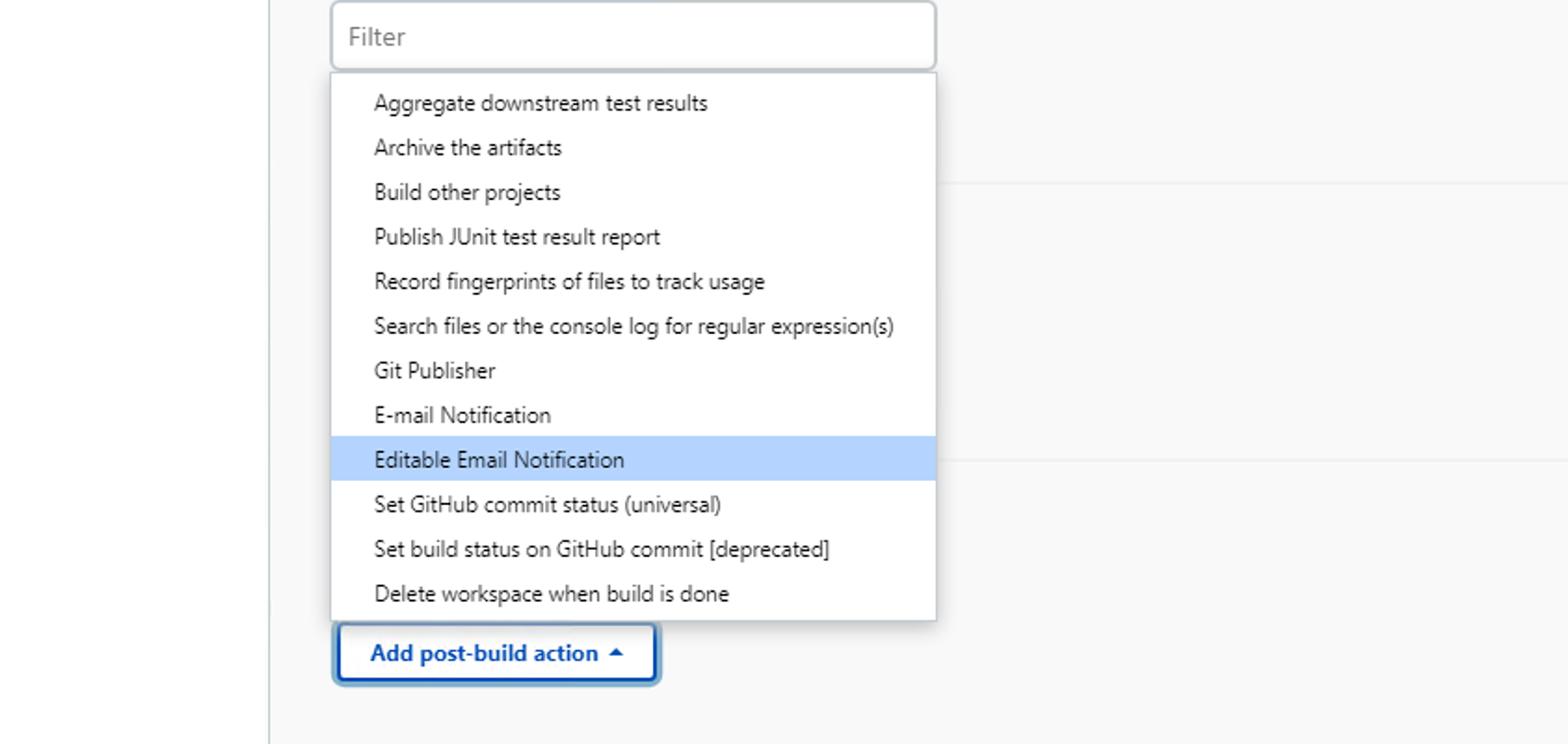
Under Editable Email notification add
“Email id” under Project From
Other field are by-default filled
Click Advance settings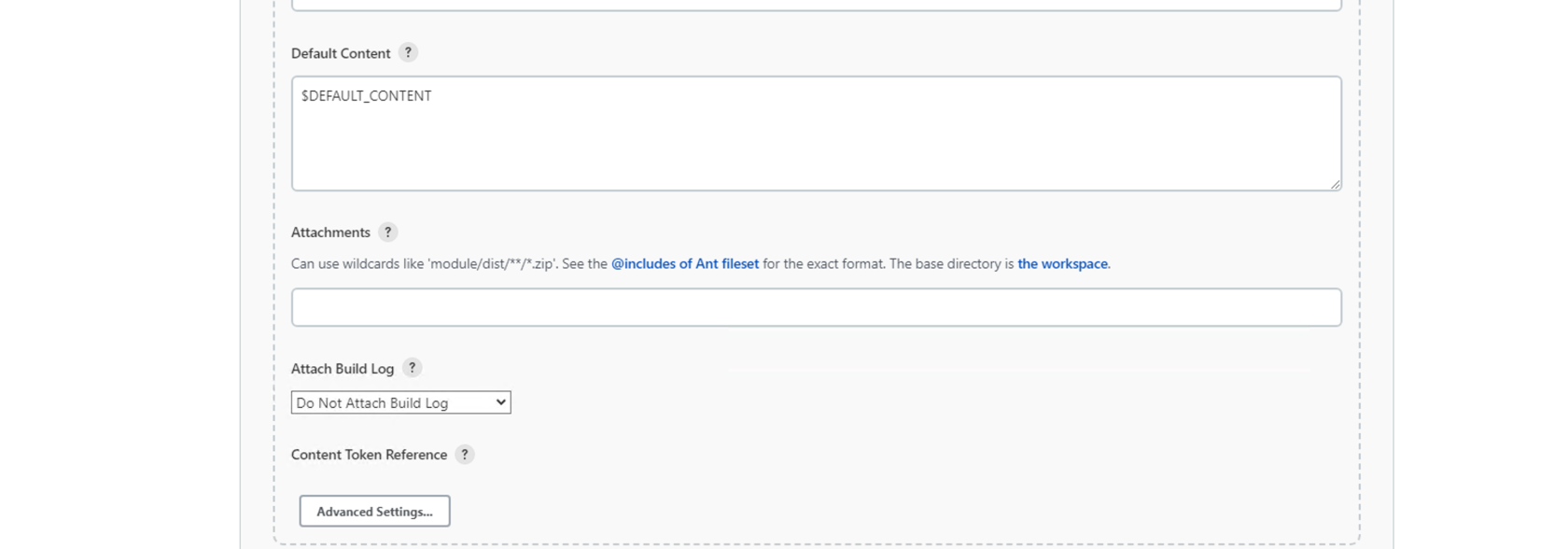
All the field are are by-default filled
Click Add trigger under Triggers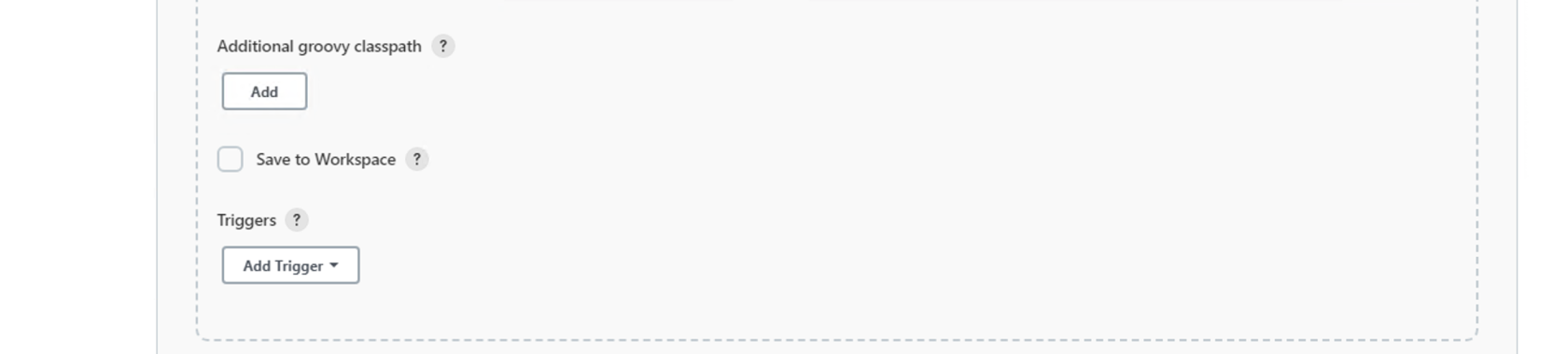
Select Always (User can change as per requirement)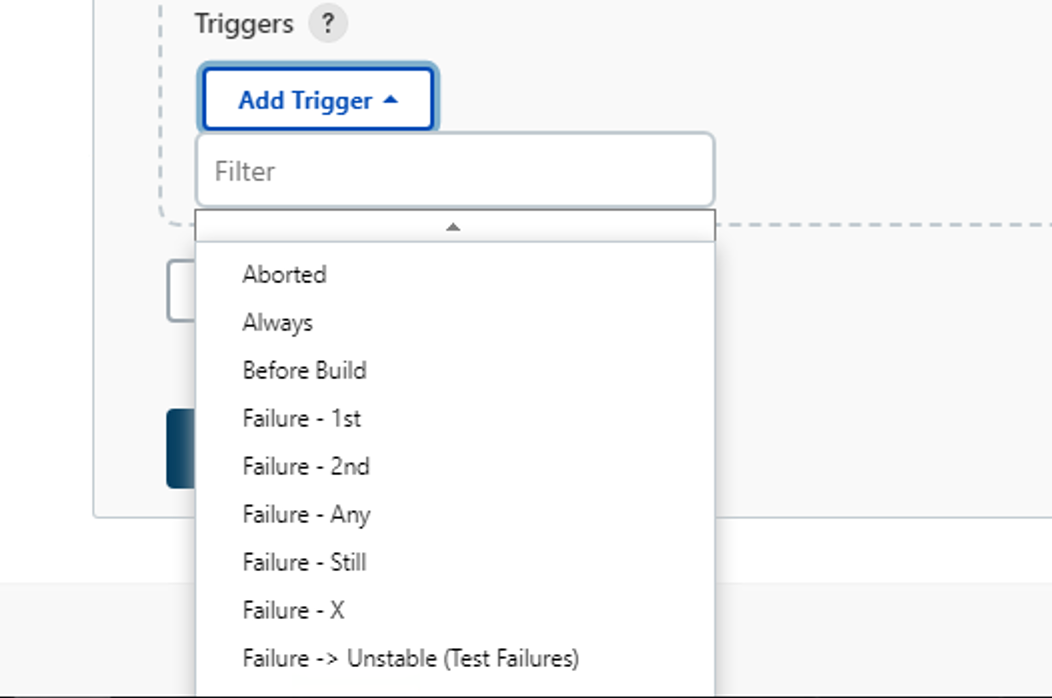
Click Advanced under Triggers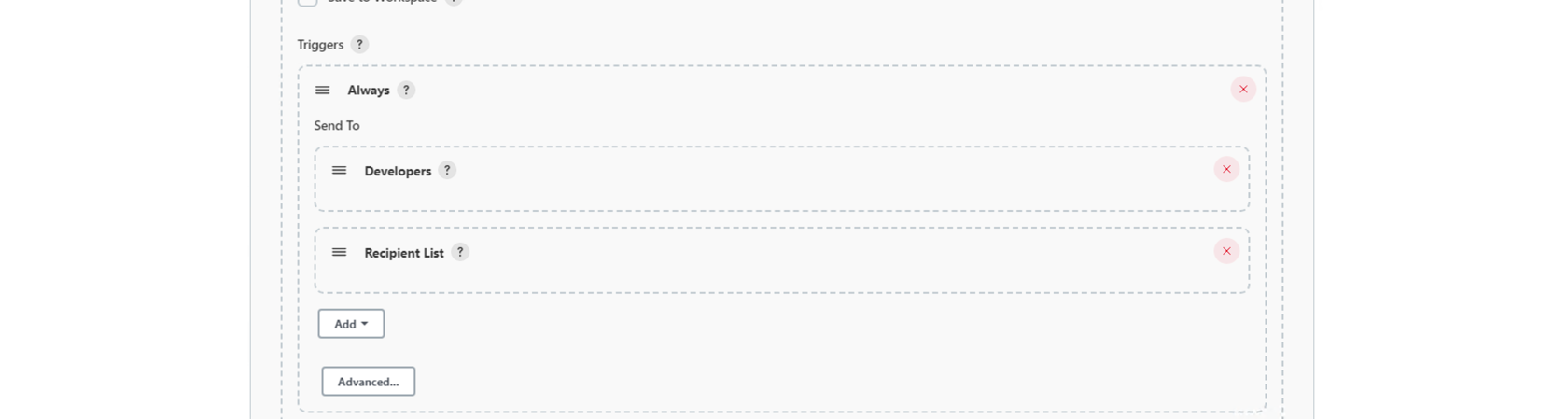
Add Recipient Mail id under Recipient List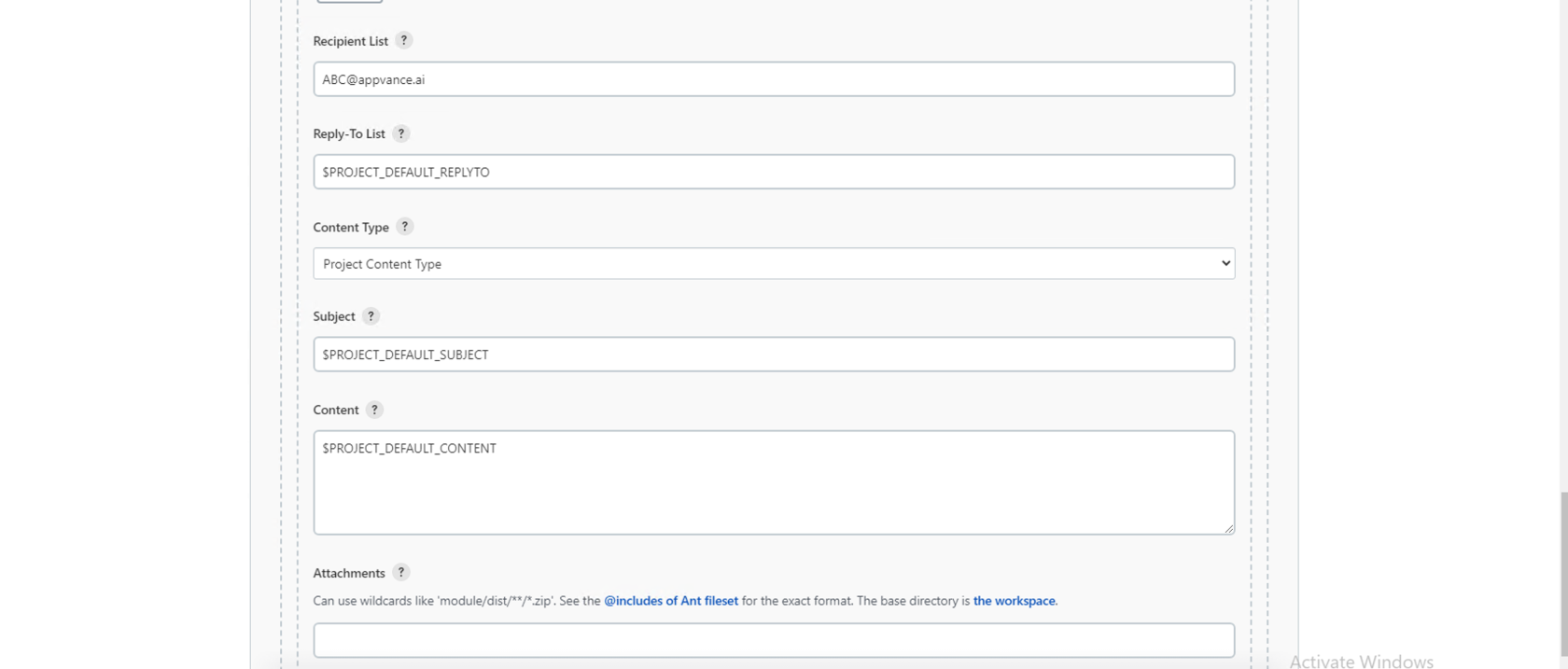
Click Save and Apply
Recipient user will start getting Email Notifications
Last updated: June 02, 2023
If you have any feedback on this topic, please contact us at documentation@appvance.ai