
How can I validate and handle a failure in my app so my script can continue?
Problem
As a user, I want to report on validations which fail, but I’d also like to use workaround steps if possible to move past the error when it occurs.
Resolution
Create a validation which also includes the steps to overcome the issue and move forward.
Verification Snippet
var visibilityResult = isVisible(small(["Enter valid Date of Birth"]));
if (visibilityResult){
  setValue(textbox('DateofBirthMask'),'01011955');
};
assertFalse(visibilityResult);
Explanation
-
Check if something is visible
-
If it is visible, then proceed with workaround step(s)
-
Then return a verification failure if the item checking for was visible using assertFalse(visibilityResult);
Many other asserts types exist. For a complete list, see Assert and Verify Functions.
Why is the assertion last?
-
As a user, you would like to check for the existence of an issue…
-
But before sending the result back (where the script or blueprint will continue running)
-
You would like to recover from the issue and work around it if possible.
-
This means you
-
First check for the existence of the issue,
-
And if it exists, handle the issue,
-
And only then after it’s handled, return the failure status back to the script.
-
-
If the assertion were first,
-
Then the subsequent steps would be skipped, as a failure result would occur,
-
And the remaining steps would be skipped.
-
Steps
Option A: Example Using SmartTag Validations
-
SmartTag validations are triggered either pre- or post- interacting with associated SmartTag(s)
-
In this example, after an action against the svBtnAddToList SmartTag, the failIfValidEffectiveDateMsgExistsAndHandle validation triggers
For additional information about SmartTag Validations see Validations in SmartTag Workbench.
SmartTag Validation Assignment

SmartTag Validation Post-Action Trigger
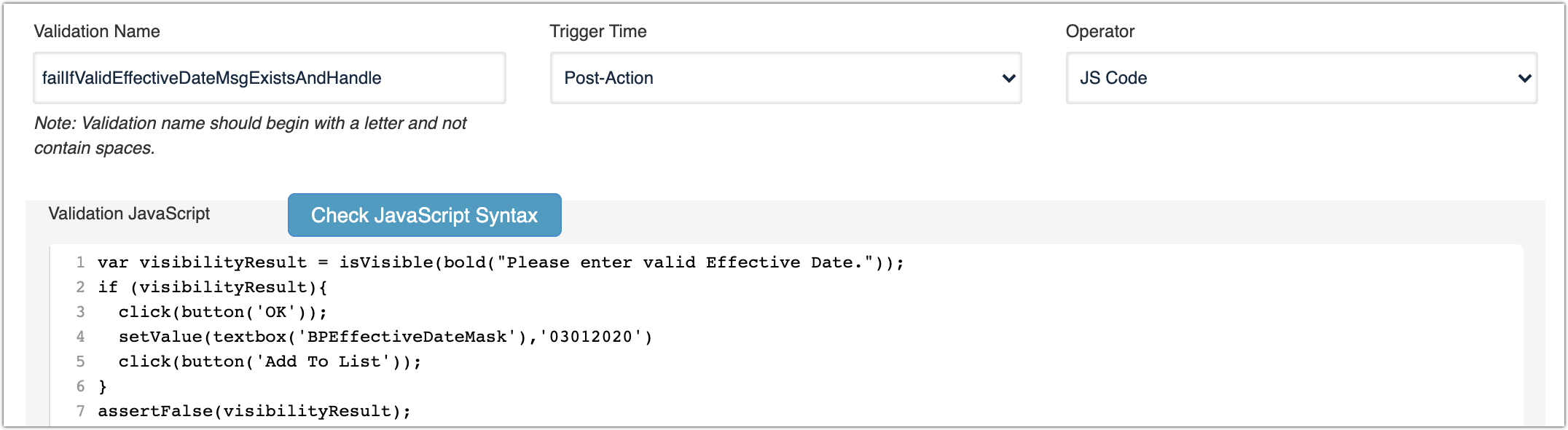
SmartTag Validation Usage
This SmartTag automatically triggers when a Test Designer IDE script, JS Edit & Play script or AI Blueprint uses the svBtnAddToList SmartTag.
-
JavaScript
click(svBtnAddToList('Add To List')); -
Test Designer IDE
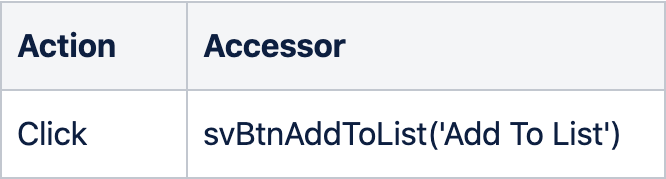
-
Blueprint

Option B: Example using Validation Workbench
Validation Configuration
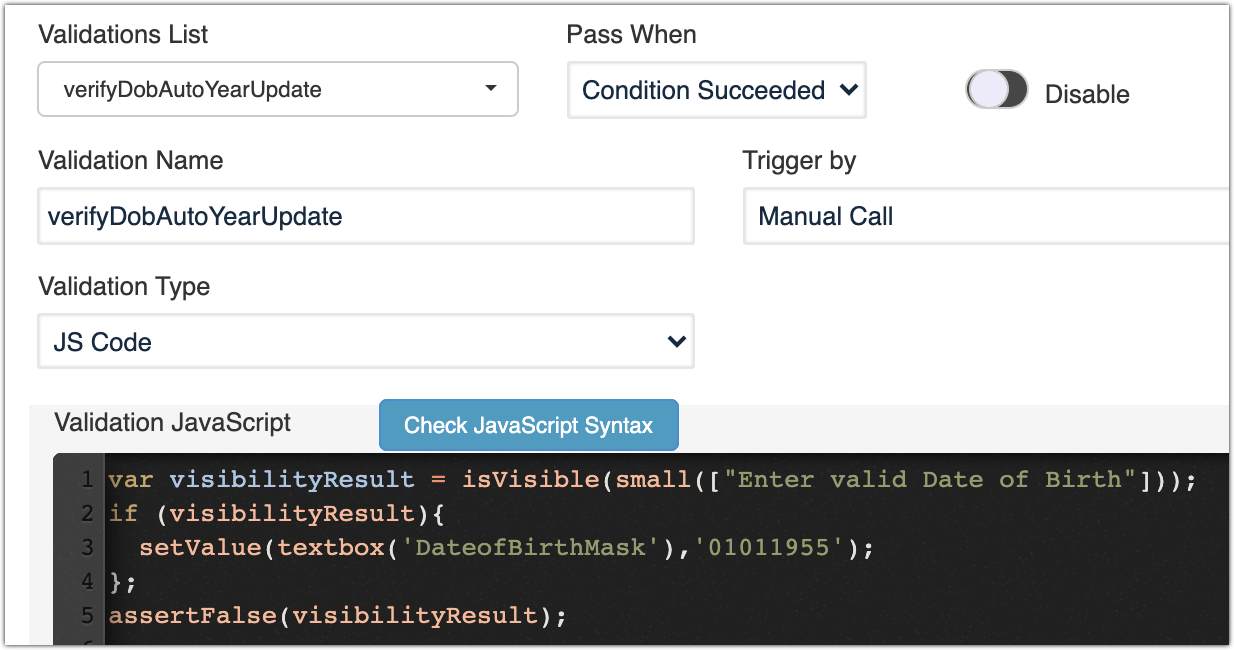
Validation Usage
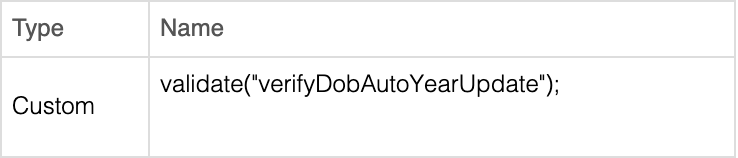
The Trigger by type in this example is a Manual Call, allowing you to call the validation from a script or blueprint simply using Validate as follows:
-
JavaScript
validate(“verifyDobAutoYearUpdate”); -
Test Designer IDE
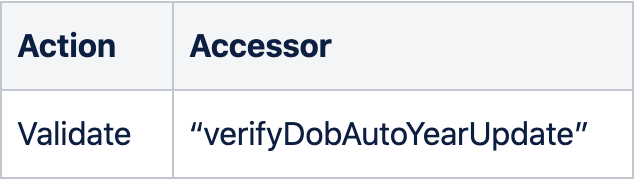
-
Blueprint
For additional information about triggers see “Trigger By:” in Validation Workbench
Last updated: August 25, 2023
If you have any feedback on this topic, please contact us at documentation@appvance.ai