
Identify AIQ Java Processes in Windows Task Manager
Sometimes
Identify whenAIQ startingJava Appvance IQ, I see 3 or 4 java processes, how do we know what process is running?
This can be known by using command line from task manager.
To show the command lineProcesses in Windows 10Task Manager
Last reviewed: September 21, 2026
Use this article to identify which Java process belongs to an AIQ service before restarting, monitoring, or collecting diagnostics.
When to use this guidance
- Multiple Java processes are running on the AIQ host.
- You need to avoid stopping the wrong service.
- Support asks for process ID, memory, or command-line details.
Recommended approach
- Open Task Manager
,dowith administrative visibility on thefollowing.

before taking action.
Note: toDo not end Java processes as a first step. Stop or restart AIQ services through the tabsupported youservice wantcontrols towhenever add the command line information to.
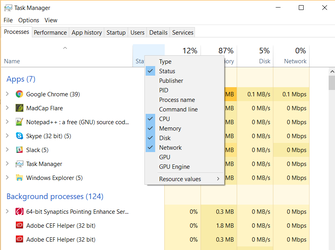
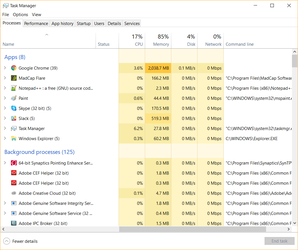
Once the command line is enabled, by looking at the jar name, you could find the processes. possible.
Example shown below:

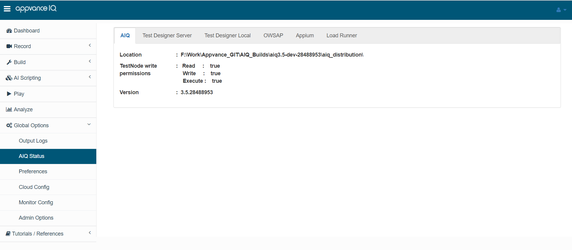
Additionally AIQ itself has an AIQ Status page that can be accessed from Global Options where you could check the status of all the processes instead of command line.
Last updated: JuneSeptember 26,21, 20232026
If you have any feedback on this topic, please contact us at documentation@appvance.ai.