
Release 5.2.3
Appvance
Release customers can access the 5.2.3
This page includesis retained as a link to thehistorical AIQ 5.2.3 installer,release thenote. listRelease ofnotes fixesshould includedpreserve intheir the release, information on upgrading from a previousoriginal release ofcontext while using current documentation formatting and terminology where clarification is needed.
Review guidance
Enhancements in AIQ 5.2.3
AIQ 5.2.3 contains the following functional enhancements.
Depending on what AIQ release you are upgrading from to AIQ 5.2.3, there may be additional functional enhancements included in this release.Refer to the AIQ 5.2.x release notes for all the AIQ releases since your current release for more details.
New Azure Repository Type
Support for Azure blob storage was added to the supported repository types in the 5.2.3 release of AIQ.
Repositories are configured in Global Options > Preferences > Repositories (tab).
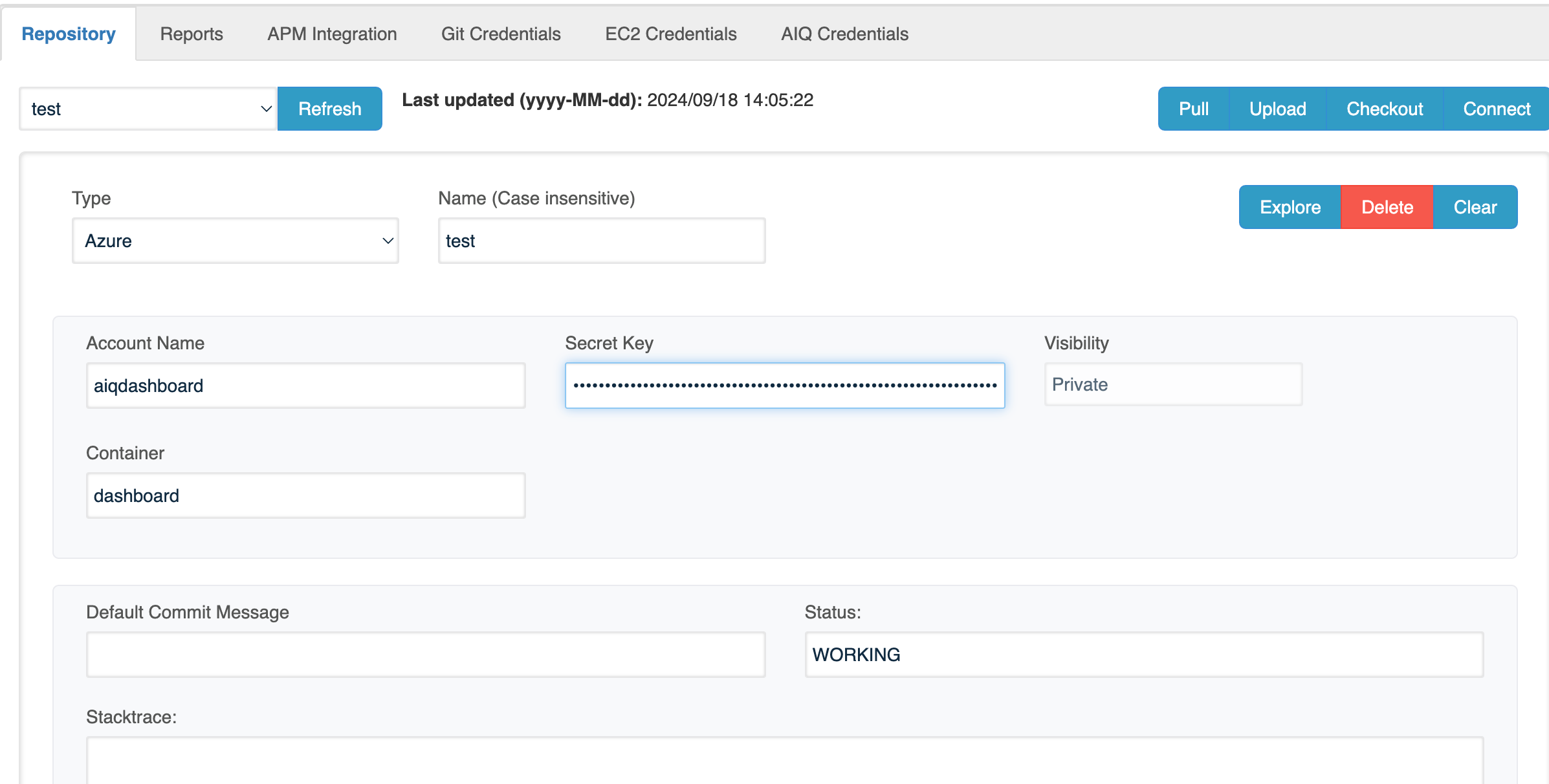
See Repository Configuration in Appvance IQ for more information.
Azure Active Directory Authentication
Support for SQL Client to connect to MSSQL using Active Directory Authentication protocols was added in the 5.2.3 release of AIQ. Active Directory Password authentication allows users to authenticate to Azure SQL Database or SQL Server using their Azure Active Directory (AAD) credentials.
This is the process to create an SQL Server in the Azure Portal and configure it to use Active Directory Password authentication.
See Azure Active Directory Authentication for the configuration steps to create an SQL Server in the Azure Portal and configure it to use Active Directory Password authentication.
Adding IAM Roles to S3 Authentication
You can now add an IAM role to S3 repositories.
See How to Create an Access Key to your IAM User for more information.
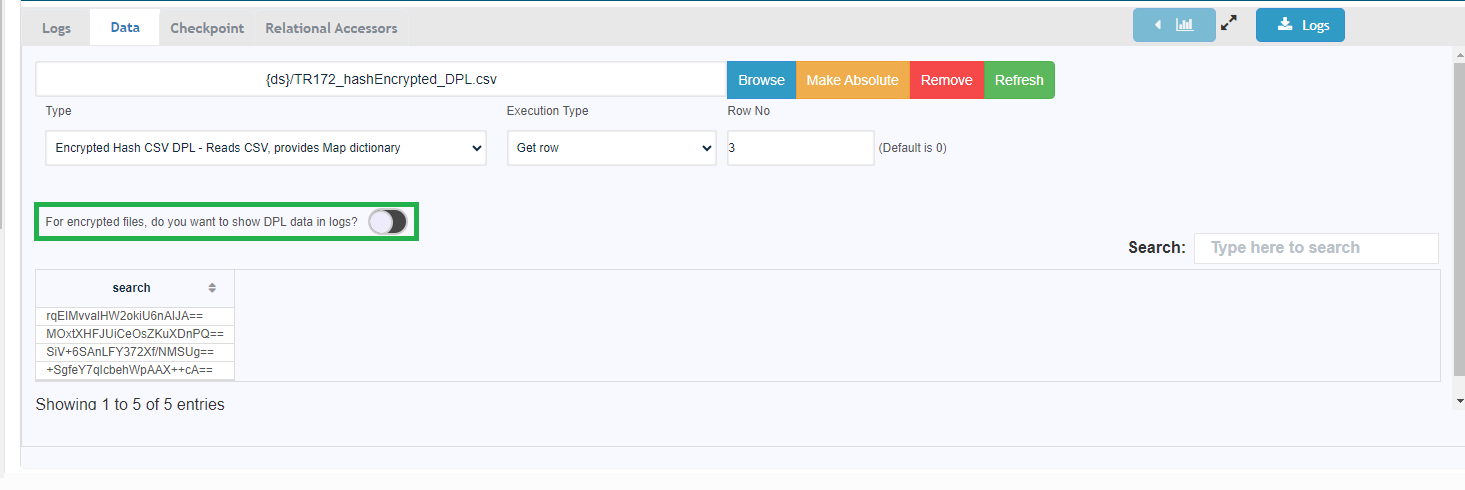
Encrypted DPL in Web Designer Logs
Added the option to see encrypted DPL data in Web Designer logs. This option was previously only available in Web Designer (Classic).
The option is available on the Data tab of the Web Designer interface.
Conditional Wait in Mobile Designer / Desktop Designer
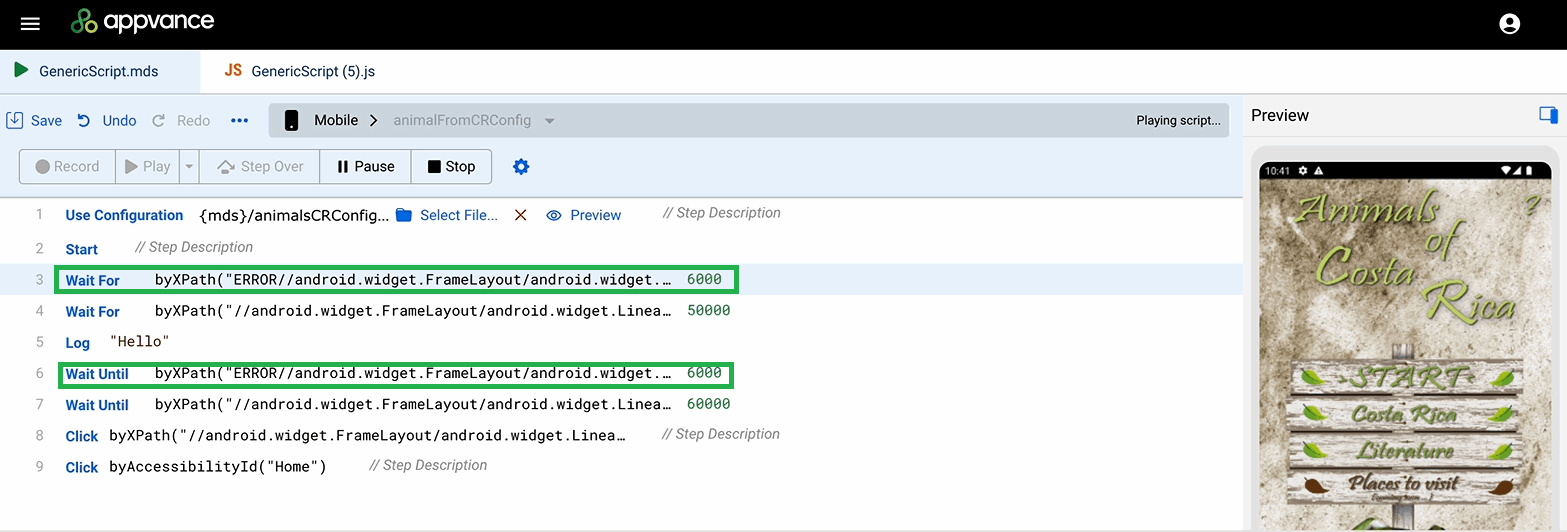
New conditional wait commands have been added to the Mobile Designer, and Desktop Designer Mobile JS Edit and Play in the 5.2.3 release of AIQ. These commands require both a time duration and a condition or accessor. The generic wait command only requires a time duration.
The new conditional wait commands are waitUntil and waitFor.
waitFor and waitUntil are similar; the difference is that waitUntil uses the default functionality to scroll down until the end of the current page to find an element, while waitFor will not scroll down at all.
Wait times are specified in milliseconds. So, for example 5000 is 5 seconds. AIQ will wait up until the specified time for true. If the condition becomes true or the accessor is located before the maximum time duration AIQ will continue. If the maximum time duration is reached without the condition becoming true or locating the accessor, AIQ will stop waiting and continue.
New Actions for Interacting with Roku Devices
The following actions have been added to the Desktop Designer to interact with Roku devices.
Set Roku IP
This option is used to configure the IP of the Roku device where the tests are going to run. Use the getRokuDevices action and you can select from the available the IPs available in a dropdown.
Launch Roku App
This option is used to launch any app already installed in the Roku device by using its unique ID. This action will display a popup where you can type the ID of the app that you want to launch.
Press Roku Key
This action is used to send remote control keys to the Roku device. This action will display a control showing the available keys. Each button should send its respective key ID.
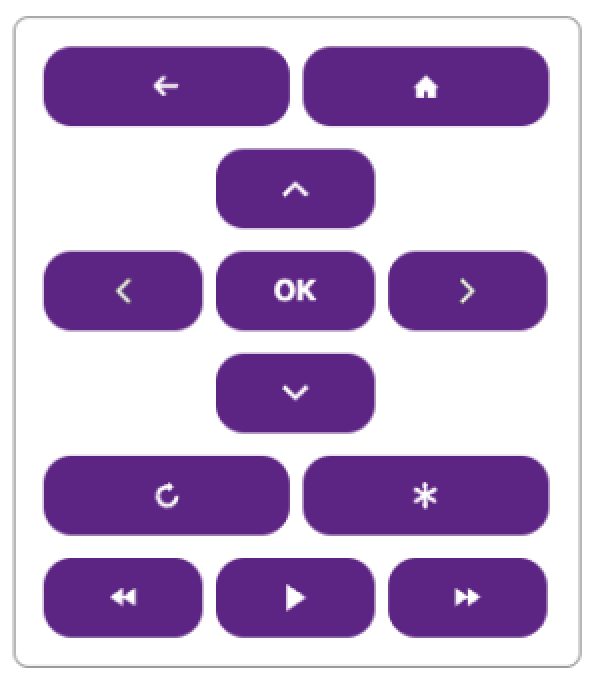
The following keys are supported:
Validation
checklistSee
Fixes
page Seelocation are correct.
Last updated: DecemberOctober 20,8, 2024
If you have any feedback on this topic, please contact us at documentation@appvance.ai2026