
Desktop Designer User Interface Overview - Legacy Reference
To access the new Desktop Designer, from AIQ navigate to Home > Desktop Testing >
Desktop Designer.
User 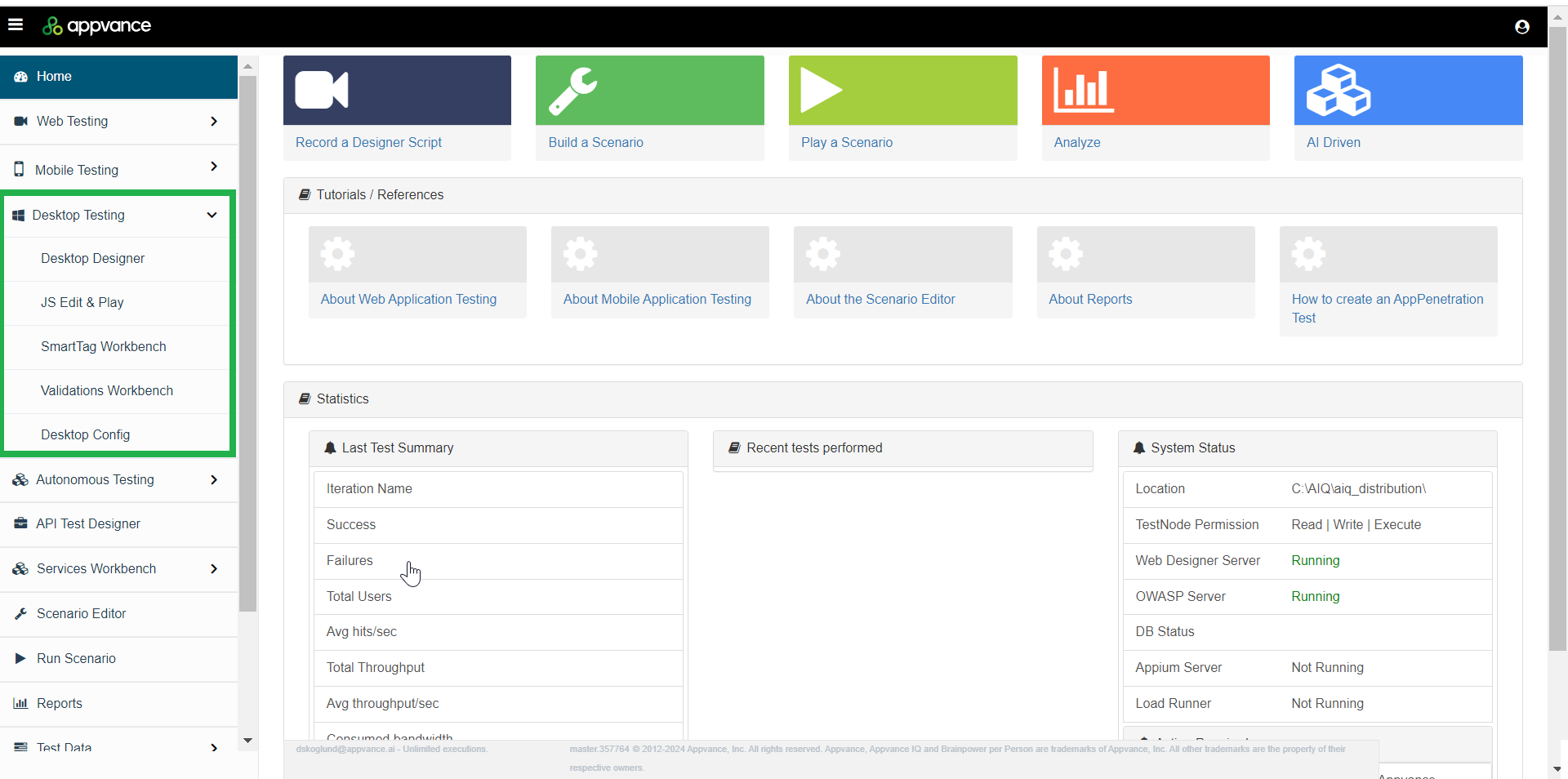
This overview is preserved for users who maintain existing Desktop Designer assets. Current AIQ documentation should use current product terminology and avoid treating Desktop Designer as the default authoring experience.
How to use this page
- Use it to identify legacy Desktop Designer controls when troubleshooting an
exampleolder desktop test. - Do not use it as the source of truth for current Scenario Editor or Service Suite workflows.
- Confirm whether a legacy action has a current AIQ equivalent before updating related documentation.
- Capture screenshots only when they reflect the currently supported version of the
newUI.
Review guidance
- Check whether the linked desktop test still exists and is still needed.
- Update outdated control names only when they are visible in the current environment.
- Flag screenshots or UI labels that no longer match the product.
- Move reusable guidance into the current AIQ workflow when possible.
Legacy note: This page should remain clearly labeled as legacy until the older Desktop Designer interface.content is consolidated or retired.
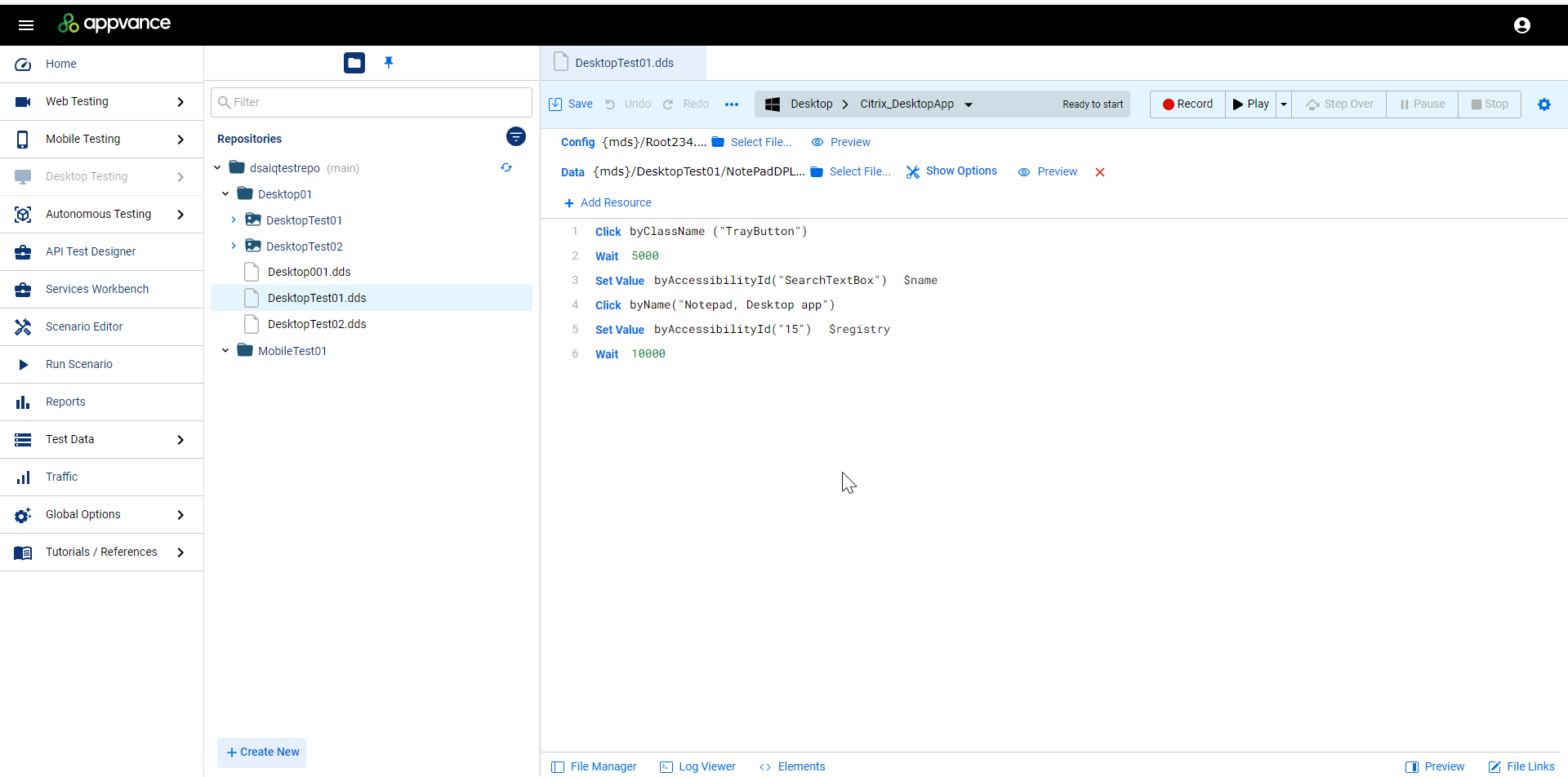
Overview of Desktop Designer Controls and Icons
The following table provides an introduction of the various controls and icons in the new Desktop Designer interface. The various elements are controls are detailed in the following pages of this document.
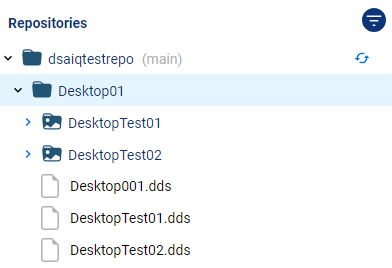
Repository pane. Displays the contents of your repository. You can sort and filter using various controls.

Repository / Quick Access toggle. Switches the File Manager pane between the repository and quick access views.

Filter. Allows you to filter the items displayed in the File Manager.

Sort by Name / Sort by Type. Sorts the contents of the File Manager pane by name or by type.

Refresh Repository. Refreshes the display of the File Manager pane.

Editing controls menu.
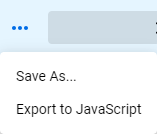
Additional save and export options menu.

File Manager toggle. Shows/hides the File Manager pane.

Log Viewer toggle. Shows/hides the logs.

Browser selection control. See Selecting the Browser for more information.

Test controls:

Opens the Test Options menu. See Desktop Designer Test Optionsfor more information.

Select Configuration controls. You must have a valid desktop configuration file selected before you can begin a desktop test. See Desktop Designer Configuration for more information.

Select data controls. You can attach test data to your desktop test.
Last updated: SeptemberOctober 25,8, 20242026
If you have any feedback on this topic, please contact us at documentation@appvance.ai