
Bulk Scenario
What if there are 100's or 1000's test designer or HAR scripts and we need to browse each of them in Scenario Editor to run them as Functional or performance Tests, which is of course a tedious task to do, to browse all those 100 or 1000's of scripts individually.
The answer for the above limits would be Bulk Scenario where you could browse the entire directory at once and you could execute all those 100's or 1000s of scripts either in sequence or in parallel without having to browse each of those scripts individually.
Bulk Scenario is a scenario type in Scenario Editor that lets you browse the root directory and a directory inside the root directory where the scripts are located.
Bulk Scenario supports executing the following script types:
-
Designer Scripts
-
Java Scripts
-
HAR
-
Jmeter
A separate script type called Bulk Test Designer and Bulk HAR is added to support browsing the directory.
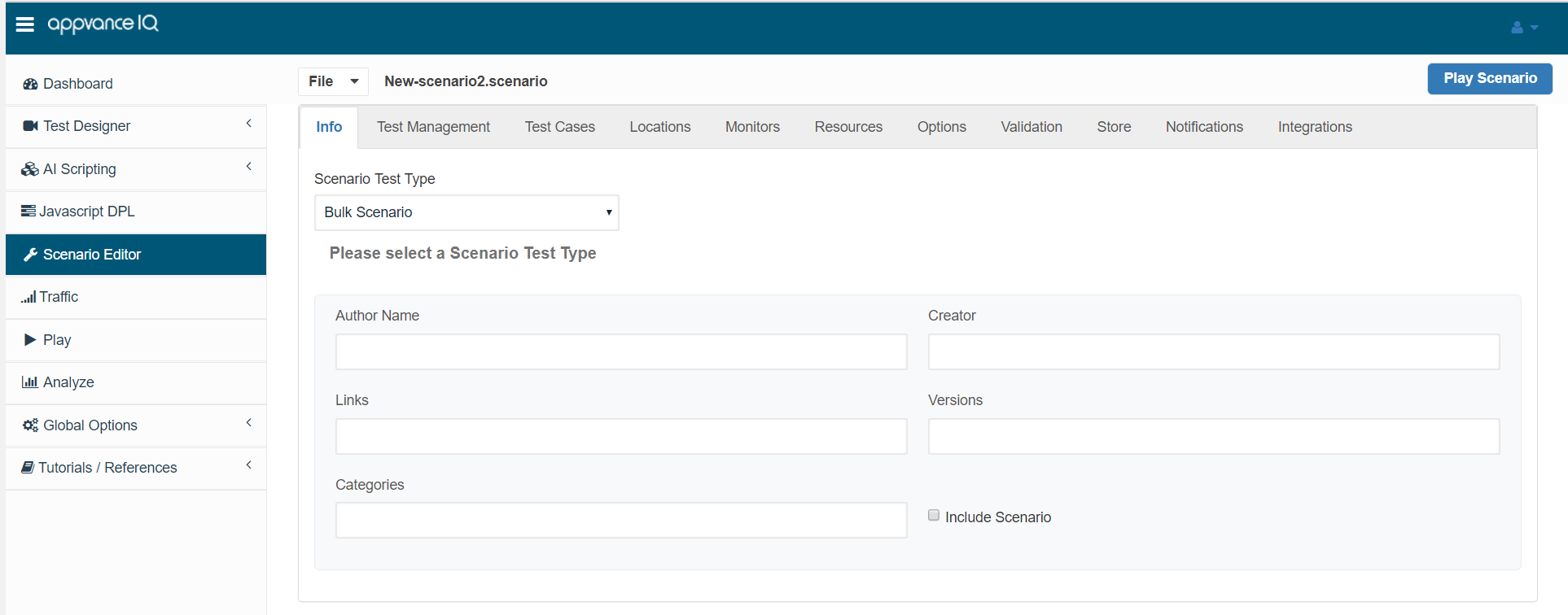
It is important to choose the Root folder under the Test Management tab
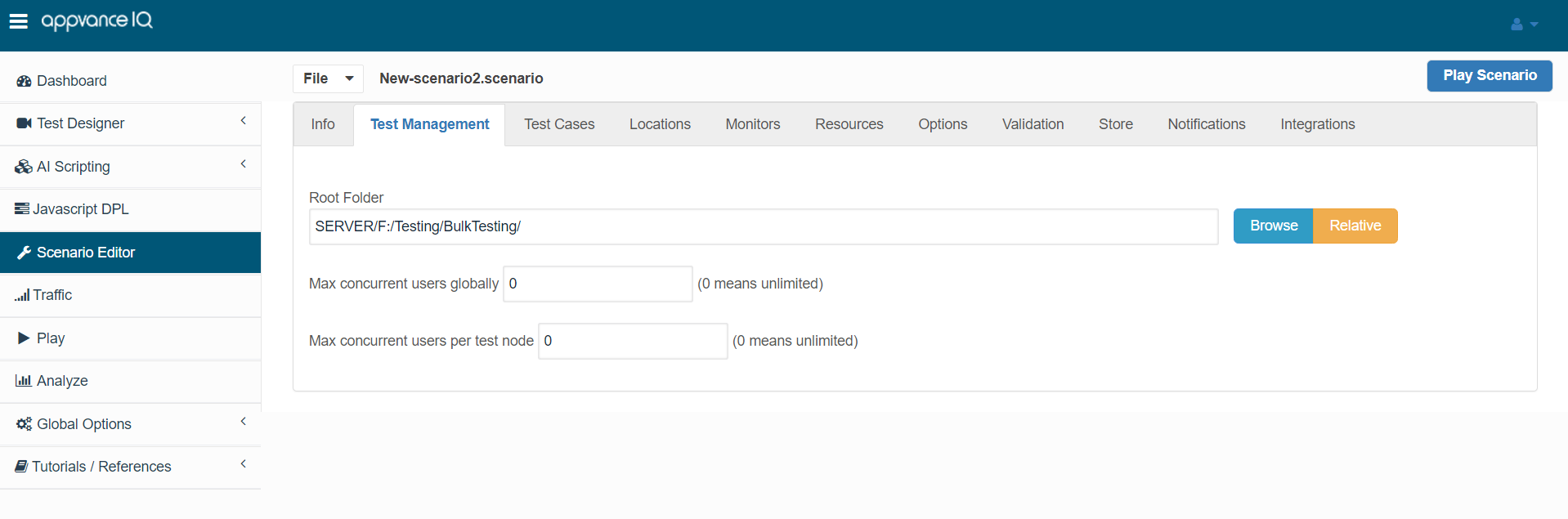
So why do you have to choose the Root folder for the Bulk Scenario?
Bulk Scenario would be executing the scripts which are based on the root folder, All the .ds, .csv or any supporting files are relative to this root folder, not to the scenario file.
Another reason is to have control, all the scripts and supporting files should be under the root folder so the bulk scenario has much more control concerning the directories that you choose.
The next step is choosing Bulk Test Designer or the Bulk HAR as the script type under Script Type and choosing the directory with all the scripts.
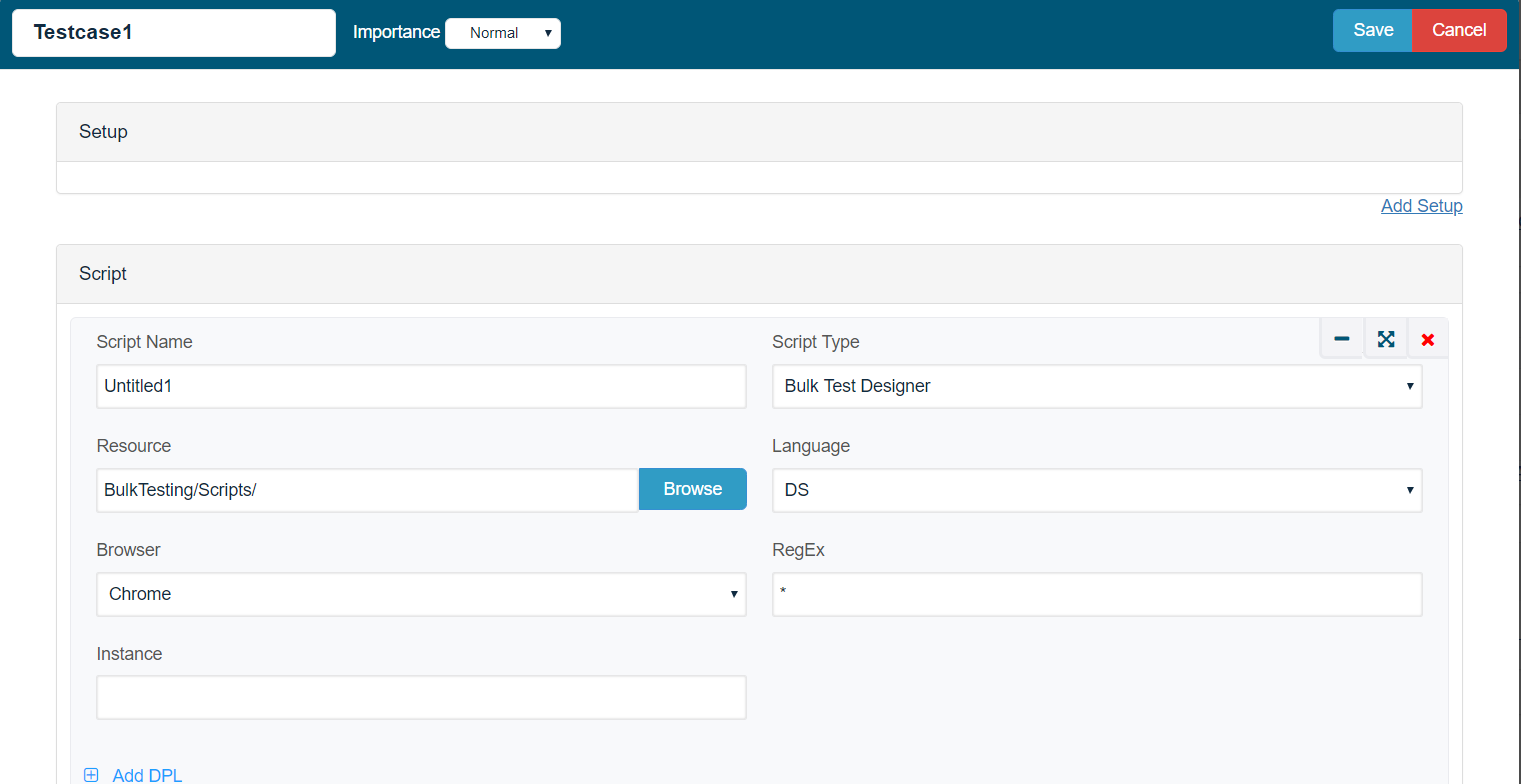
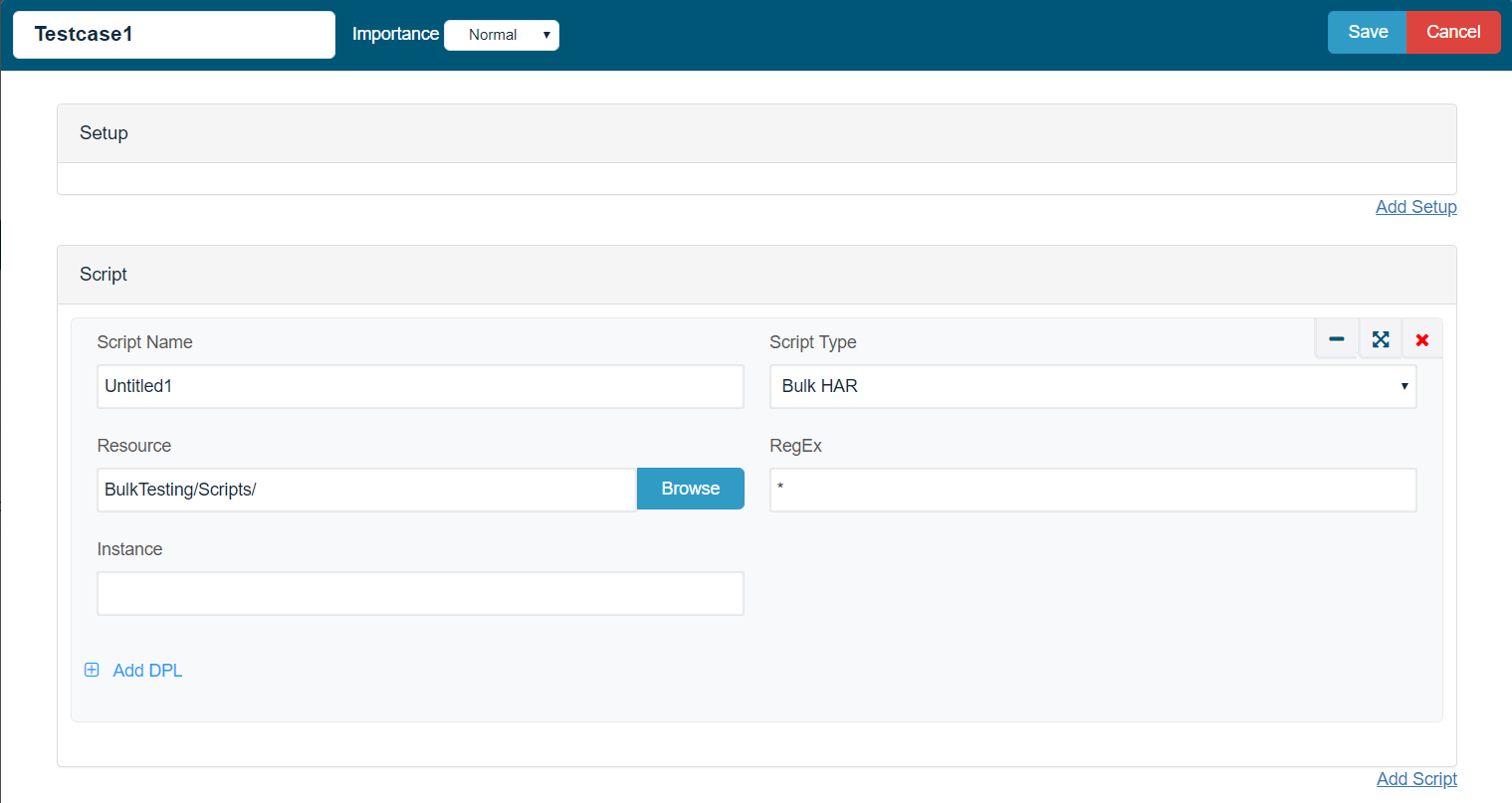
Save the Test case and save the scenario and play. This will execute all the files in the selected folder. It's that simple!
Some common questions you might get:
What if there are 100 scripts in the folder and there is a combination of .ds and .js, how do I execute only .ds or .js scripts?
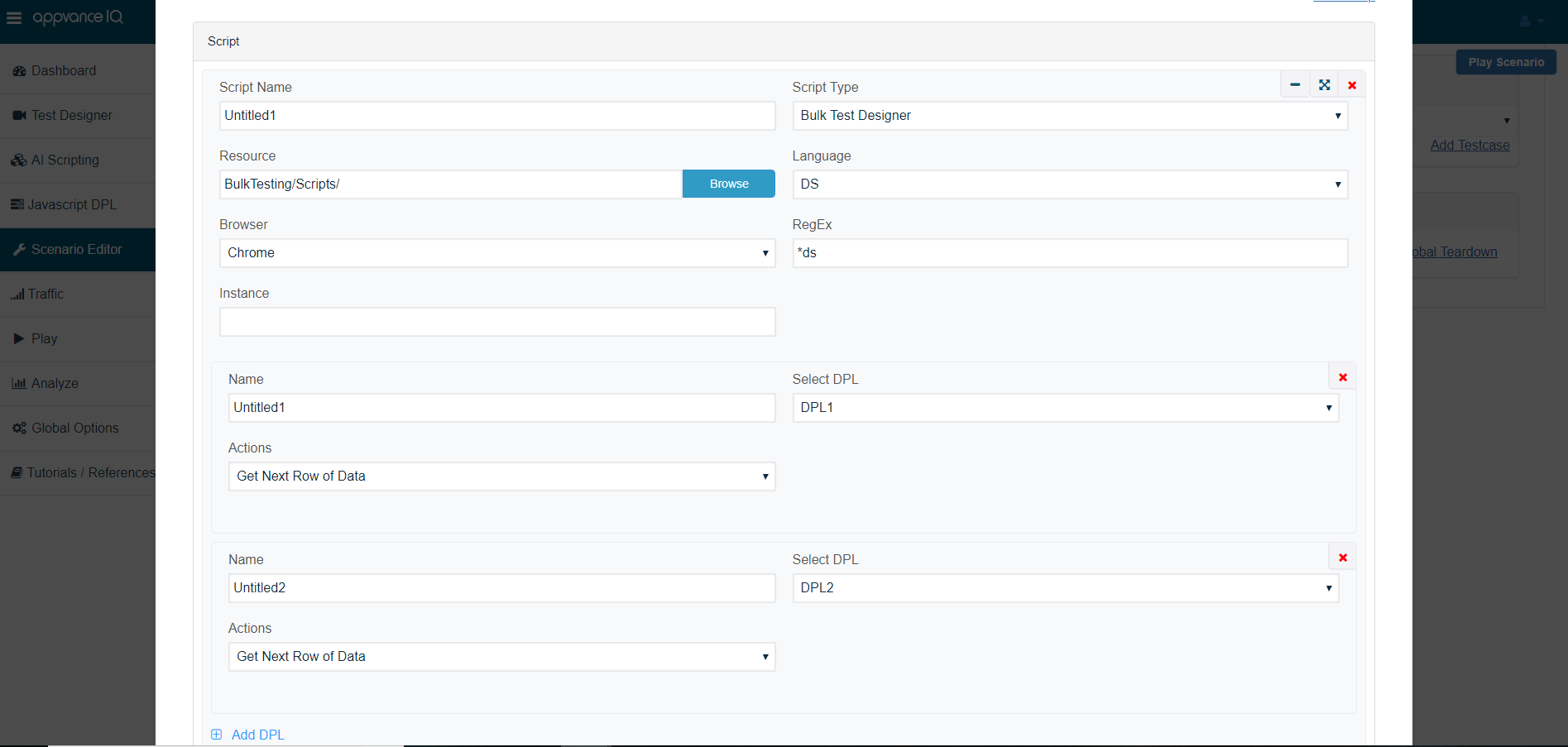
If you had noticed in the test case, After selecting Bulk Test Designer, you could choose the language, And also there is a field called RegEx where you could provide a regular expression matching either ds or js.
Example:
*.ds will match all the designer scripts.
*.js will match all the JS scripts.
What if there are different nested folders inside the chosen folder?
The bulk scenario will execute all the scripts inside those nested folders as well.
What if the script is data-driven and all those supporting files (.CSV) are in the same folder as the designer scripts?
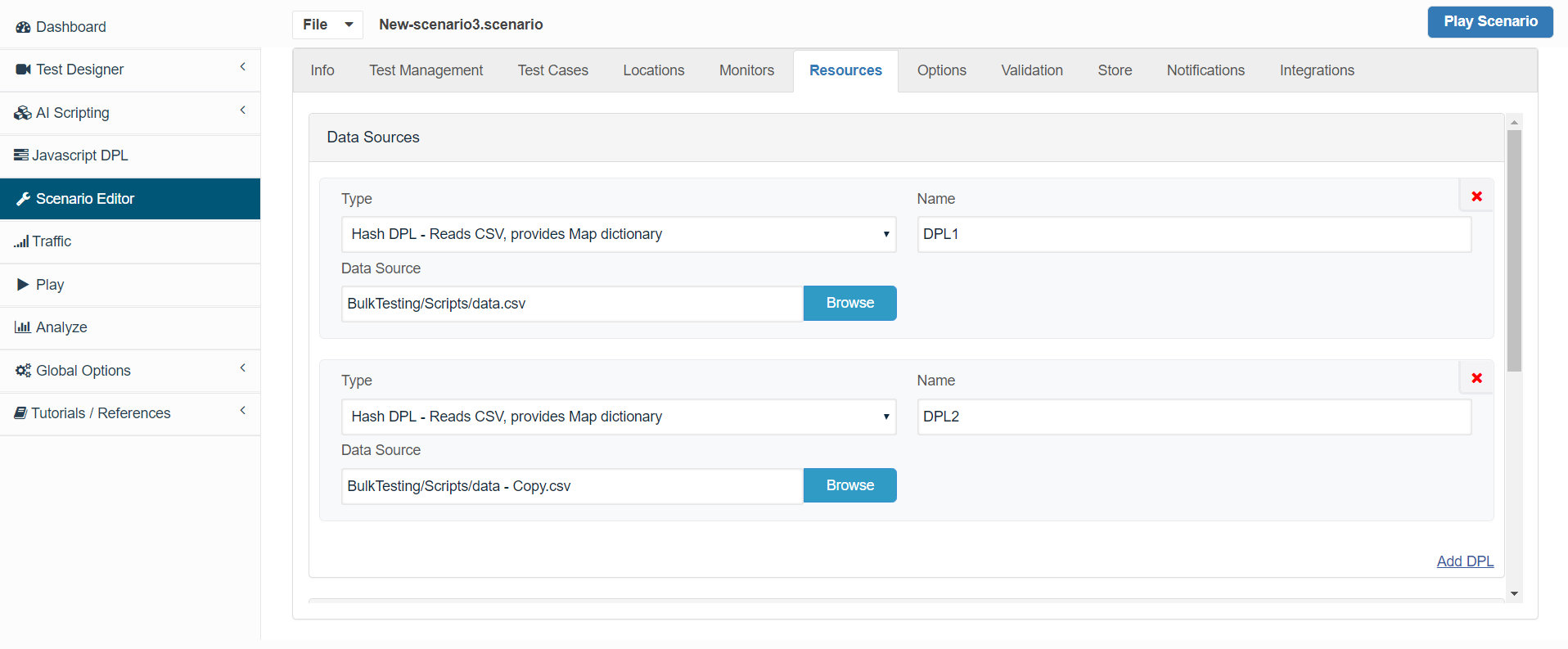
Data-driven scripts work the same way as working with the normal Test designer script types. Just to go Resources tab and create the required DPL (Even if there are several DPLs to be created), after defining the DPLs, you could come back to the test cases panel and mention those DPLs below the test cases.
My scripts use include files and those included files are in the same folder as the main script? How do I make sure the Bulk scenario executes only the main scripts and does not repeat to execute the same included scripts?
Make sure to make use of Regular expression matching to execute only the main scripts like main*.ds - This way it will exclude executing all the scripts matching the regular expressions and ignore the ones that do not match.