
Changing your IP in the security group with aws cli.
First of all take install aws cli from this link:
https://docs.aws.amazon.com/cli/latest/userguide/getting-started-install.html
Secondly, open the terminal and setup the default profile:
aws configureinsert AWS access Key ID:
insert AWS Secret Access Key:
Default region name:
Default output format: type <json>
After having to make the profile in config and credentials.
Instructions are here:
https://docs.aws.amazon.com/cli/latest/userguide/cli-configure-profiles.html
Download the script from the repository:
https://gitlab.appvance.net/Appvance/devops/patch-rules-on-aws
https://gitlab.appvance.net/Appvance/devops/patch-rules-on-aws/-/blob/master/patch_my_ruls.sh - for Unix machine.
https://gitlab.appvance.net/Appvance/devops/patch-rules-on-aws/-/blob/master/patch_my_ruls.ps1 - for Windows machine.
Go to the AWS console where your EC2 instance:
Open preferred security group:
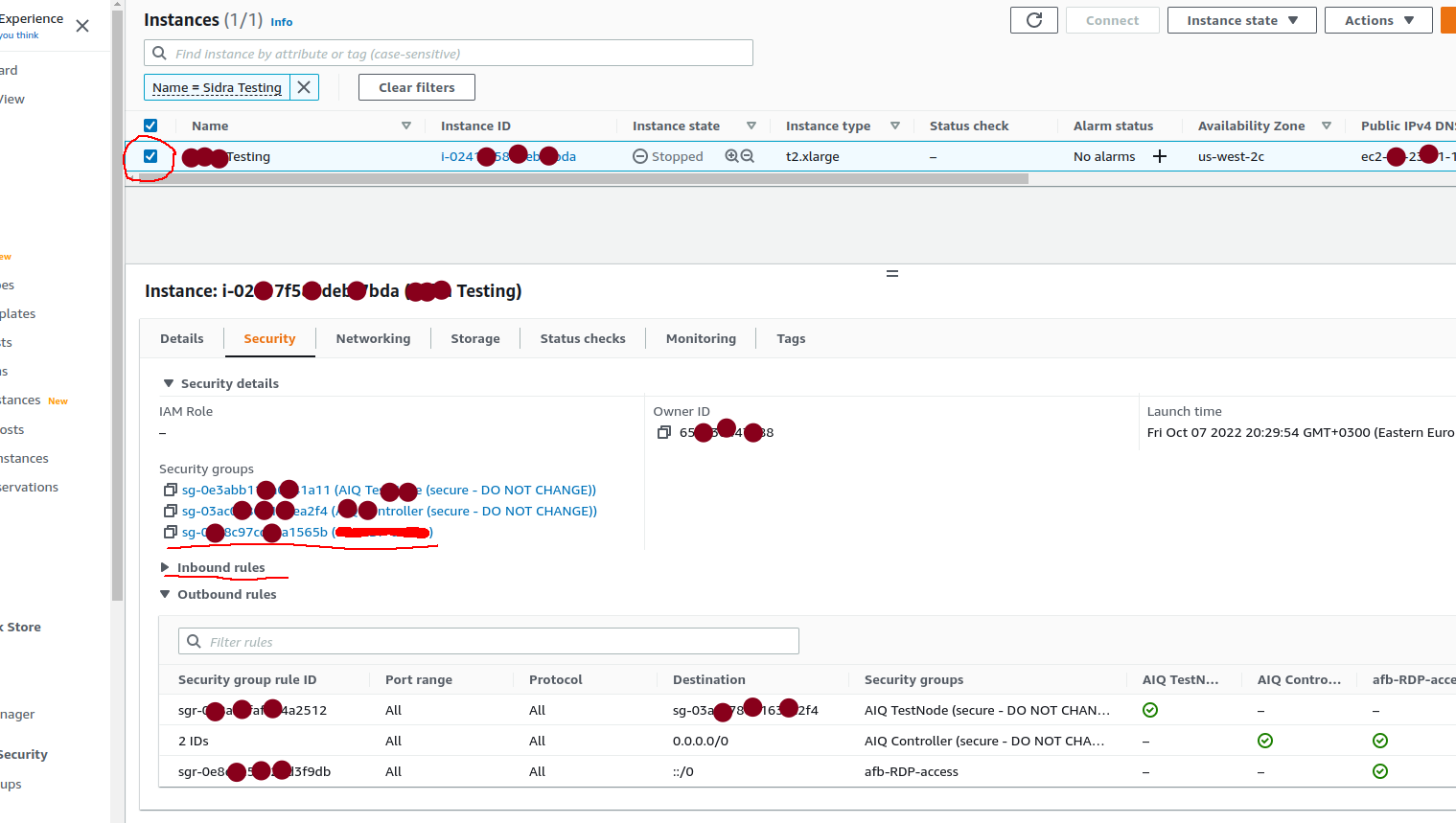
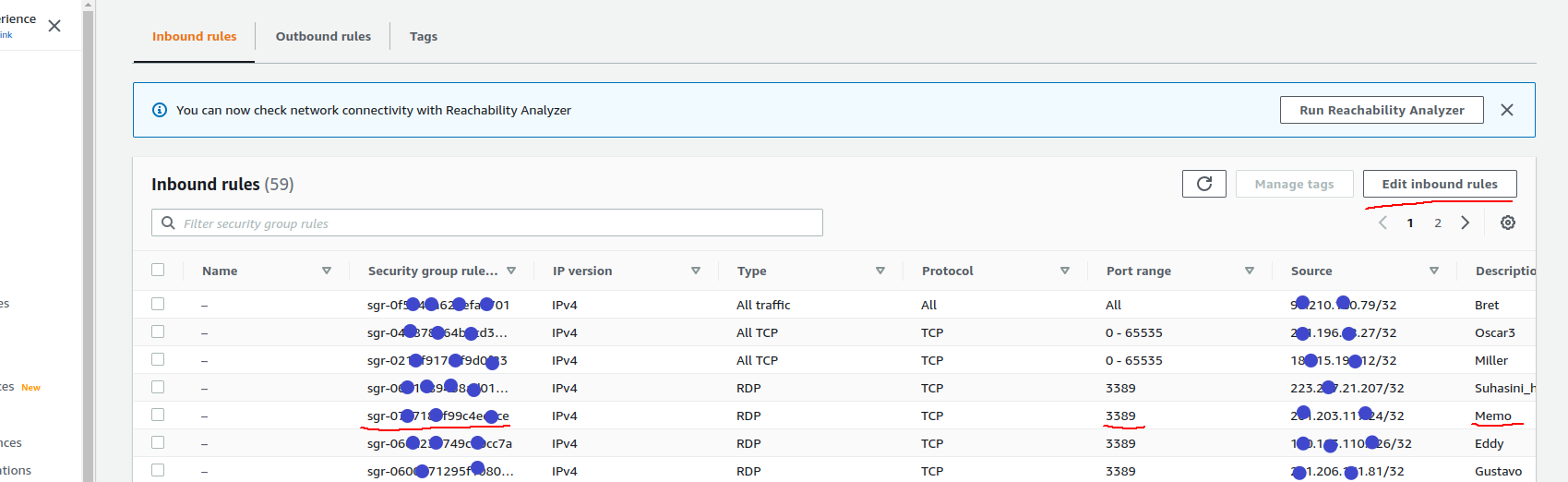
Check marked values:
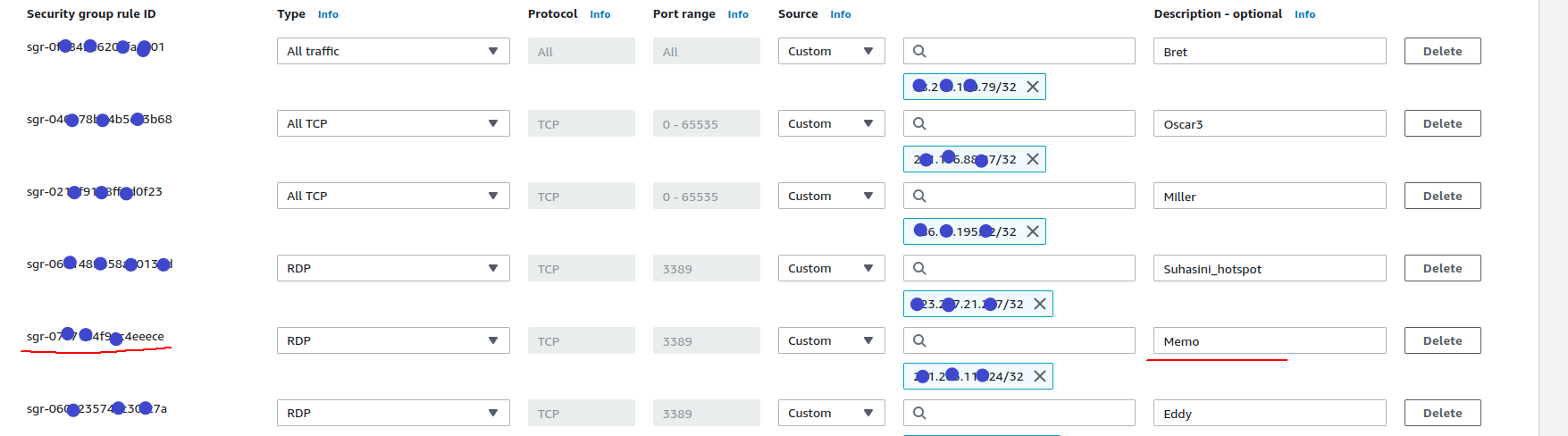
Open the file under your OS in your favorite redactor and change the value:
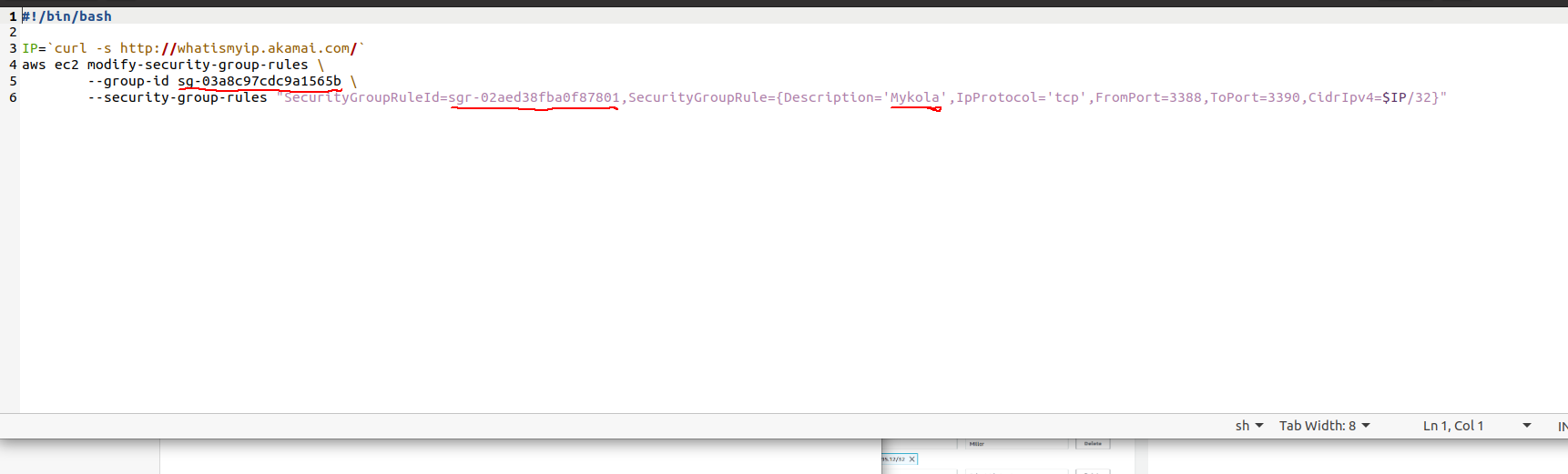
From now, when the IP is changed, and breaks ties with EC2 instance. Launch script it changes IP fast.
https://gitlab.appvance.net/Appvance/devops/patch-rules-on-aws/-/blob/master/patch_my_ruls.sh - for Unix.
https://gitlab.appvance.net/Appvance/devops/patch-rules-on-aws/-/blob/master/patch_my_ruls.ps1 - for Windows.
Last updated: October 16, 2026
If you have any feedback on this topic, please contact us at documentation@appvance.ai